• Trang chủ
  • Makeup resort Cam Lâm
  • Chụp Ảnh Resort Cam Lâm
  • Dịch vụ makeup Cam Ranh
  • Cẩm Nang & Kinh Nghiệm
  • Dịch Vụ Nhiếp Ảnh Cam Ranh
  • CHÍNH SÁCH QUYỀN RIÊNG TƯ – AutoPost Chu Hong
NHIẾP ẢNH CAM RANH
Author

nhiepanhcamranh

nhiepanhcamranh

Chụp Ảnh Resort Cam Lâm

Bảng Giá Dịch Vụ Chụp Ảnh Chân Dung Nghệ Thuật Màu Film Tại Resort Cam Ranh

by nhiepanhcamranh 06/06/2026
written by nhiepanhcamranh

Chào những tâm hồn yêu nghệ thuật và sự hoài niệm,

Thanh xuân của mỗi người giống như một chuyến đi, và những bức ảnh chính là cách tuyệt vời nhất để chúng ta đóng băng những khoảnh khắc đẹp đẽ đó. Nếu bạn đang có kế hoạch cho một chuyến nghỉ dưỡng tại dải biển thiên đường Cam Ranh, Cam Lâm và muốn lưu giữ lại phiên bản rạng rỡ, tự do nhất của bản thân, Tiệm Ảnh Chú Hồng luôn sẵn sàng đồng hành cùng bạn.

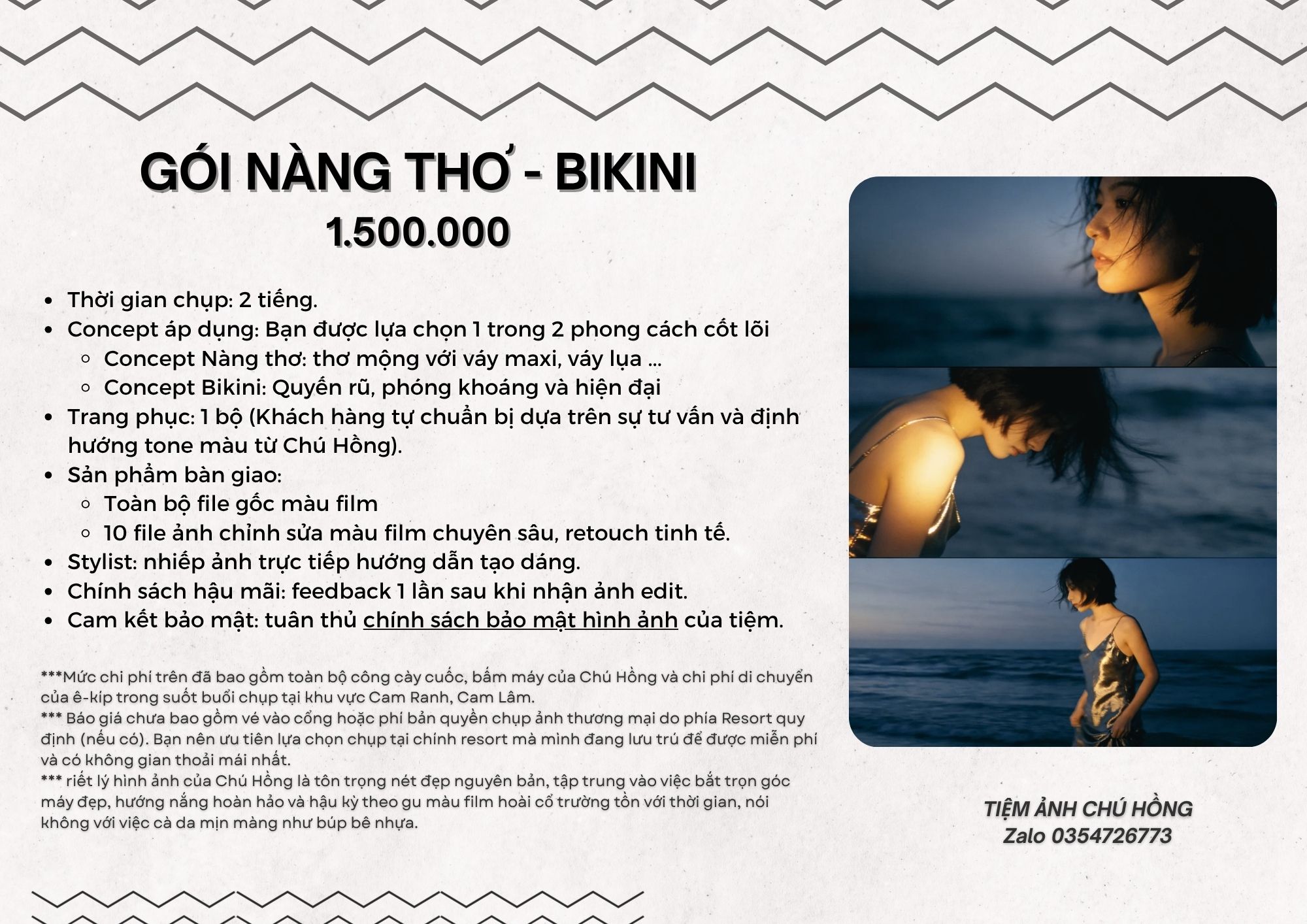
Để thuận tiện cho việc lên kế hoạch và lựa chọn phong cách phù hợp, Chú Hồng xin gửi đến bạn bảng báo giá chi tiết cho dịch vụ chụp ảnh chân dung nghệ thuật (Concept Nàng thơ và Bikini) được thực hiện hoàn toàn bằng hệ máy màu film Fujifilm độc bản tại các resort:

Gói Nàng Thơ / Bikini (Trải nghiệm 1 Concept)

  • Chi phí dịch vụ: 1.500.000 đ
  • Thời gian thực hiện: Từ 1.5 đến 2 tiếng.
  • Concept áp dụng: Bạn được lựa chọn 1 trong 2 phong cách cốt lõi:
    • Concept Nàng thơ: Thơ mộng, trong trẻo với váy maxi, váy lụa nhẹ nhàng bên bãi biển cát trắng hoặc rặng dừa resort.
    • Concept Bikini: Quyến rũ, phóng khoáng và hiện đại tại không gian hồ bơi vô cực hướng biển của villa.
  • Trang phục: 1 bộ (Khách hàng tự chuẩn bị dựa trên sự tư vấn và định hướng tone màu từ Chú Hồng).
  • Sản phẩm bàn giao: Nhận lại toàn bộ file ảnh gốc chất lượng cao ngay sau buổi chụp và 10 file ảnh chỉnh sửa màu film Fujifilm chuyên sâu, retouch tinh tế giữ trọn vẹn texture da thật tự nhiên.

Gói Premium Portrait (Trọn vẹn cả 2 Concept)

  • Chi phí dịch vụ: 2.500.000 đ
  • Thời gian thực hiện: Từ 3 đến 3.5 tiếng (Trọn vẹn một buổi dạo chơi).
  • Concept áp dụng: Kết hợp cả 2 phong cách Nàng thơ và Bikini. Chú Hồng sẽ điều phối lịch trình để bạn vừa có những thước phim trong trẻo lúc nắng nhẹ đón bình minh, vừa có những khung hình quyến rũ, thời thượng vào khung giờ vàng hoàng hôn buông xuống.
  • Trang phục: Từ 2 đến 3 bộ trang phục phù hợp với từng bối cảnh khác nhau trong resort.
  • Sản phẩm bàn giao: Nhận lại toàn bộ file ảnh gốc chất lượng cao ngay sau buổi chụp và 20 file ảnh chỉnh sửa màu film Fujifilm, hậu kỳ tỉ mỉ từng đường nét và cấu trúc xương khuôn mặt mà vẫn giữ được nét chân thật nhất.
Một số lưu ý nhỏ gửi đến bạn

Để buổi chụp diễn ra trọn vẹn và thoải mái nhất, bạn lưu ý giúp Chú Hồng một vài điều sau nhé:

  • Mức chi phí trên đã bao gồm toàn bộ công cày cuốc, bấm máy của Chú Hồng và chi phí di chuyển của ê-kíp trong suốt buổi chụp tại khu vực Cam Ranh, Cam Lâm.
  • Báo giá chưa bao gồm vé vào cổng hoặc phí bản quyền chụp ảnh thương mại do phía Resort quy định (nếu có). Bạn nên ưu tiên lựa chọn chụp tại chính resort mà mình đang lưu trú để được miễn phí và có không gian thoải mái nhất.
  • Triết lý hình ảnh của Chú Hồng là tôn trọng nét đẹp nguyên bản, tập trung vào việc bắt trọn góc máy đẹp, hướng nắng hoàn hảo và hậu kỳ theo gu màu film hoài cổ trường tồn với thời gian, nói không với việc cà da mịn màng như búp bê nhựa.
Thanh xuân ngắn ngủi, đừng ngại ngần lưu lại những phút giây rực rỡ nhất của chính mình giữa biển trời Cam Ranh. Các bạn cần tư vấn kỹ hơn về cách chọn trang phục hay giữ lịch máy đẹp, cứ nhắn cho Chú nhé!

TIỆM ẢNH CHÚ HỒNG – CHÂN DUNG & PHÓNG SỰ CƯỚI MÀU FILM CAM RANH

  • Hotline/Zalo đặt lịch nhanh: 0354726773 (Chú Pink) (Bấm vào số để tự động nhảy sang chat Zalo)
  • Fanpage chính thức: facebook.com/tiemanhchuhong.camranh
  • Địa chỉ studio: Đại Lộ Hùng Vương, Cam Phúc Bắc, Bắc Cam Ranh, TP. Cam Ranh, Khánh Hòa.
06/06/2026 0 comments
0 FacebookTwitterPinterestEmail
Chụp Ảnh Resort Cam Lâm

Thước Phim Thanh Xuân: Bản Tình Ca “Nàng Thơ” Màu Film Fujifilm Giữa Biển Trời Resort Cam Ranh

by nhiepanhcamranh 06/06/2026
written by nhiepanhcamranh

Có những ngày áp lực guồng quay công việc làm bạn mỏi mệt, bạn chỉ muốn xách vali lên, trốn đến một resort biệt lập tại Cam Ranh. Ở đó, không có tiếng còi xe xô bồ, chỉ có tiếng sóng vỗ rì rào, bờ cát trắng mịn trải dài và ánh nắng vàng như rót mật. Đó cũng là lúc phiên bản dịu dàng, trong trẻo nhất của bạn được đánh thức. Đừng chỉ để những khoảnh khắc bình yên đó trôi qua trong ký ức. Hãy để Tiệm Ảnh Chú Hồng giúp bạn đóng băng thời gian bằng một bộ ảnh chân dung concept “Nàng thơ ngoài biển” đầy chất thơ, được bắt trọn bằng nước ảnh màu film Fujifilm đầy hoài niệm.

Khi nét đẹp tự nhiên hòa cùng bản tình ca của biển cả

Không cần những bộ cánh quá lộng lẫy hay layout trang điểm cầu kỳ, cái đẹp của một “nàng thơ” nằm ở sự tự nhiên và mộc mạc nhất. Không gian biệt lập, sang trọng của các resort tại Cam Lâm, Cam Ranh chính là phông nền hoàn hảo để bạn được tự do là chính mình.

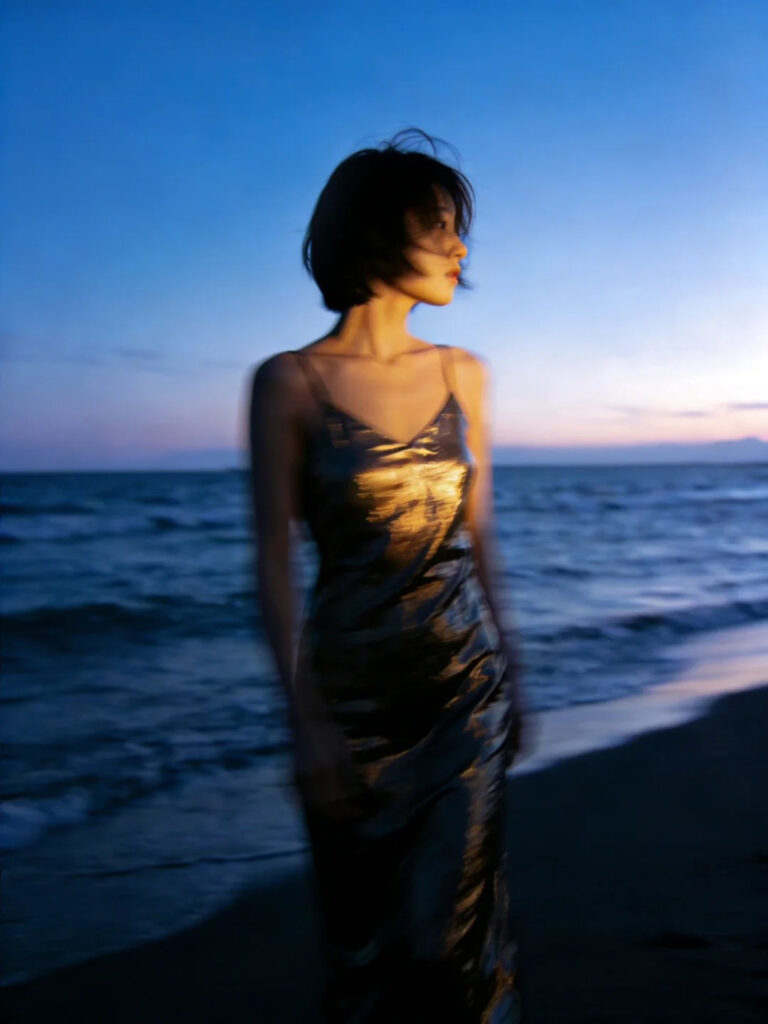
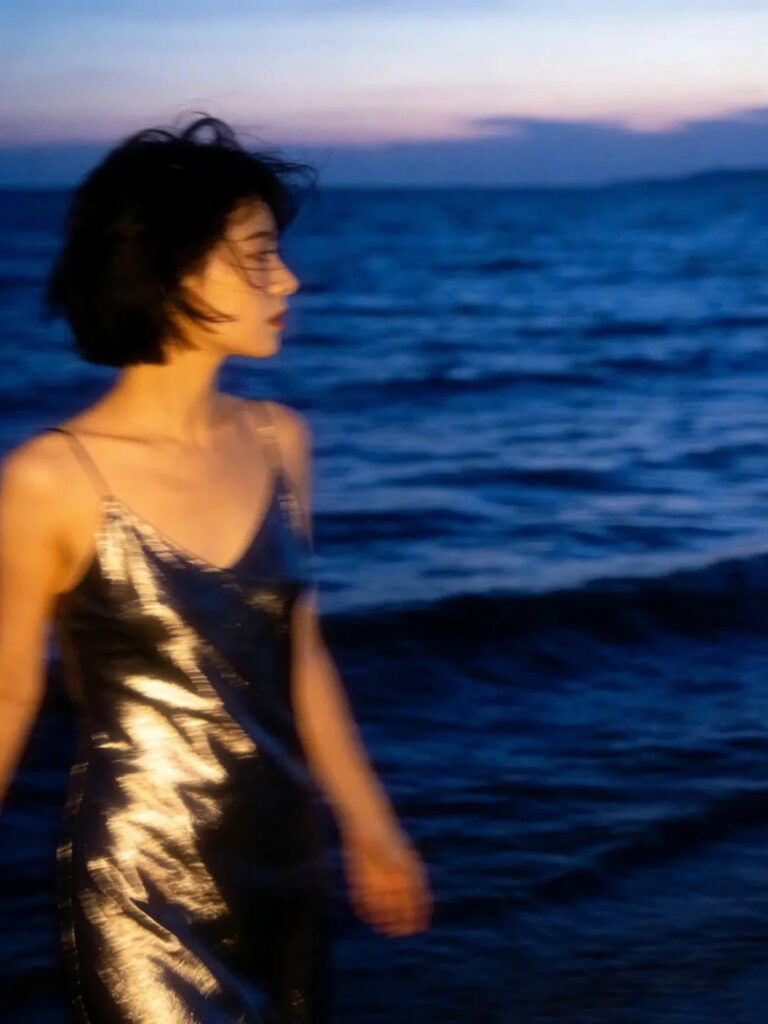
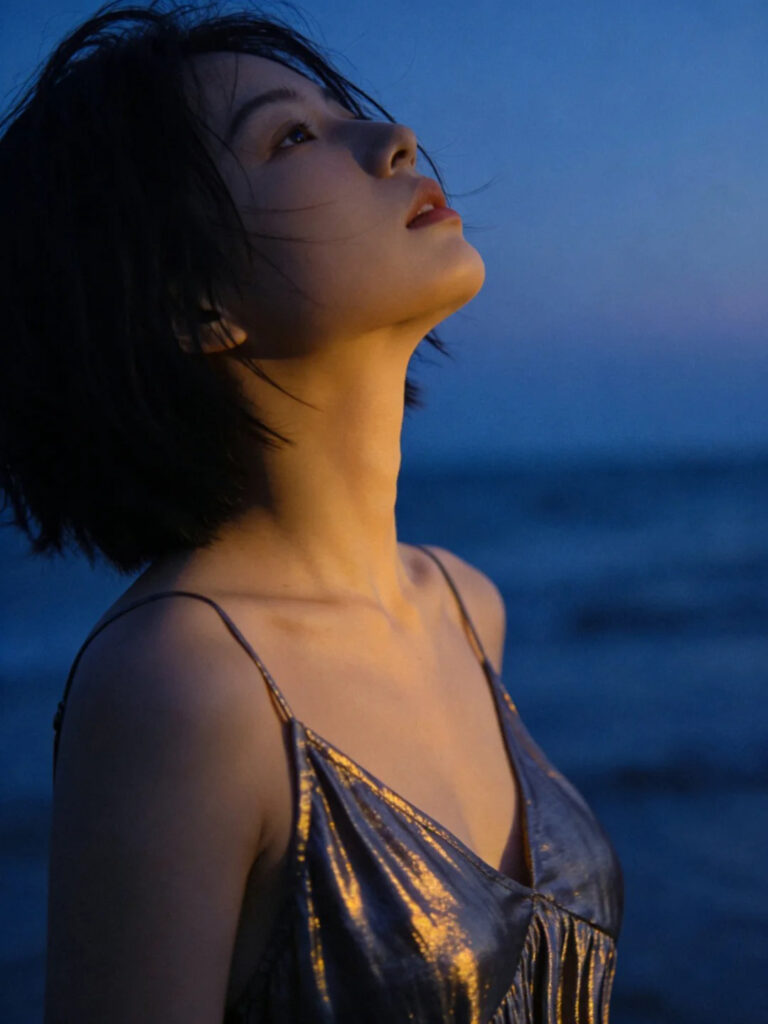
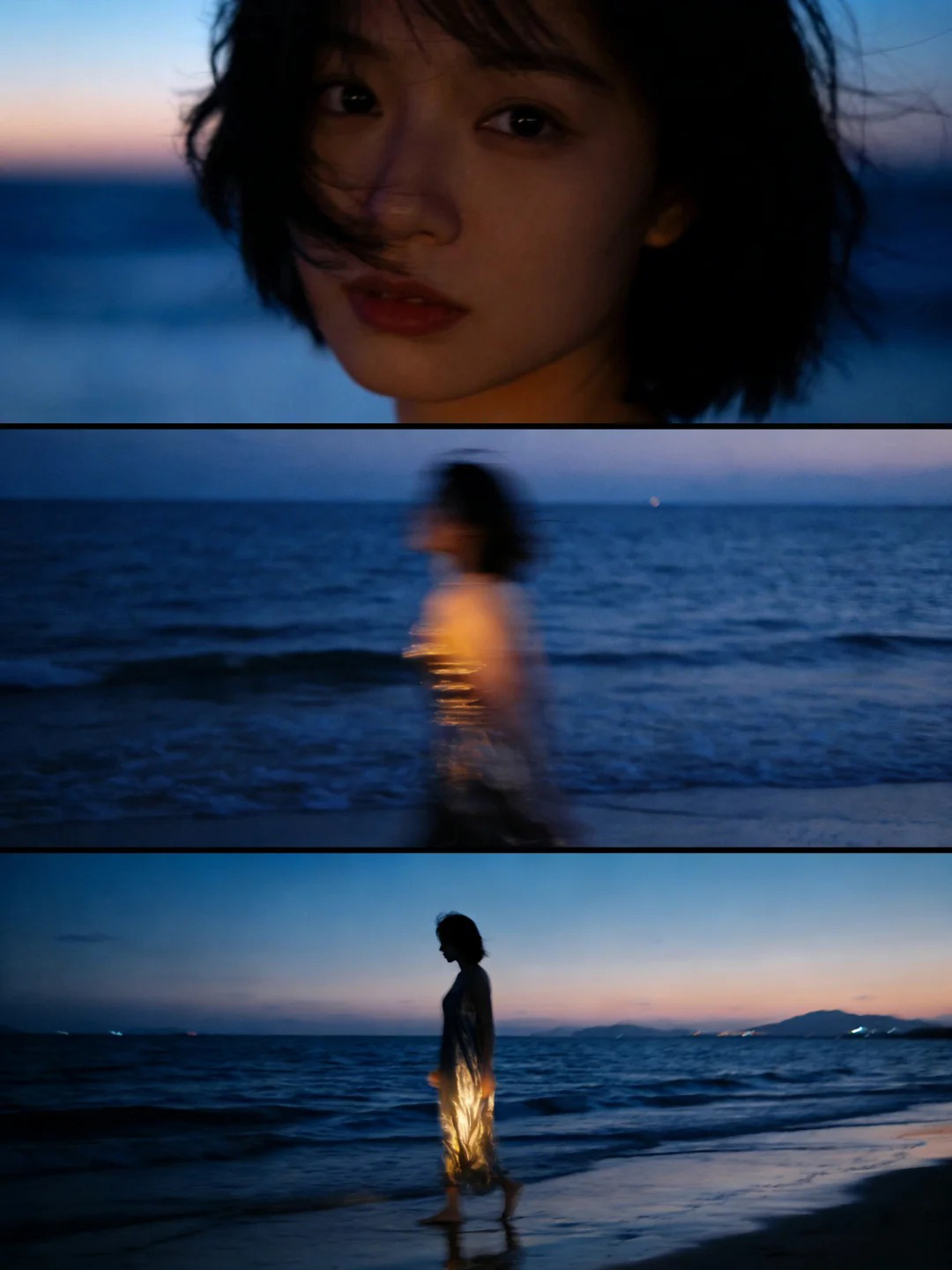
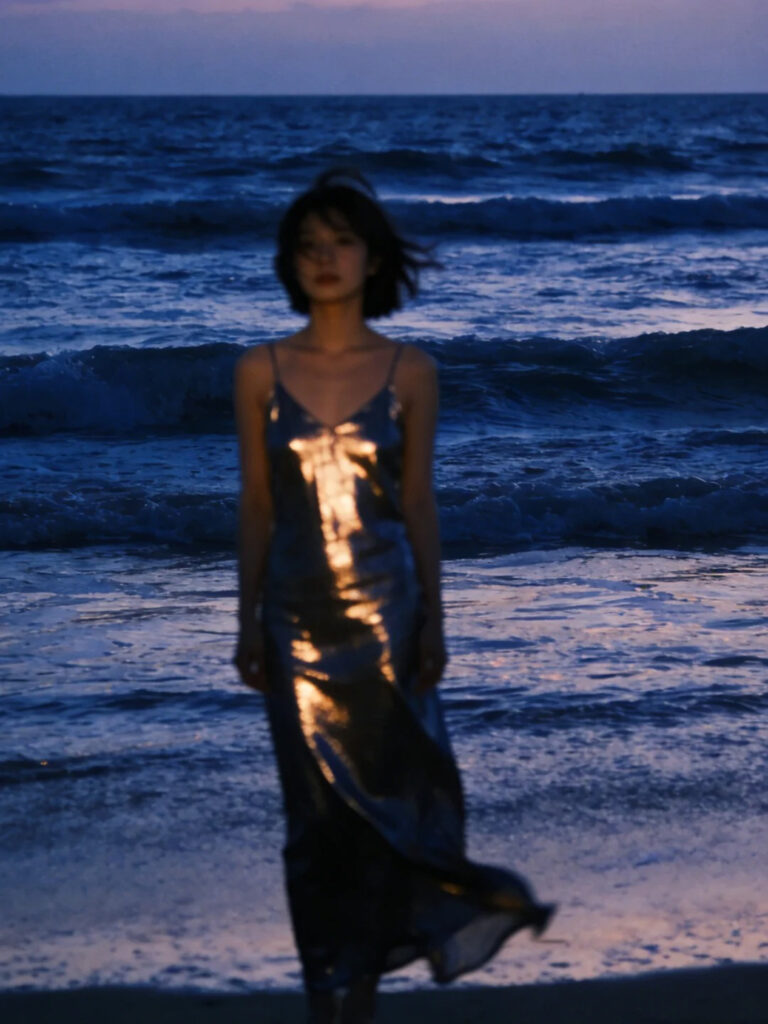
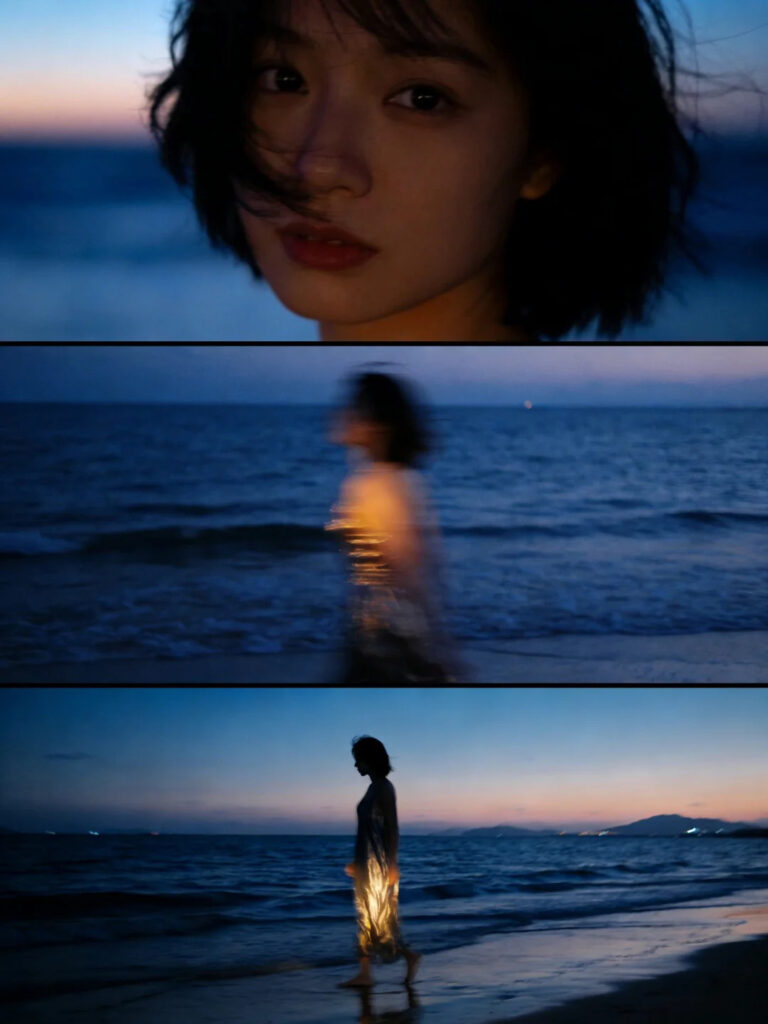
Dưới ống kính đầy tinh tế của Chú Hồng, bạn không cần phải gồng mình tạo dáng như người mẫu chuyên nghiệp. Bộ ảnh ghi lại khoảnh khắc một cô gái mặc chiếc váy maxi trắng thướt tha, thả chân trần dạo bước trên bãi cát mịn màng vào buổi sớm mai. Là ánh mắt khẽ nhắm, gương mặt ngẩng lên đón trọn những giọt nắng giòn tan của vùng biển Khánh Hòa. Hay đôi khi là những phút ngẫu hứng tựa lưng vào rặng dừa resort, mái tóc rối nhẹ bay trong gió biển mang một nét suy tư đầy cuốn hút. Mọi góc máy phóng sự đều được thực hiện một cách âm thầm, bắt trọn từng cái chớp mắt, nụ cười e ấp của bạn một cách chân thật nhất.

Ngôn ngữ hình ảnh từ sắc màu hoài cổ Fujifilm

Để làm nên sự khác biệt cho bộ ảnh nàng thơ tại resort, Tiệm Ảnh Chú Hồng không chạy theo những nước ảnh kỹ thuật số rực rỡ, sắc lạnh công nghiệp. Chúng tôi kiên trì lựa chọn chất màu film Fujifilm độc bản để kể câu chuyện thanh xuân của bạn.

Sức mạnh của hệ màu Fujifilm nằm ở khả năng giả lập màu phim xuất sắc, tôn vinh làn da con gái châu Á cực kỳ hồng hào, nịnh mắt dưới nắng biển mà vẫn giữ nguyên vân da thật, hoàn toàn không bị bệt hay giả tạo. Bên cạnh đó, sắc xanh lam đặc trưng của biển Cam Ranh và màu xanh của những hàng dừa resort khi qua lăng kính Fujifilm sẽ trở nên sâu thẳm, dịu mát và sang trọng hơn rất nhiều. Kết hợp với những hạt mịn (grain) phủ nhẹ lên bức ảnh như một lớp bụi thời gian, mỗi khung hình của bạn hiện lên tựa như một frame ảnh cắt ra từ một bộ phim lãng mạn Hong Kong hay Nhật Bản thập niên 90.

Thả lỏng tâm hồn và tận hưởng chuyến dạo chơi cùng Chú Hồng

Nhiều bạn nữ rất ngại chụp ảnh vì sợ mình lên hình bị đơ hoặc ngại ngùng trước ống kính. Thế nhưng, khi đến với Tiệm Ảnh Chú Hồng (Chú Pink), mọi áp lực của bạn đều được xóa bỏ. Chú Hồng luôn biết cách trò chuyện, khơi gợi cảm xúc và hướng dẫn bạn chuyển động một cách thoải mái nhất. Buổi chụp ảnh tại bãi biển resort sẽ giống như một buổi đi dạo thư giãn trong chuyến nghỉ dưỡng của bạn.

Là người am hiểu tường tận hướng nắng của biển Cam Ranh, Chú Hồng luôn biết cách bắt trọn những khung giờ vàng đẹp nhất trong ngày, từ ánh nắng sớm trong trẻo cho đến buổi chiều hoàng hôn buông xuống một màu tím hồng lãng mạn. Triết lý chụp ảnh của Chú Hồng là lưu giữ những giá trị nguyên bản, giúp bộ ảnh màu film của bạn luôn giữ được giá trị thẩm mỹ trường tồn – để mười năm hay hai mươi năm sau nhìn lại, bạn vẫn thấy một phiên bản thanh xuân rực rỡ và đầy cảm xúc của chính mình.

Thanh xuân là một cuốn phim, và bạn chính là nàng thơ trong câu chuyện của chính mình. Nếu bạn đang có kế hoạch nghỉ dưỡng tại các resort Cam Ranh, Cam Lâm và muốn sở hữu một bộ ảnh kỷ niệm để đời, hãy nhắn tin ngay cho Chú Hồng để giữ lịch máy nhé!

TIỆM ẢNH CHÚ HỒNG – PHÓNG SỰ CƯỚI & CHÂN DUNG MÀU FILM CAM RANH

  • Hotline/Zalo đặt lịch nhanh: 0354726773 (Chú Pink) (Bấm vào số để tự động nhảy sang chat Zalo)
  • Fanpage chính thức: facebook.com/tiemanhchuhong.camranh
  • Địa chỉ studio: Đại Lộ Hùng Vương, Cam Phúc Bắc, Bắc Cam Ranh, TP. Cam Ranh, Khánh Hòa.
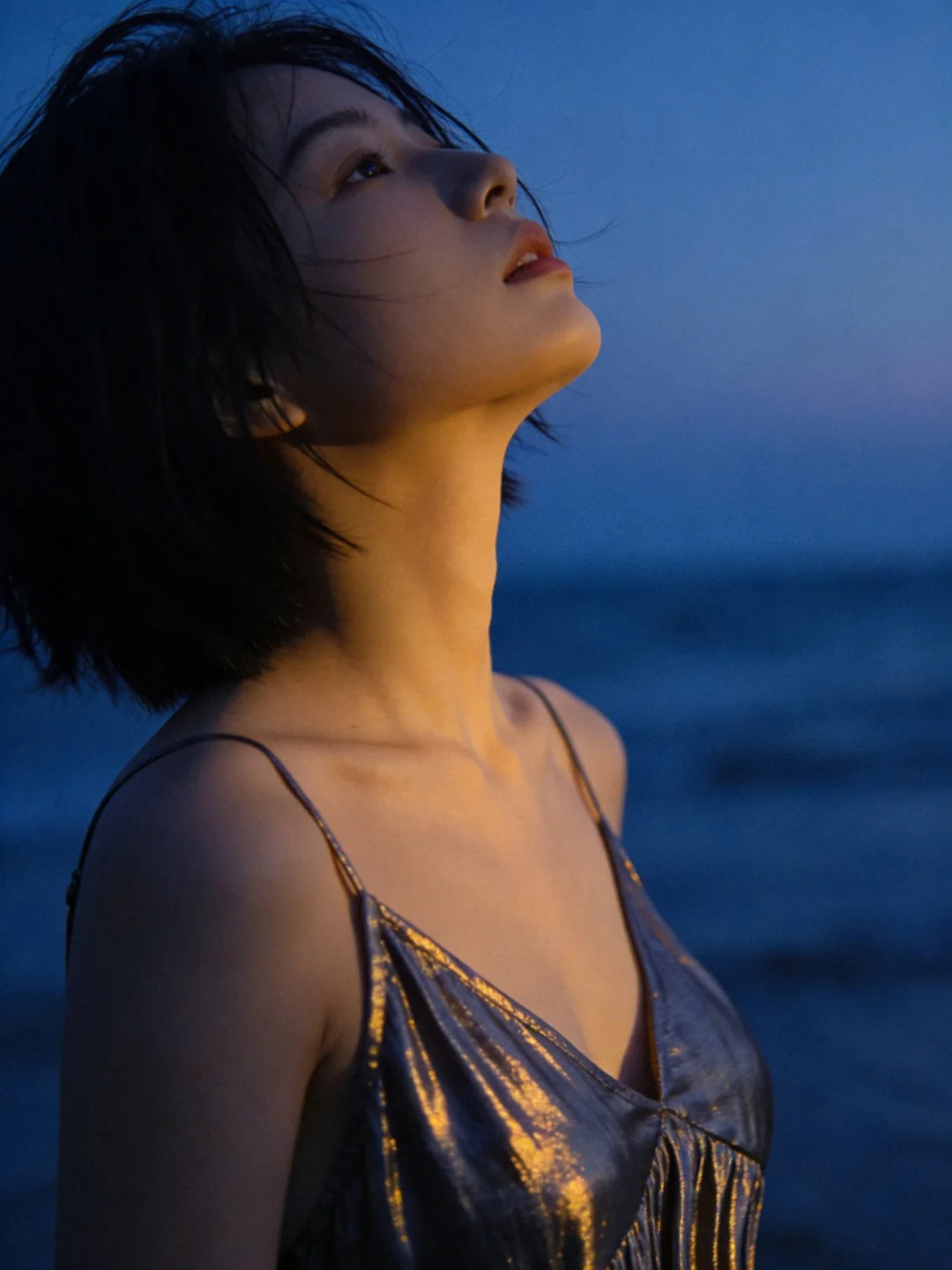
(Tiệm Ảnh Chú Hồng nhận lịch book máy chụp ảnh Chân dung Nàng thơ, Bikini, Couple và Phóng sự cưới trọn gói tại tất cả các resort khu vực Cam Ranh, Cam Lâm, Nha Trang).

06/06/2026 0 comments
0 FacebookTwitterPinterestEmail
Cẩm Nang & Kinh NghiệmReview Địa Điểm Chụp Ảnh

Ngắm Bộ Ảnh Cô Dâu Màu Film Fujifilm Đầy Chất Thơ Tại Resort Cam Lâm – Thực Hiện Bởi Tiệm Ảnh Chú Hồng

by nhiepanhcamranh 05/06/2026
written by nhiepanhcamranh

Giữa xu hướng của những bức ảnh cưới rực rỡ, hoàn hảo đến từng chi tiết được chỉnh sửa kỹ lưỡng, có những cặp đôi lại chọn đi tìm sự dung dị, hoài niệm trong từng hạt grain (hạt mịn) của màu ảnh film cổ điển.

Mới đây, Tiệm Ảnh Chú Hồng vừa cho ra mắt bộ ảnh phóng sự cưới tone màu film Fujifilm đầy điện ảnh, ghi lại trọn vẹn những khoảnh khắc chuẩn bị đầy cảm xúc của cô dâu tại một resort sang trọng vùng biển Cam Lâm, Cam Ranh. Bộ ảnh ngay lập tức “gây bão” bởi cái hồn rất riêng mà chỉ có máy ảnh Fujifilm và tư duy bấm máy của Chú Hồng mới có thể lột tả được.

1. Sức Hút Từ Màu Film Fujifilm Độc Bản Của Tiệm Ảnh Chú Hồng

Nếu là một người yêu nghệ thuật, bạn sẽ hiểu vì sao màu film Fujifilm lại có một vị trí độc tôn trong lòng giới mộ điệu. Không sắc lạnh, không công nghiệp, chất màu Fujifilm mang lại:

  • Tone màu da (skintone) hồng hào, tự nhiên: Giữ lại trọn vẹn sự mộc mạc, rạng rỡ của cô dâu trong ngày cưới mà không bị bết hay giả tạo.
  • Sắc xanh lam và xanh lá đặc trưng: Khi kết hợp với không gian resort hướng biển tại Cam Lâm, màu film Fujifilm biến sắc xanh của biển và cây cối thành một bảng màu trầm ấm, dịu mắt và cực kỳ sang trọng.
  • Hạt Grain giàu cảm xúc: Từng hạt nhiễu mịn đặc trưng của phim Fujifilm tạo cảm giác như mỗi bức ảnh là một frame hình cắt ra từ một thước phim điện ảnh lãng mạn thập niên 90.

Tại Tiệm Ảnh Chú Hồng, màu film Fujifilm không phải là một bộ lọc (preset) áp vào là xong. Đó là sự thấu hiểu về ánh sáng resort biển, là kỹ thuật set up giả lập phim (film simulation) ngay từ lúc bấm máy để giữ lại độ chuyển vùng sáng tối (dynamic range) hoàn hảo nhất cho da người.

2. Dịch Vụ Chụp Phóng Sự Cưới Màu Film Tại Resort – Khi Cảm Xúc Là Duy Nhất

Phòng chuẩn bị tại các resort Cam Lâm luôn là không gian lý tưởng nhất để bắt đầu một bộ ảnh phóng sự cưới. Đó là nơi không gian kiến trúc cao cấp giao thoa với ánh sáng tự nhiên ngập tràn.

Qua ống kính của Tiệm Ảnh Chú Hồng, buổi sáng chuẩn bị của cô dâu hiện lên như một cuốn nhật ký đầy cảm xúc:

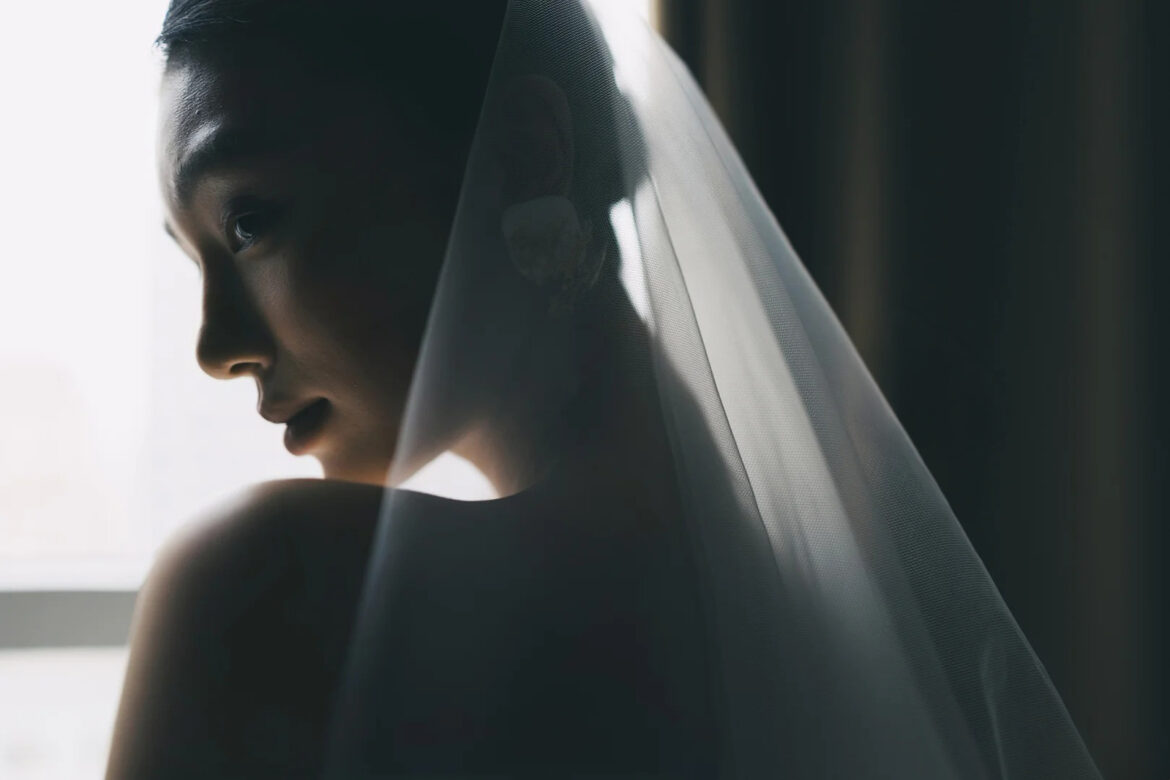
  • Khoảnh khắc tự nhiên, không diễn xuất: Dịch vụ phóng sự cưới của Chú Hồng tôn trọng tối đa cảm xúc thật. Là nụ cười e ấp khi layout makeup dần hoàn thiện, là cái nhìn chăm chú vào chiếc váy cưới đang treo bên khung cửa sổ resort hướng biển, hay khoảnh khắc hồi hộp chờ đợi bước vào lễ đường.
  • Góc máy tinh tế, “vô hình”: Nhiếp ảnh gia của Tiệm Ảnh Chú Hồng di chuyển nhẹ nhàng như những người vô hình trong căn phòng resort. Chúng tôi không bắt bạn phải “đơ người” tạo dáng, chúng tôi bắt trọn những cái chớp mắt, những giọt nước mắt xúc động của mẹ khi cài voan cho con gái, hay cái nắm tay siết chặt của hội bạn thân.
  • Sự kết hợp hoàn hảo giữa không gian và con người: Chất màu film Fujifilm kết hợp với nội thất gỗ trầm ấm hoặc tone trắng sang trọng của villa resort tạo nên một tổng thể “vừa thơ, vừa sang”, biến những khoảnh khắc đời thường nhất trở nên đắt giá.

3. Tại Sao Nên Chọn Tiệm Ảnh Chú Hồng Cho Ngày Trọng Đại Tại Cam Ranh?

Chụp ảnh tại resort đòi hỏi người nhiếp ảnh gia phải có kinh nghiệm xử lý hướng nắng biển và am hiểu không gian kiến trúc để không làm phí đi sự sang trọng của địa điểm.

  • Gu thẩm mỹ tinh tế & Trường tồn: Tiệm Ảnh Chú Hồng kiên trì với triết lý lưu giữ những giá trị nguyên bản. Bộ ảnh cưới màu film Fujifilm chụp tại resort của bạn sẽ là báu vật thời gian – 10 năm, 20 năm sau nhìn lại, cảm xúc vẫn vẹn nguyên và không bao giờ lỗi mốt.
  • Thiết bị chuyên nghiệp & Tối tân: Sử dụng những dòng máy Fujifilm và ống kính cao cấp nhất để vừa đảm bảo chất màu film nghệ thuật, vừa giữ được độ sắc nét, chi tiết hoàn hảo cho phóng sự cưới.
  • Thấu hiểu khách hàng: Sự tận tâm, nhẹ nhàng từ Chú Hồng giúp các cô dâu rũ bỏ được sự căng thẳng trước giờ G, hoàn toàn thoải mái để sống trọn vẹn với từng giây phút hạnh phúc nhất.

Mỗi đám cưới là một câu chuyện độc nhất. Nếu bạn cũng yêu thích sự hoài niệm của màu film Fujifilm, muốn biến những khoảnh khắc chuẩn bị tại resort thành một thước phim điện ảnh để đời, hãy để Tiệm Ảnh Chú Hồng đồng hành cùng bạn.

TIỆM ẢNH CHÚ HỒNG – PHÓNG SỰ CƯỚI MÀU FILM TẠI CAM RANH / CAM LÂM

  • Hotline/Zalo: [Chèn số điện thoại của bạn]
  • Địa chỉ: [Chèn địa chỉ studio]
  • Fanpage: Tiệm Ảnh Chú Hồng
  • Website: [Chèn link website]

Nhận lịch book máy chụp phóng sự cưới Destination Wedding tại tất cả các resort khu vực Cam Ranh, Cam Lâm, Nha Trang.

05/06/2026 0 comments
0 FacebookTwitterPinterestEmail
Dịch Vụ Nhiếp Ảnh Cam Ranh

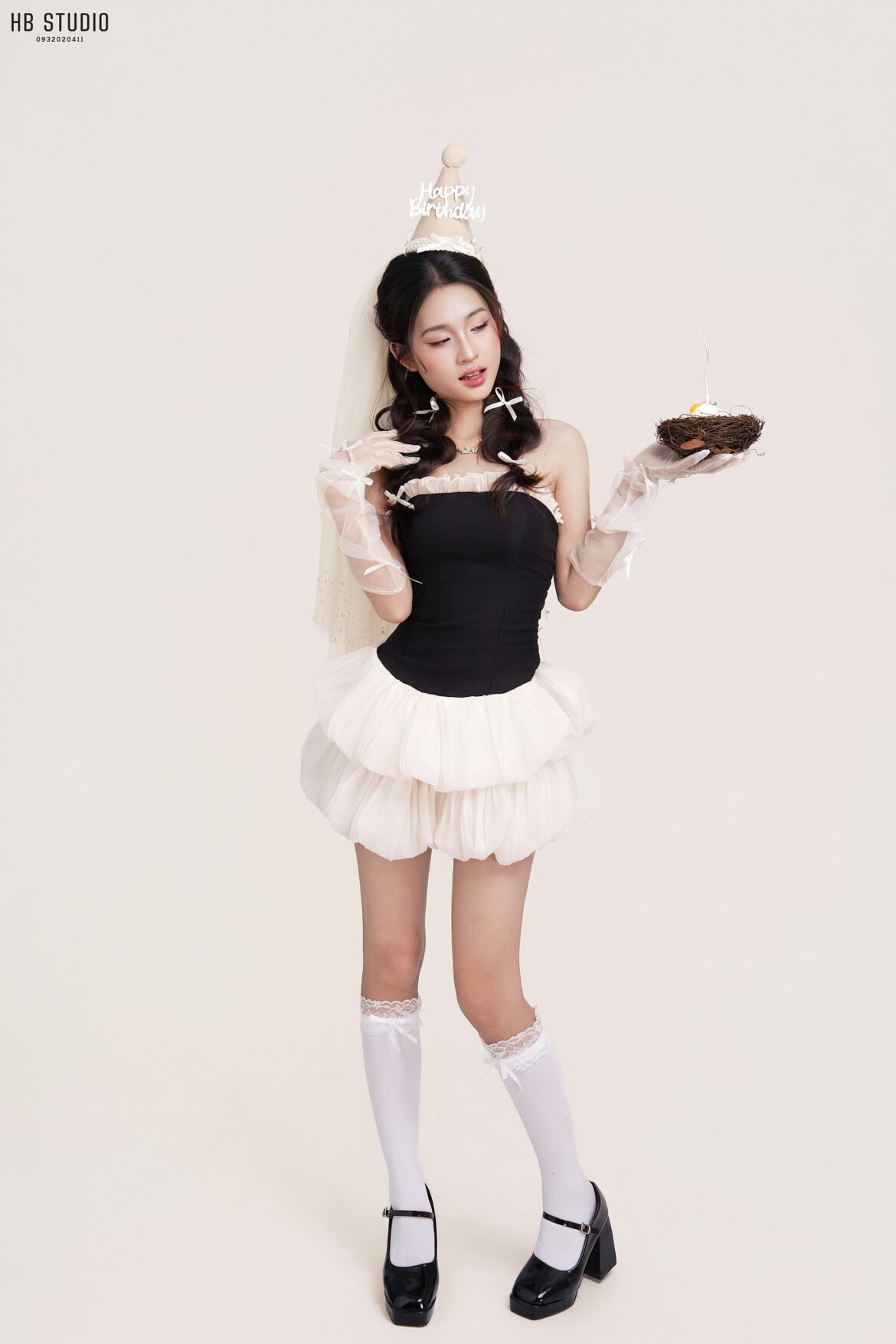
Bảng Giá Chụp Ảnh Sinh Nhật Trọn Gói Tại Studio – Lưu Giữ Tuổi Mới Lung Linh

by nhiepanhcamranh 22/05/2026
written by nhiepanhcamranh

Bạn đang tìm kiếm một studio chụp ảnh sinh nhật đẹp để đánh dấu cột mốc tuổi mới thật ý nghĩa? Bạn băn khoăn không biết chi phí chụp ảnh trọn gói bao gồm những gì?

Để phù hợp với không khí tiệc tùng và giúp bạn tỏa sáng nhất, HB Studio xin gửi đến bạn bảng giá chụp ảnh sinh nhật chuyên nghiệp. Các gói chụp được điều chỉnh tập trung vào các phụ kiện đặc trưng như bánh kem, hoa, bóng bay, vương miện… giúp lưu giữ trọn vẹn những khoảnh khắc thanh xuân rạng rỡ.

Dịch vụ của chúng tôi được phân chia thành 2 dạng rõ ràng: chụp sinh nhật bán thân và chụp sinh nhật toàn thân để bạn dễ dàng lựa chọn theo nhu cầu.

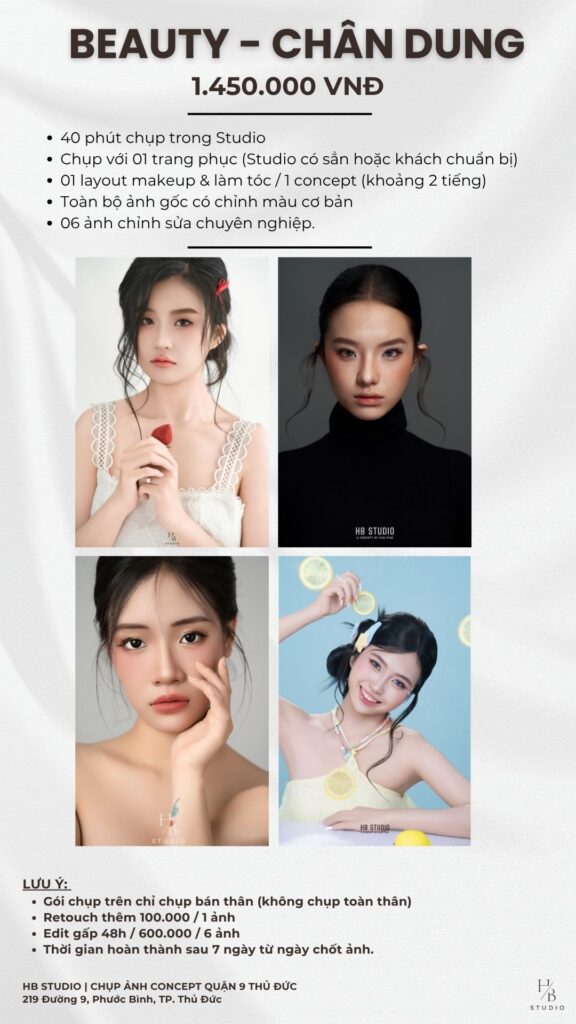
🎂 1. Gói 1: HAPPY BIRTHDAY – BÁN THÂN (Portrait Only)

Nếu bạn muốn một bộ ảnh tập trung bắt trọn những biểu cảm rạng rỡ, cận cảnh lớp trang điểm lung linh và khoảnh khắc thổi nến, cầu nguyện đón tuổi mới thì đây chính là lựa chọn hoàn hảo.

  • Giá gói: 1.450.000 VNĐ.
  • Thời gian chụp: 40 phút bấm máy trực tiếp tại Studio.
  • Trang phục: 01 bộ (Khách hàng chủ động chuẩn bị váy sinh nhật theo sở thích hoặc lựa chọn trang phục có sẵn tại Studio).
  • Makeup & Làm tóc: Bao gồm 01 layout trang điểm và làm tóc chuyên nghiệp theo phong cách sinh nhật (từ kẹo ngọt, cá tính cho đến quyến rũ — thời gian thực hiện khoảng 2 tiếng).
  • Quà tặng kèm: Studio hỗ trợ miễn phí các phụ kiện sinh nhật cơ bản như vương miện, bong bóng, nến số, hoa giả…. Lưu ý: Khách hàng tự chuẩn bị bánh kem thật nếu muốn lên hình tự nhiên nhất.
  • Sản phẩm bàn giao:
    • Nhận toàn bộ file ảnh gốc đã được căn chỉnh màu sắc cơ bản.
    • 06 ảnh chỉnh sửa (retouch) chuyên nghiệp, hỗ trợ làm mịn da và thon gọn dáng.
  • ⚠️ Lưu ý: Gói chụp sinh nhật này chỉ áp dụng chụp cận mặt và bán thân, không chụp dáng toàn thân.

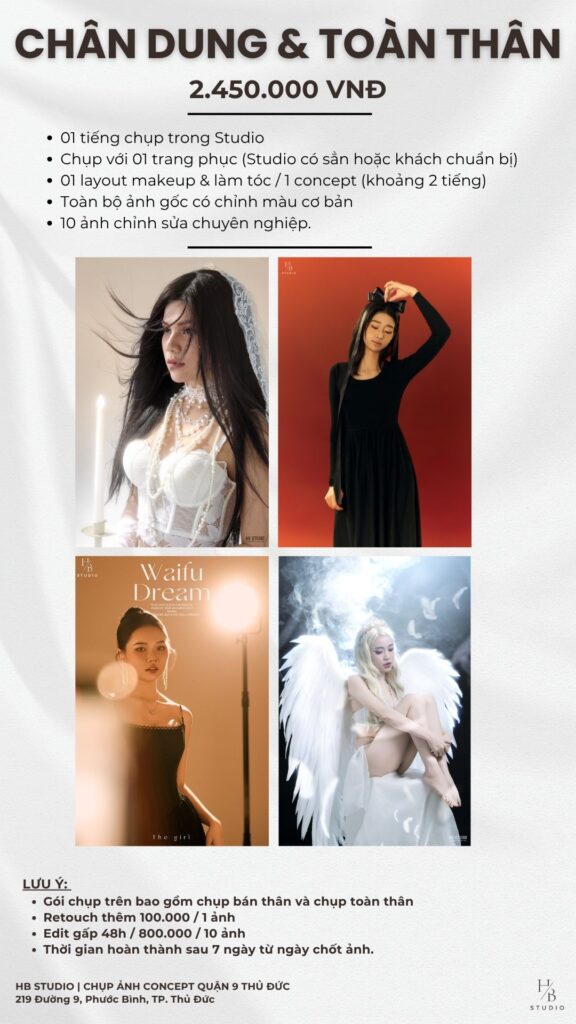
🎉 2. Gói 2: PERFECT BIRTHDAY- TOÀN THÂN (Full Body Experience)

Gói chụp ảnh sinh nhật toàn thân là lựa chọn hoàn hảo để bạn khoe trọn bộ váy lộng lẫy. Concept này kết hợp linh hoạt giữa các góc máy cận cảnh và những dáng pose toàn thân sang chảnh bên set background sinh nhật hoành tráng.

  • Giá gói: 2.450.000 VNĐ.
  • Thời gian chụp: 01 tiếng bấm máy chất lượng tại Studio.
  • Trang phục: 01 bộ váy hoặc bộ cánh lộng lẫy (Khách tự chuẩn bị hoặc chọn đồ tại Studio).
  • Makeup & Làm tóc: Bao gồm 01 layout makeup & làm tóc chỉn chu, thay đổi linh hoạt theo đúng concept sinh nhật đã chọn (thời gian thực hiện khoảng 2 tiếng).
  • Quà tặng kèm: Studio hỗ trợ toàn bộ phụ kiện sinh nhật đi kèm và hỗ trợ set up góc chụp (phông nền, bóng bay nghệ thuật).
  • Sản phẩm bàn giao:
    • Nhận toàn bộ file ảnh gốc đã được căn chỉnh màu sắc cơ bản.
    • 10 ảnh chỉnh sửa (retouch) chuyên nghiệp, kỹ lưỡng từ biểu cảm gương mặt đến vóc dáng.
  • ✨ Ưu điểm nổi bật: Gói này cực kỳ linh hoạt, bao gồm cả chụp góc bán thân (thổi nến, cận mặt) lẫn góc toàn thân lấy trọn background sinh nhật.

🛠 3. Dịch Vụ Mở Rộng & Quy Định Chung Tại HB Studio

Để đảm bảo trải nghiệm dịch vụ tốt nhất khi sử dụng bảng giá chụp ảnh sinh nhật tại studio, quý khách vui lòng lưu ý các điều khoản sau:

  • Thời gian hoàn thành: Ảnh chỉnh sửa hoàn thiện sẽ được gửi sau 7 ngày kể từ ngày bạn chốt chọn danh sách ảnh chỉnh sửa.
  • Chỉnh sửa thêm (Retouch lẻ): 100.000 VNĐ / 1 ảnh (Dành cho các bạn muốn lấy thêm nhiều ảnh đẹp để đăng dần lên mạng xã hội).
  • Dịch vụ lấy ảnh gấp trong 48 giờ (Để kịp đăng đúng ngày sinh nhật):
    • Gói Sinh Nhật Bán Thân (6 ảnh): +600.000 VNĐ.
    • Gói Sinh Nhật Toàn Thân (10 ảnh): +800.000 VNĐ.

Lời kết: Bảng phân chia các gói chụp sinh nhật tại HB Studio vẫn giữ nguyên giá trị cốt lõi từ gói chân dung gốc, nhưng được bổ sung thêm các quyền lợi về phụ kiện và định hướng concept độc đáo. Hãy để chúng tôi đồng hành cùng bạn tạo nên một bộ ảnh sinh nhật thật bùng nổ và đáng nhớ!

Liên hệ ngay với HB Studio hôm nay để đặt lịch chụp và nhận tư vấn layout makeup phù hợp nhất với bạn!

22/05/2026 0 comments
0 FacebookTwitterPinterestEmail
Dịch vụ makeup Cam Ranh

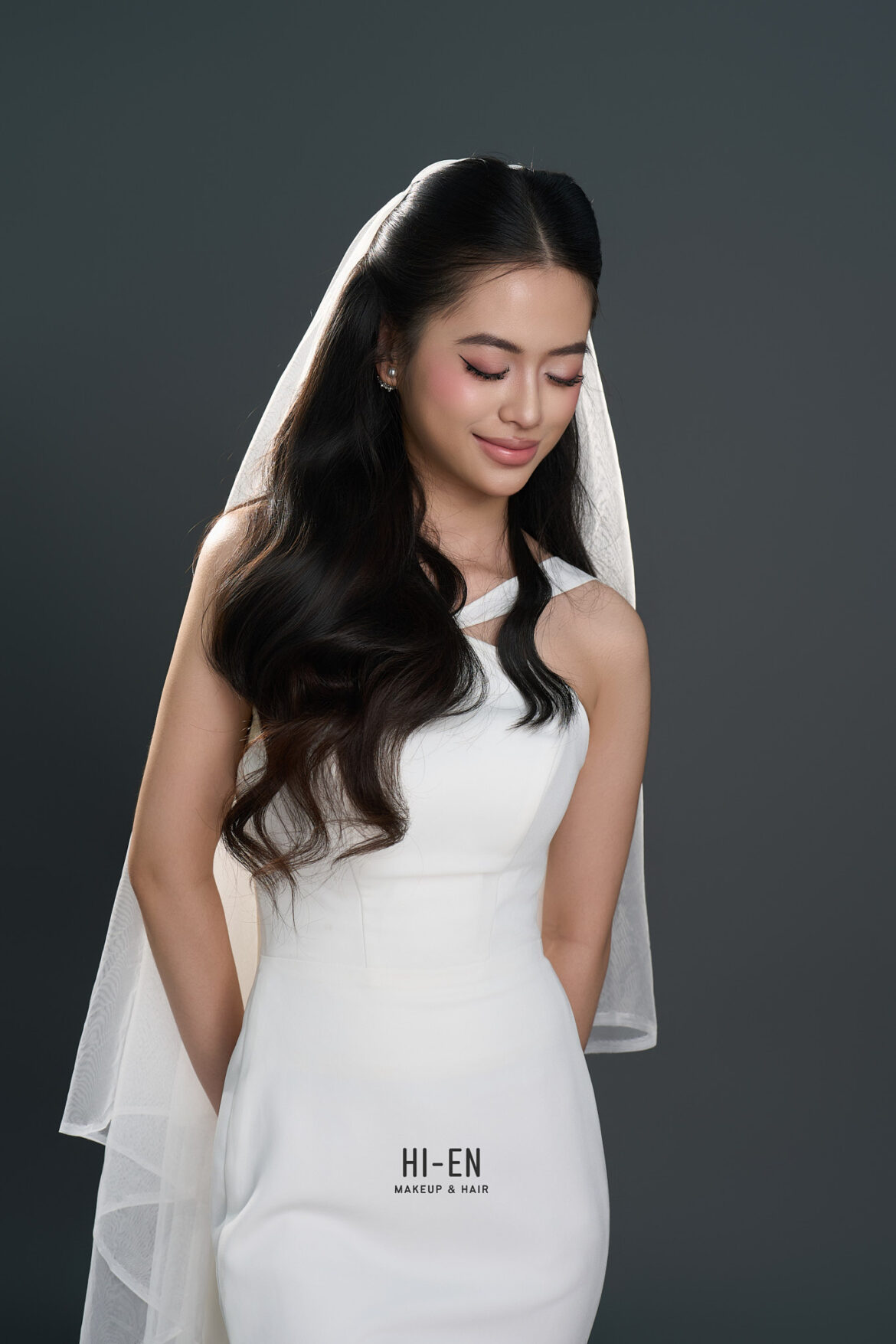
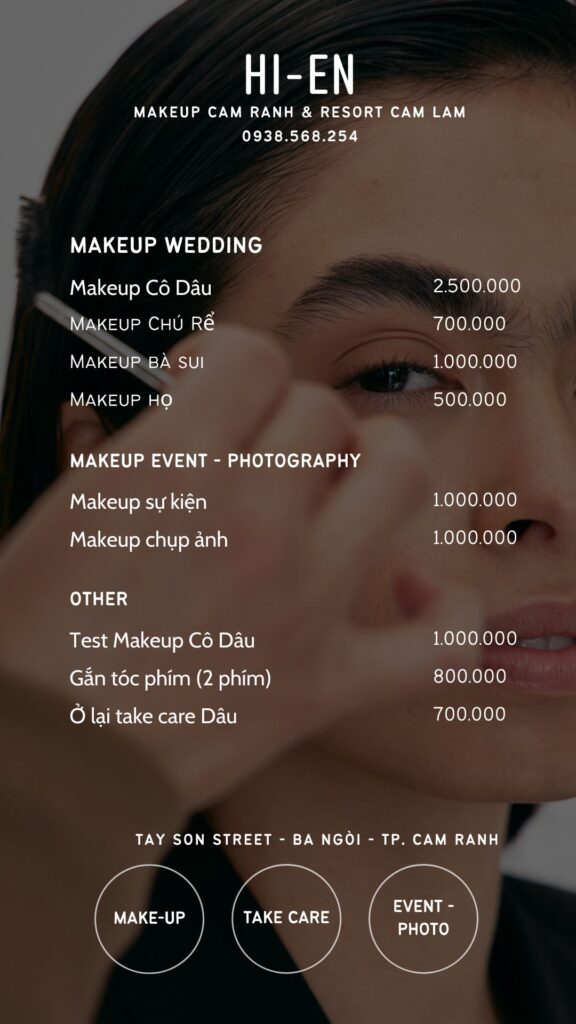
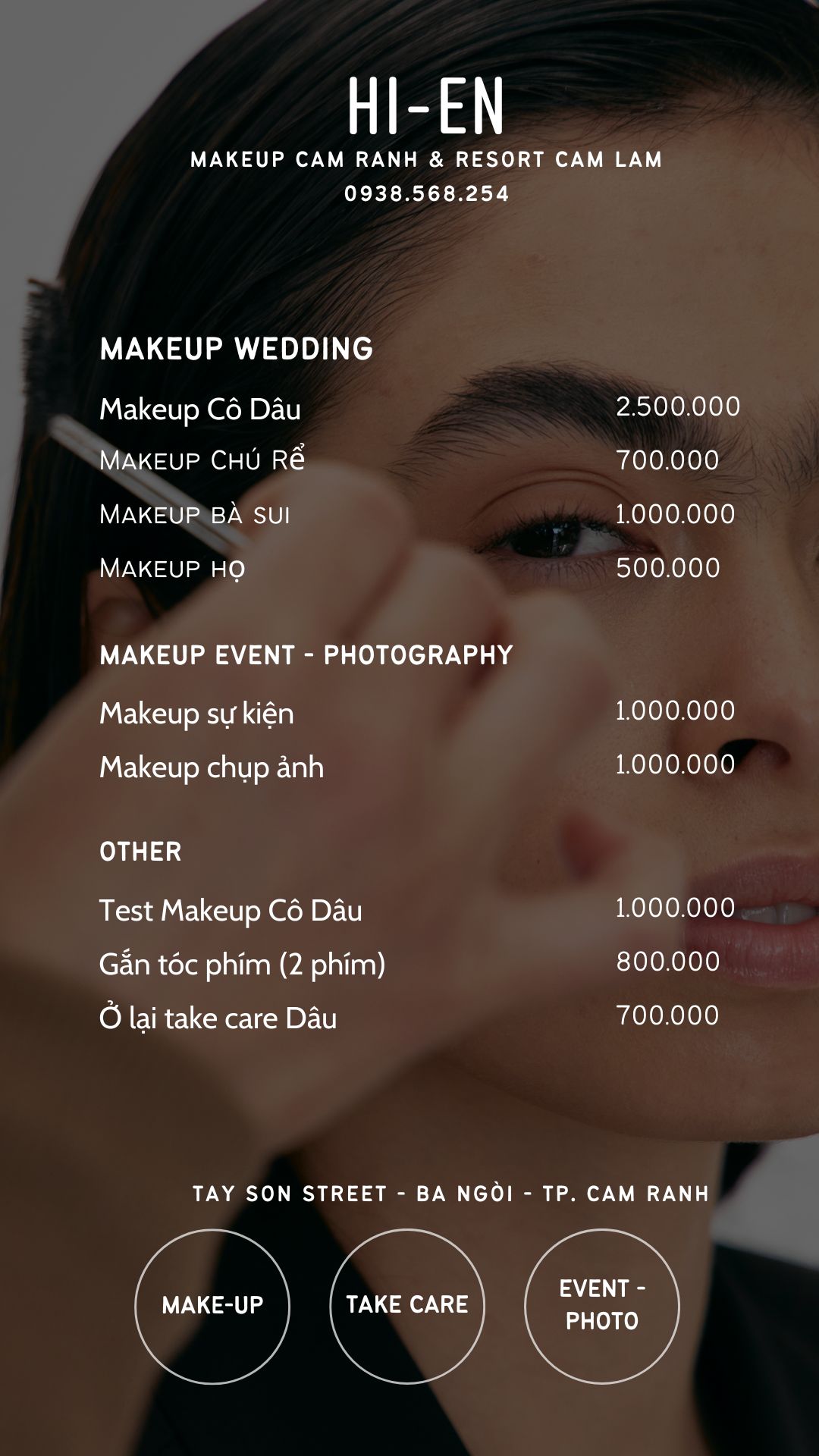
HI-EN MAKEUP & HAIR TẠI RESORT CAM LÂM – CAM RANH

by nhiepanhcamranh 18/05/2026
written by nhiepanhcamranh

Trong thế giới làm đẹp, xu hướng có thể thay đổi nhưng sự tinh tế và thần thái là điều tồn tại vĩnh cửu. Tại HI-EN Makeup & Hair, chúng tôi không thay đổi diện mạo của bạn, chúng tôi đánh thức vẻ đẹp tiềm ẩn, giúp bạn tự tin tỏa sáng nhất trong những cột mốc quan trọng của cuộc đời.

1. Tuyệt Tác Cho Ngày Chung Đôi (Wedding Division)

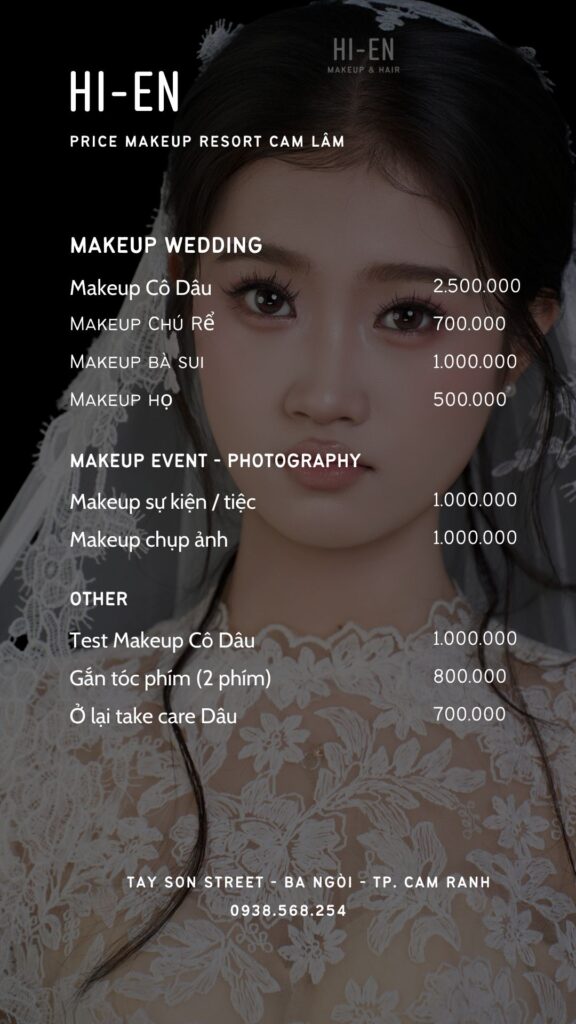
Ngày cưới là sân khấu của riêng bạn. HI-EN mang đến những layout trang điểm tập trung vào lớp nền mỏng nhẹ như sương, giữ trọn texture da thật nhưng vẫn che phủ hoàn hảo.

  • Makeup Cô Dâu: 2.500.000 VNĐ.
  • Makeup Chú Rể: 700.000 VNĐ – Mang lại vẻ ngoài lịch lãm, tự nhiên trước ống kính.
  • Makeup Bà Sui: 1.000.000 VNĐ – Tôn vinh nét quý phái, sang trọng.
  • Makeup Họ: 500.000 VNĐ.

Đặc quyền an tâm: HI-EN cung cấp dịch vụ Test Makeup Cô Dâu (1.000.000 VNĐ) giúp các nàng tìm ra layout “chân ái” nhất trước ngày cưới.

2. Thần Thái Trong Từng Khoảnh Khắc (Event & Photography)

Dành cho những quý cô hiện đại muốn khẳng định phong cách cá nhân trong các buổi tiệc hay những bộ ảnh nghệ thuật:

  • Makeup Sự kiện / Tiệc: 500.000 VNĐ.
  • Makeup Chụp ảnh: 1.000.000 VNĐ.

3. Chăm Sóc Toàn Diện (Other Premium Services)

Sự hoàn hảo nằm ở chi tiết. HI-EN mang đến những dịch vụ bổ trợ để bạn thực sự không có “góc chết”:

  • Gắn tóc phím (2 phím): 800.000 VNĐ – Giải pháp cho mái tóc bồng bềnh chuẩn chỉnh.
  • Ở lại take care Cô Dâu: 700.000 VNĐ – Chuyên gia luôn đồng hành sát sao, đảm bảo diện mạo hoàn hảo từ lúc bắt đầu đến khi kết thúc buổi lễ.

TẠI SAO HI-EN MAKEUP & HAIR LÀ LỰA CHỌN ƯU TIÊN?

  1. Triết lý làm đẹp bền vững: Không chạy theo những phong cách đại trà, chúng tôi tư vấn dựa trên đường nét riêng của từng khuôn mặt.
  2. Kỹ thuật xử lý nền đỉnh cao: Đảm bảo lớp nền bền bỉ dưới ánh đèn studio hay thời tiết ngoài trời, phù hợp với cả các concept “khó nhằn”.
  3. Tận tâm & Chuyên nghiệp: Luôn đúng giờ và chỉn chu trong từng thao tác cọ.

THÔNG TIN ĐẶT LỊCH (BOOKING)

Đừng để khoảnh khắc rạng rỡ nhất của bạn bị bỏ lỡ. Hãy liên hệ với HI-EN Makeup & Hair ngay hôm nay để được tư vấn layout phù hợp nhất!

  • Địa chỉ: SƠN TÂY – BA NGÒI – TP. CAM RANH – KHÁNH HÒA
  • Hotline: 0938.568.254.
  • Thương hiệu: HI-EN Makeup & Hair.

18/05/2026 0 comments
0 FacebookTwitterPinterestEmail
Dịch vụ makeup Cam Ranh

Dịch Vụ Makeup Cô Dâu Uy Tín Tại Cam Ranh – Rạng Rỡ Trong Ngày Trọng Đại

by nhiepanhcamranh 01/05/2026
written by nhiepanhcamranh

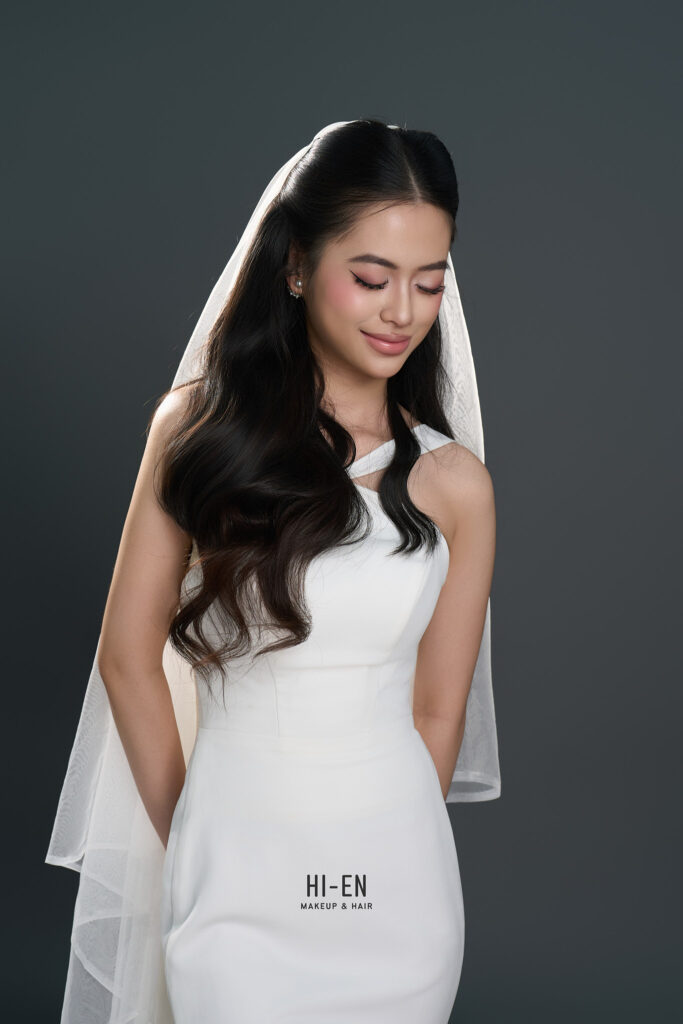
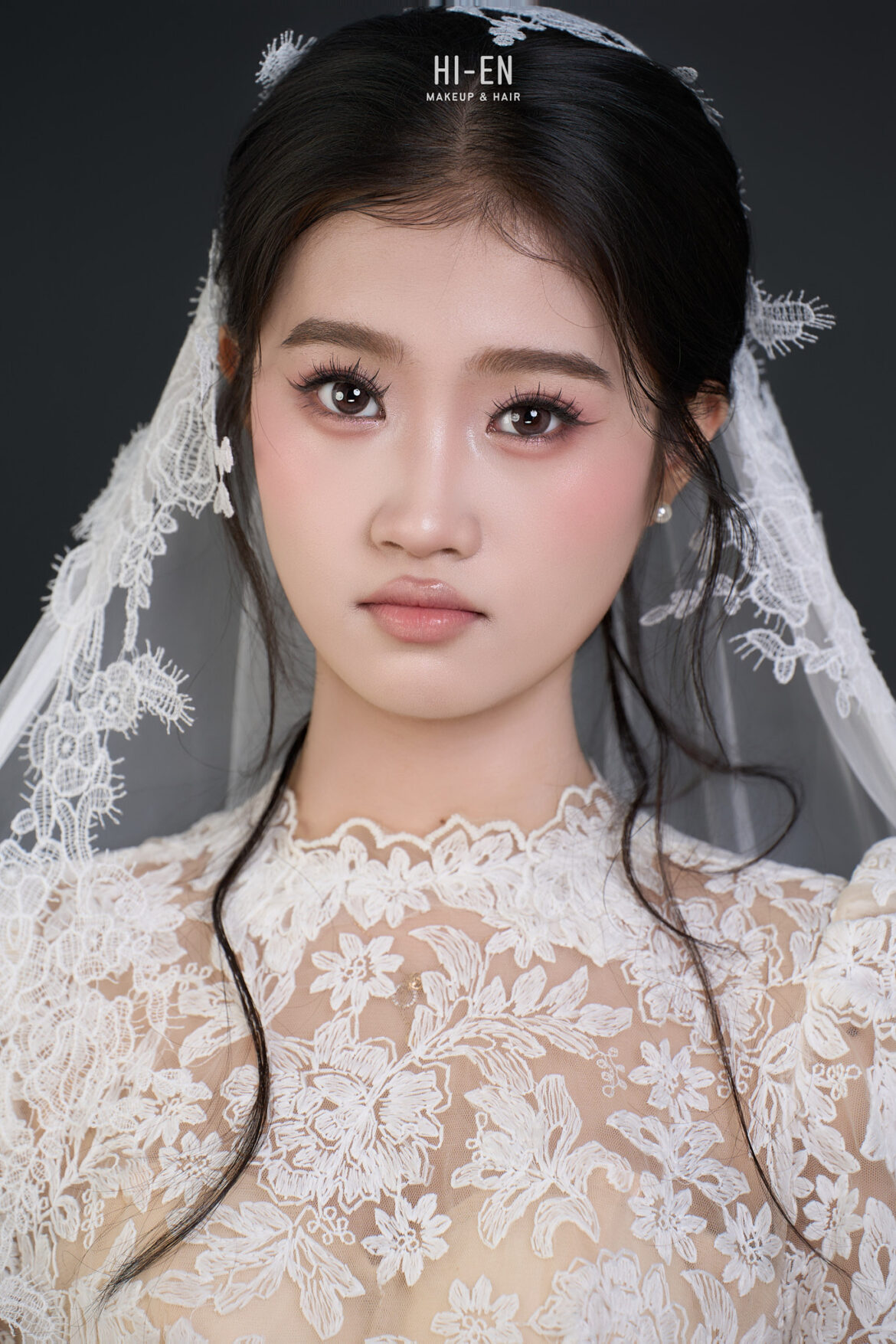
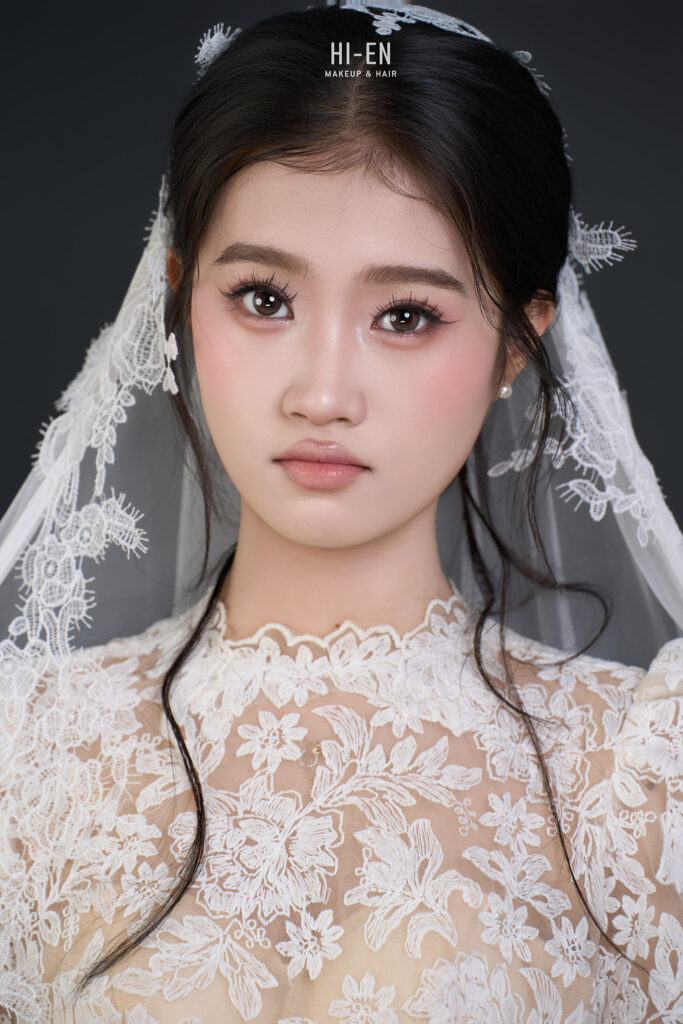
Ngày cưới là khoảnh khắc thiêng liêng nhất trong cuộc đời mỗi người con gái. Bên cạnh chiếc váy cưới lộng lẫy, một lớp trang điểm hoàn hảo chính là “vũ khí” giúp nàng tự tin tỏa sáng. Nếu bạn đang tìm kiếm một địa chỉ makeup cô dâu uy tín tại Cam Ranh với phong cách trong trẻo, tự nhiên, HI-EN Makeup & Hair chính là sự lựa chọn dành cho bạn.

1. Xu hướng Makeup cô dâu “Nàng Thơ” – Lên ngôi năm 2026

Thay vì những lớp phấn dày cộp làm mất đi nét tự nhiên, xu hướng trang điểm năm nay tập trung vào sự thanh thoát và sang trọng. Layout tại HI-EN luôn chú trọng:

  • Lớp nền mỏng mịn như sương: Sử dụng kỹ thuật xử lý nền chuyên sâu giúp giữ được kết cấu da thật, căng bóng nhưng vẫn bền màu suốt cả ngày tiệc.
  • Đôi mắt biết nói: Tập trung nhấn vào hàng mi cong vút và tông màu mắt trung tính, tạo nên ánh nhìn cuốn hút
  • Tôn vinh cấu trúc khuôn mặt: Chúng mình phân tích kỹ đặc điểm gương mặt để che khuyết điểm và tôn lên những đường nét thanh tú nhất của bạn.

2. Chi tiết gói dịch vụ CÔ DÂU – 2.500.000 VNĐ

Với mức giá hợp lý nhưng chất lượng cao cấp, gói dịch vụ tại Cam Ranh của chúng mình mang đến sự an tâm tuyệt đối:

  • Trang điểm & Làm tóc: Thực hiện bởi nghệ sĩ makeup giàu kinh nghiệm, thay đổi kiểu tóc linh hoạt theo váy cưới.
  • Mỹ phẩm High-end: Cam kết 100% sản phẩm chính hãng (MAC, Dior, Chanel…), đảm bảo an toàn cho mọi loại da, kể cả da nhạy cảm.
  • Quà tặng kèm: Miễn phí Lens mắt và bộ phụ kiện tóc cao cấp phù hợp với từng concept

3. Tại sao nên chọn HI-EN Makeup & Hair tại Cam Ranh?

Giữa rất nhiều sự lựa chọn, chúng mình tự tin khẳng định vị thế nhờ sự tận tâm và chuyên nghiệp:

  1. Đúng giờ & Tận nơi: Chúng mình hiểu áp lực thời gian trong ngày cưới, đội ngũ luôn có mặt đúng giờ tại nhà riêng hoặc khách sạn ở Cam Ranh để phục vụ nàng.
  2. Tư vấn cá nhân hóa: Mỗi cô dâu là một bản thể duy nhất. HI-EN sẽ tư vấn layout dựa trên kiểu váy, không gian tiệc và sở thích cá nhân của bạn.
  3. Kinh nghiệm dày dặn: Với nền tảng từ những dự án hình ảnh chuyên nghiệp, chúng mình biết cách giúp bạn đẹp xuất sắc cả ngoài đời thực lẫn khi lên ảnh.

Nàng dâu tại Cam Ranh đã sẵn sàng để trở thành phiên bản hoàn hảo nhất chưa?

Đừng ngần ngại liên hệ với HI-EN Makeup & Hair để được tư vấn và giữ lịch sớm nhất cho ngày chung đôi!

  • Địa chỉ: TÂY SƠN, BA NGÒI – Khu vực Cam Ranh & lân cận.
  • Hotline/Zalo: 0932020411 [STUDIO]
  • Fanpage: HI-EN Makeup

01/05/2026 0 comments
0 FacebookTwitterPinterestEmail
Makeup cô dâu resort Cam Lâm

Frequency Separation 2021

by nhiepanhcamranh 27/04/2026
written by nhiepanhcamranh

A long (long) time ago I wrote an essay on Frequency Separation, even if the main subject was disguised in the more approachable title “Notes on Sharpening”. That was early 2009, way before Frequency Separation was cool, then popularized/mainstream, then possibly cool again. I’ve thought to revisit the original article to give the subject a new coat of 2021 paint, plus all sorts of new detours.

Spoiler alert: I’m interested in Frequency Separation as a tool for a broader set of manipulations not limited to, nor particularly focused on, beauty/skin retouch.

1. Frequencies

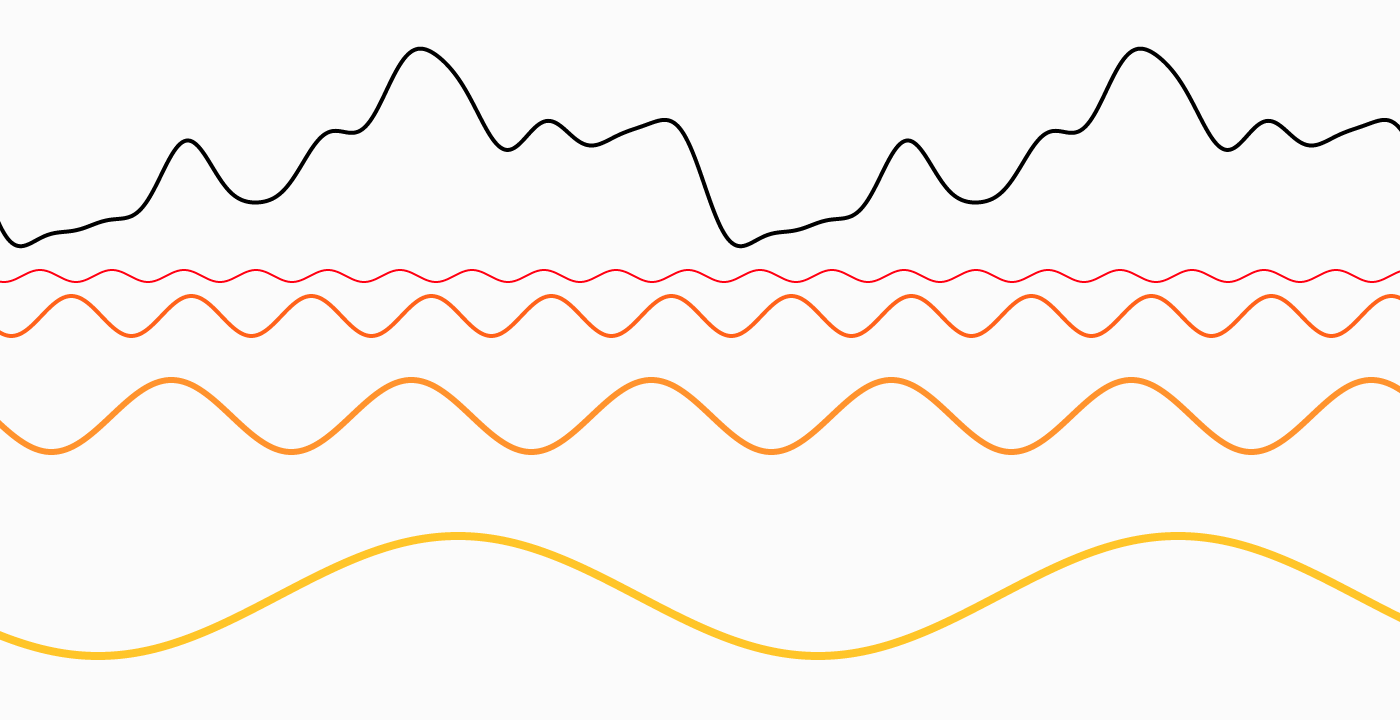
I assume that you already know what we’re talking about, TL;DR any signal, e.g. a sound wave no matter how complex can be built composing “pure” frequencies.

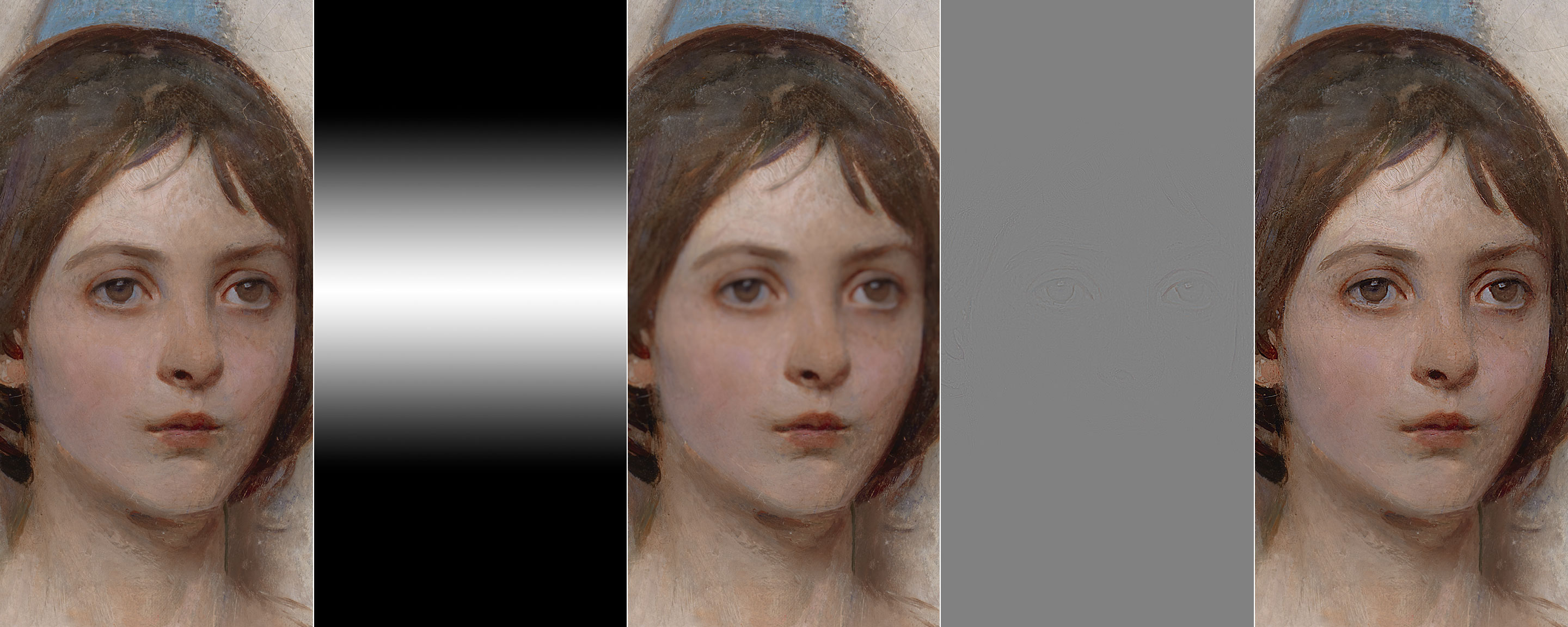
Low frequencies are at the bottom, high on top, black is the result. If you want to understand the concept better, this article goes in much more detail and will blow your mind too.

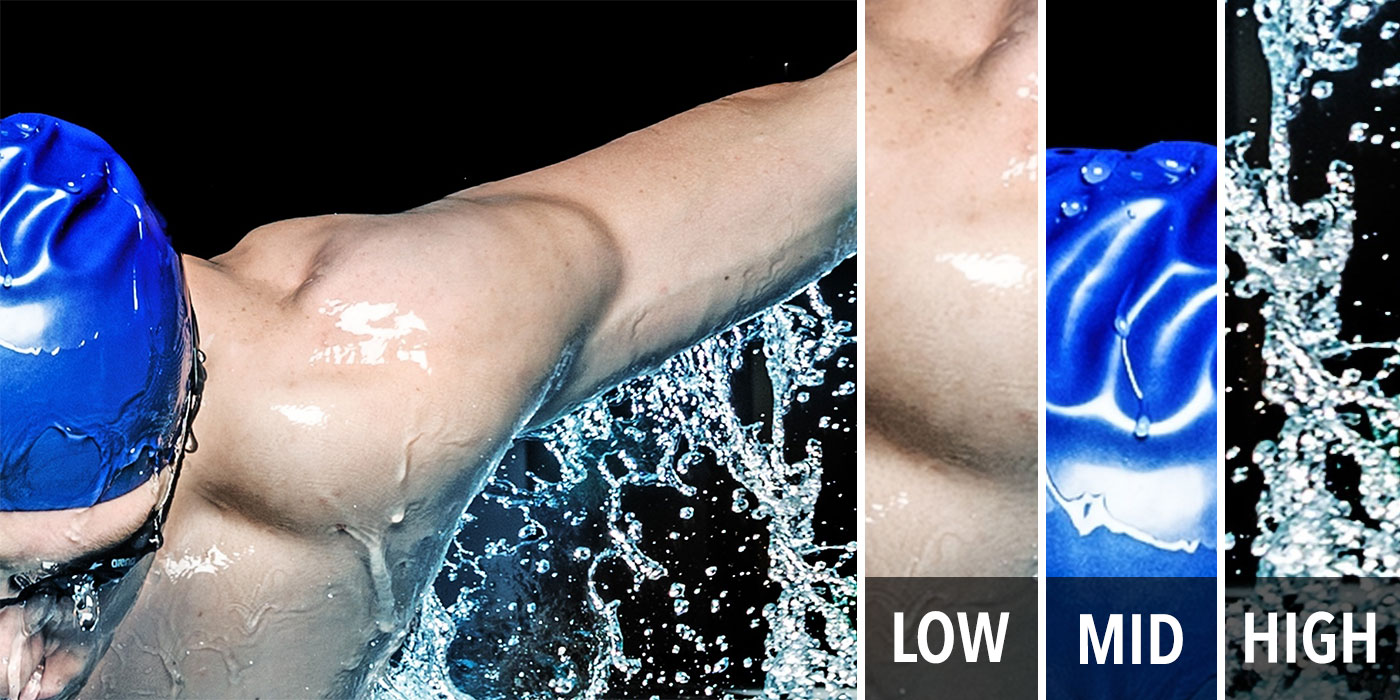
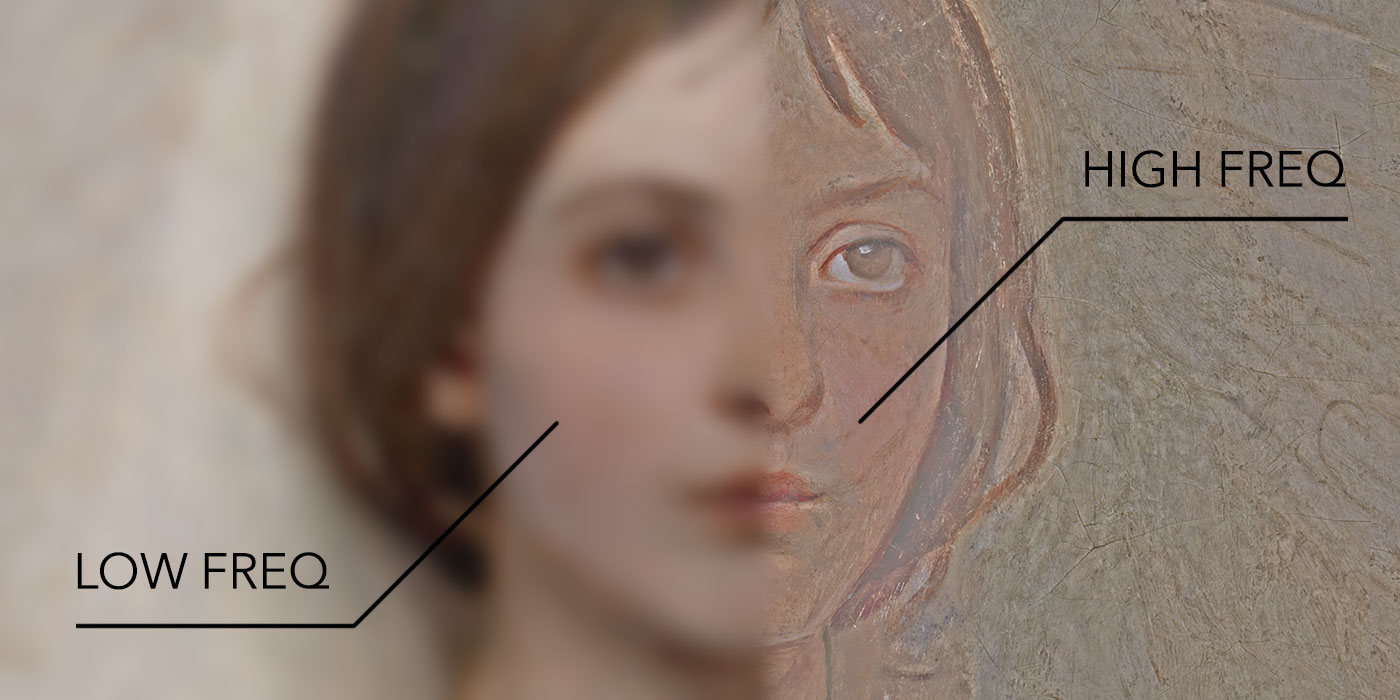
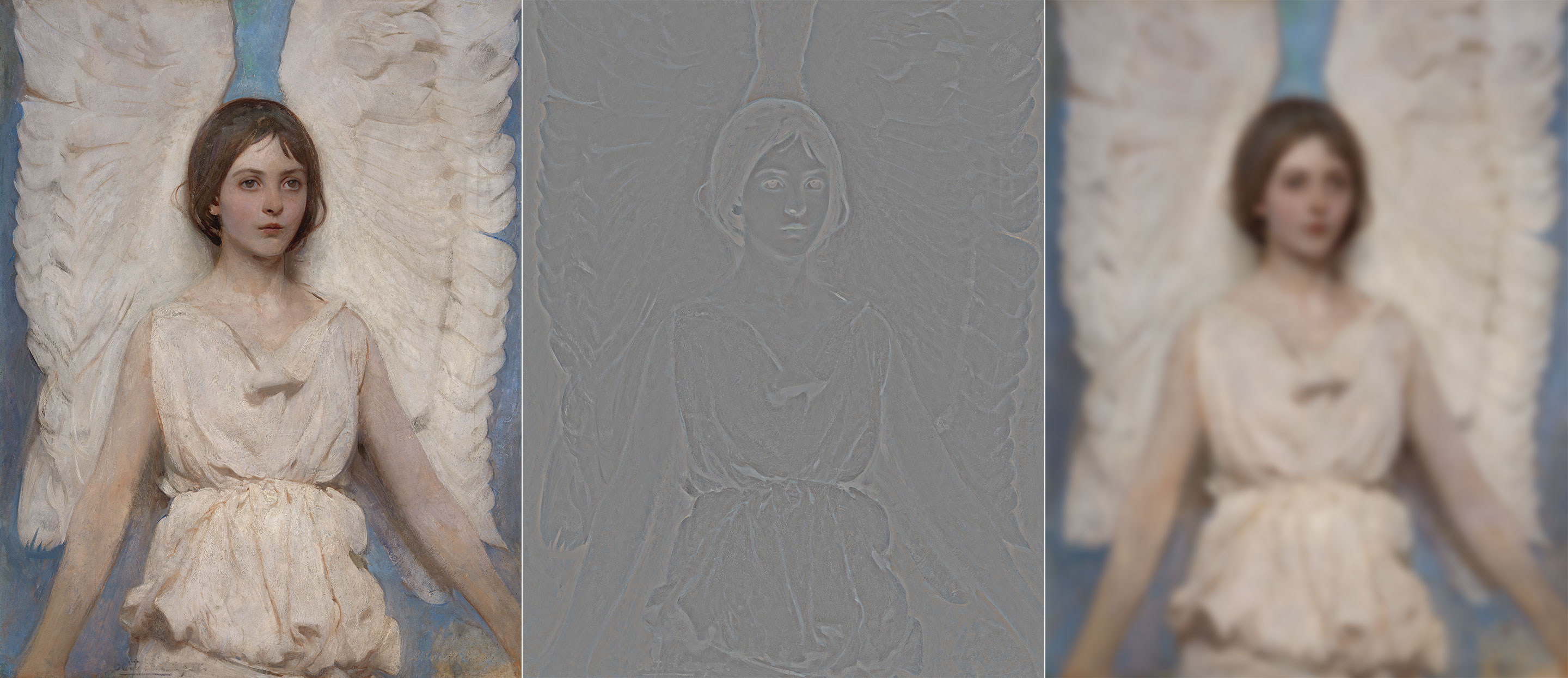
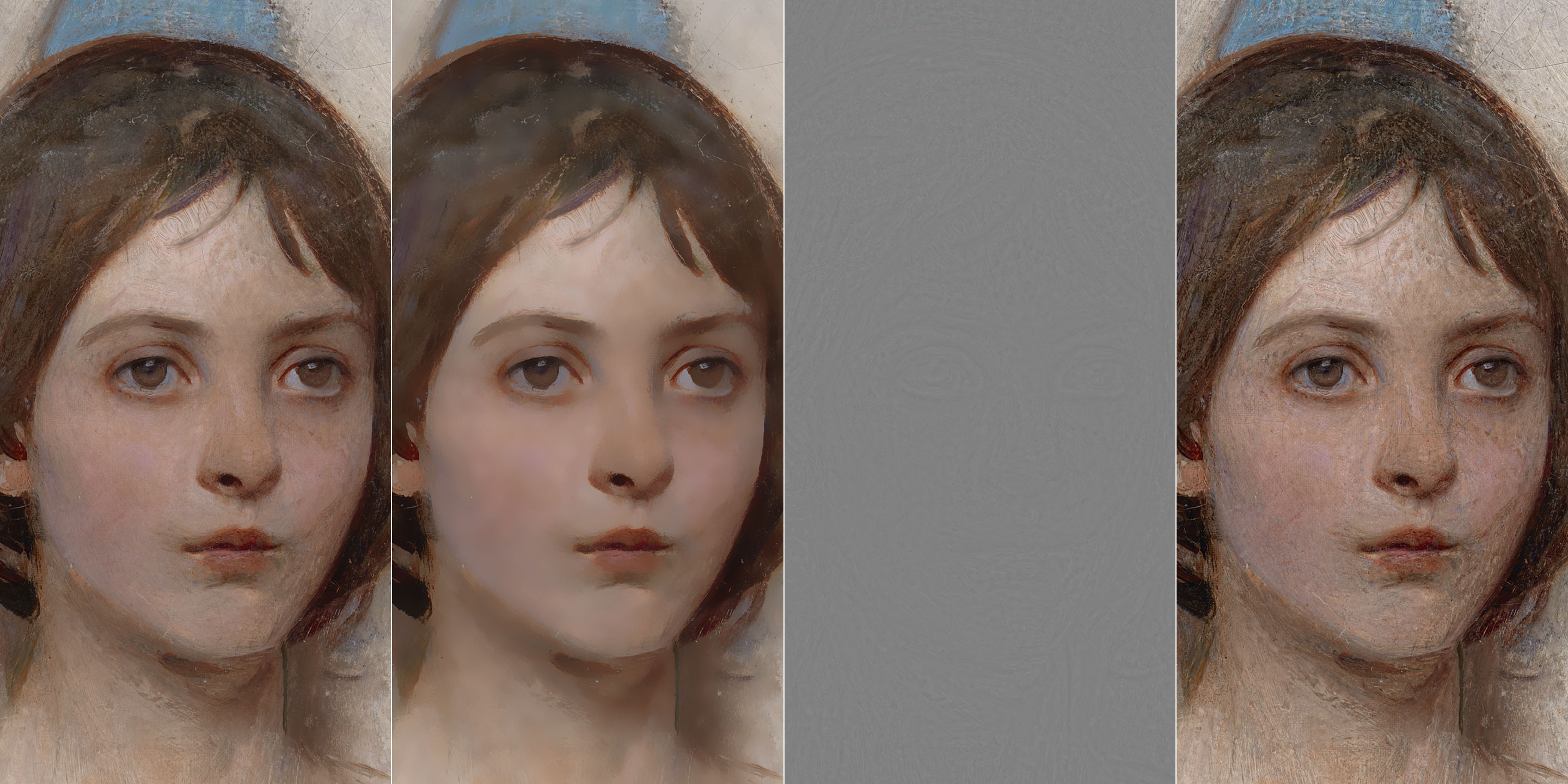
In the more familiar realm of images, you can think of high frequencies as describing thin detail (given a defined area, a lot of stuff happens there), while low frequencies are in charge of spatially slower changes:

2. Basic frequency separation

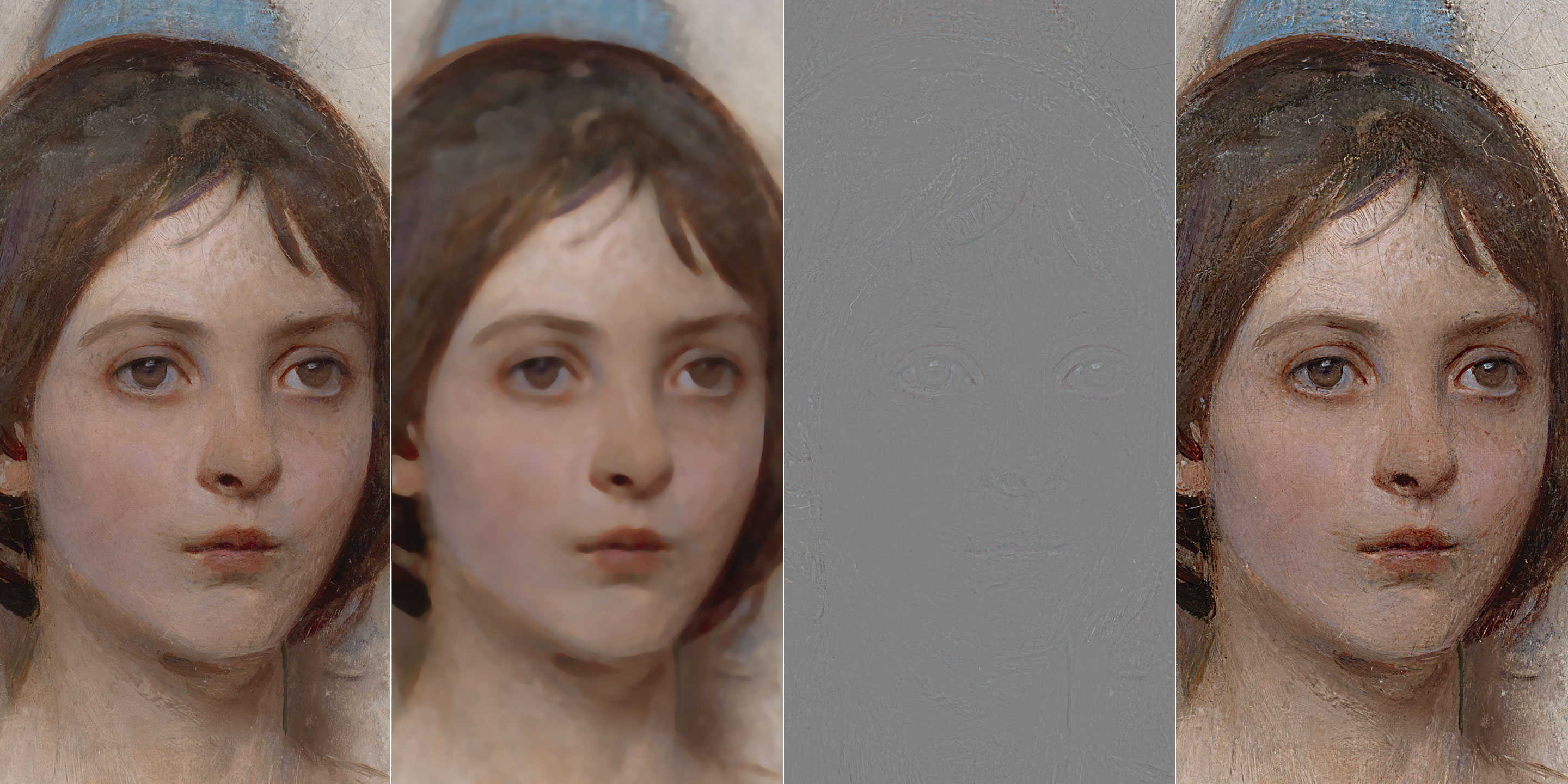
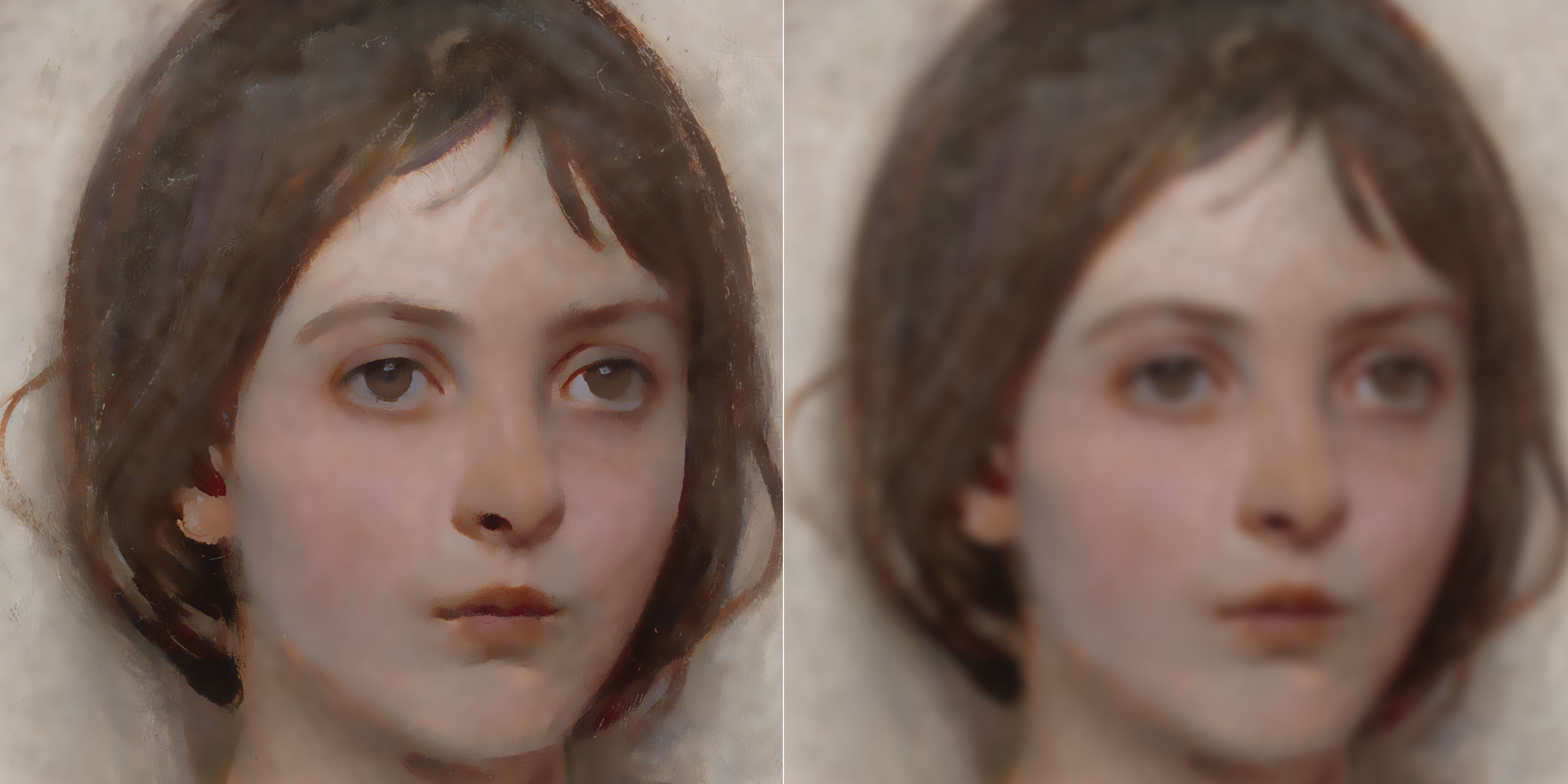
As opposed to the signal wave example, with images we usually deal with frequency ranges. When you filter with Gaussian Blur (Filter > Blur > Gaussian Blur, GB from now on) e.g. radius 10px, you’re getting rid of all the high frequencies (i.e. detail) that belong to the smaller-than-10px range. Whereas if you High-Pass (Filter > Others > High Pass, HP from now on) with the same radius you’re doing the opposite: you’re left with everything that belongs to the smaller-than-10px range (only the high frequencies are allowed to pass – hence the filter name).

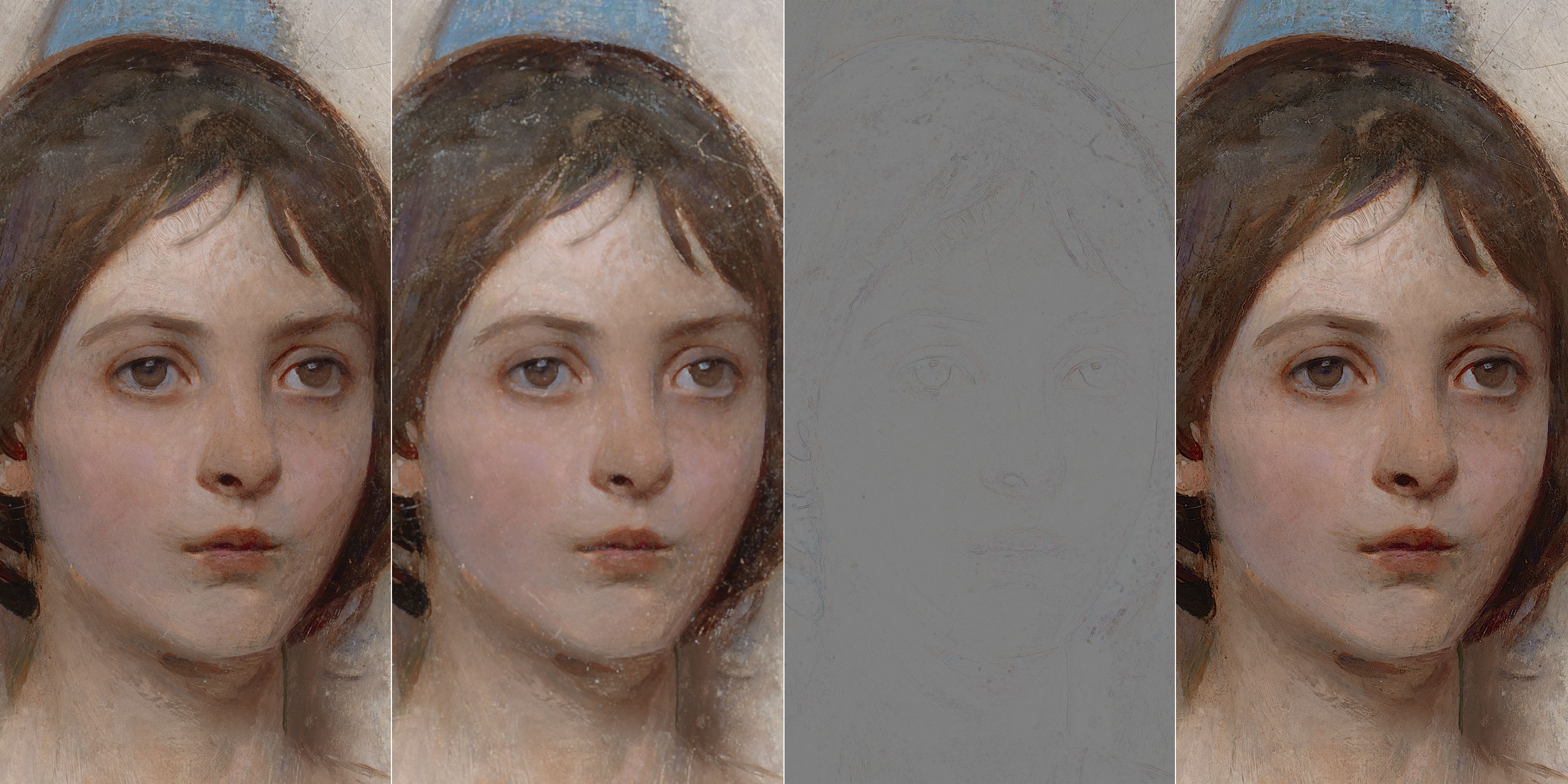
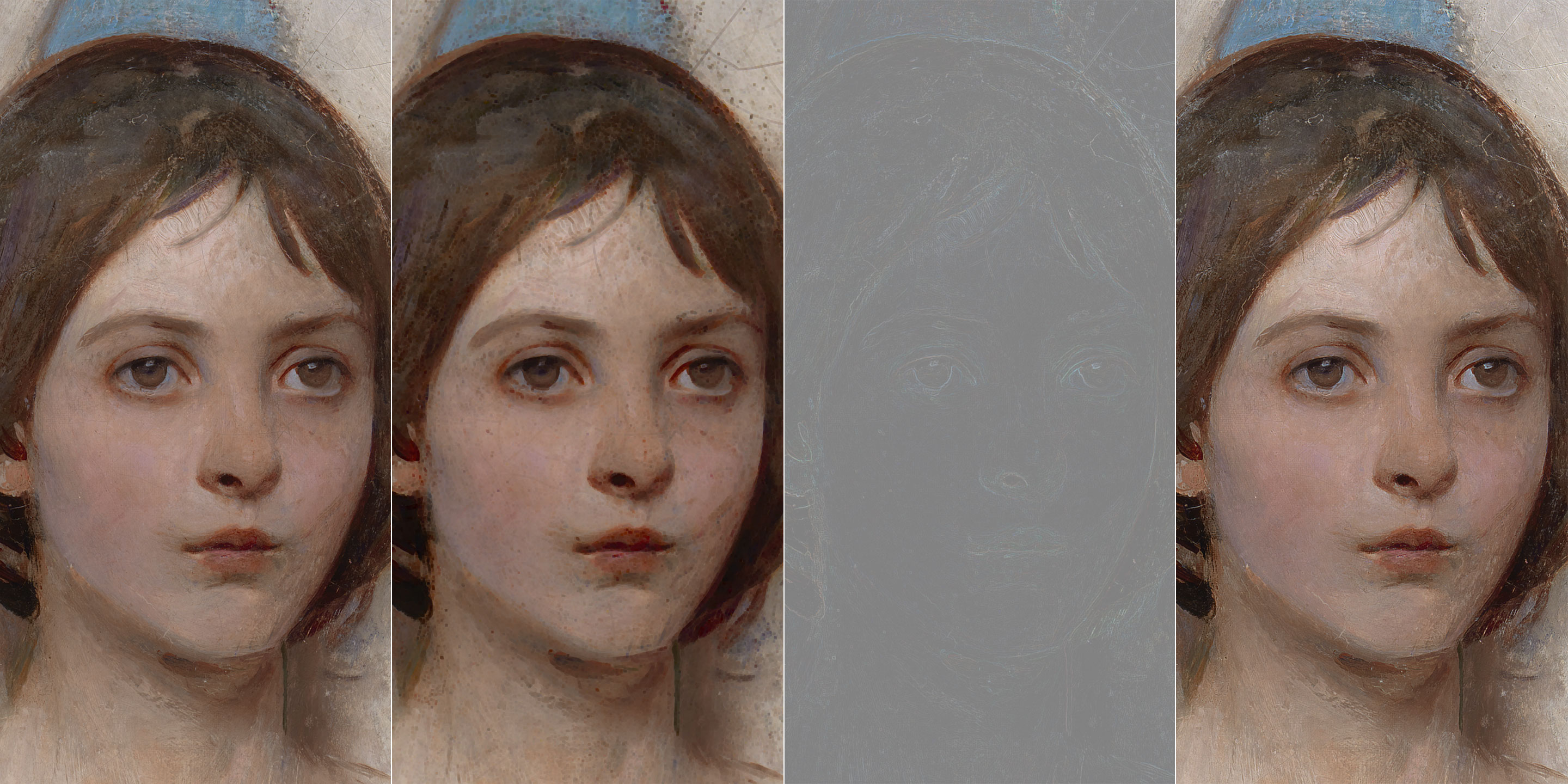
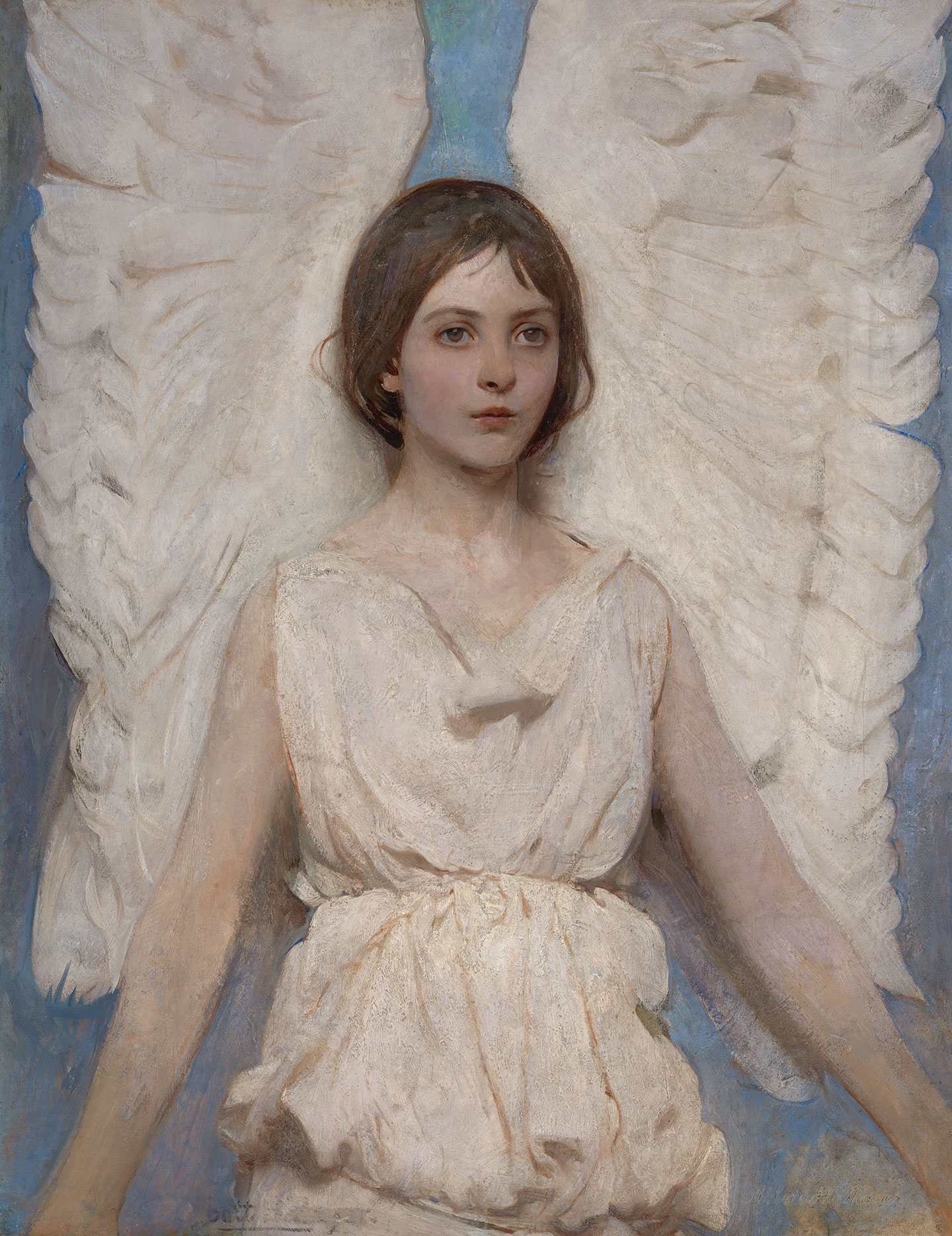
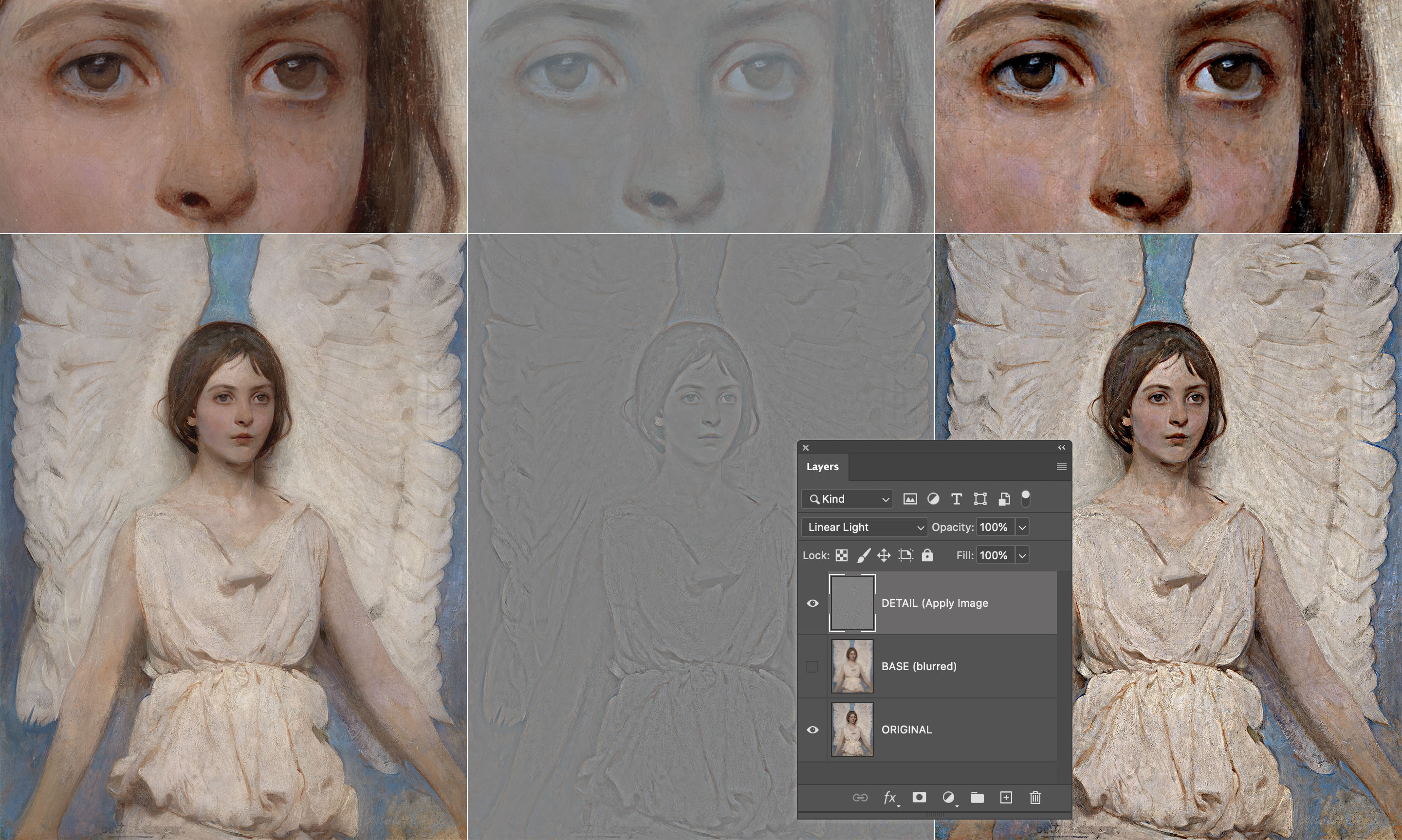
I’ve picked this image for most of the examples – it’s a 1887 painting by Abbott Handerson Thayer, a portrait of his daughter from the Smithsonian Institute collection.

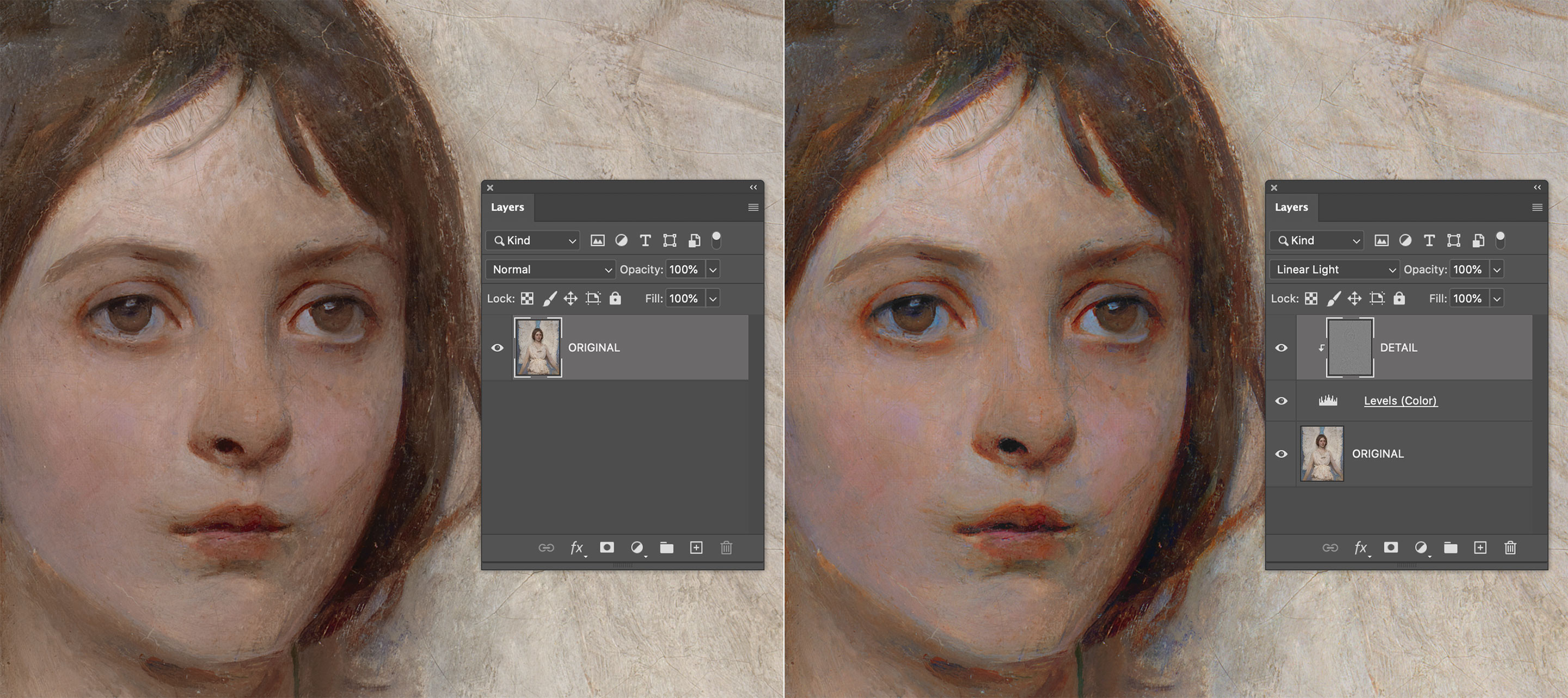
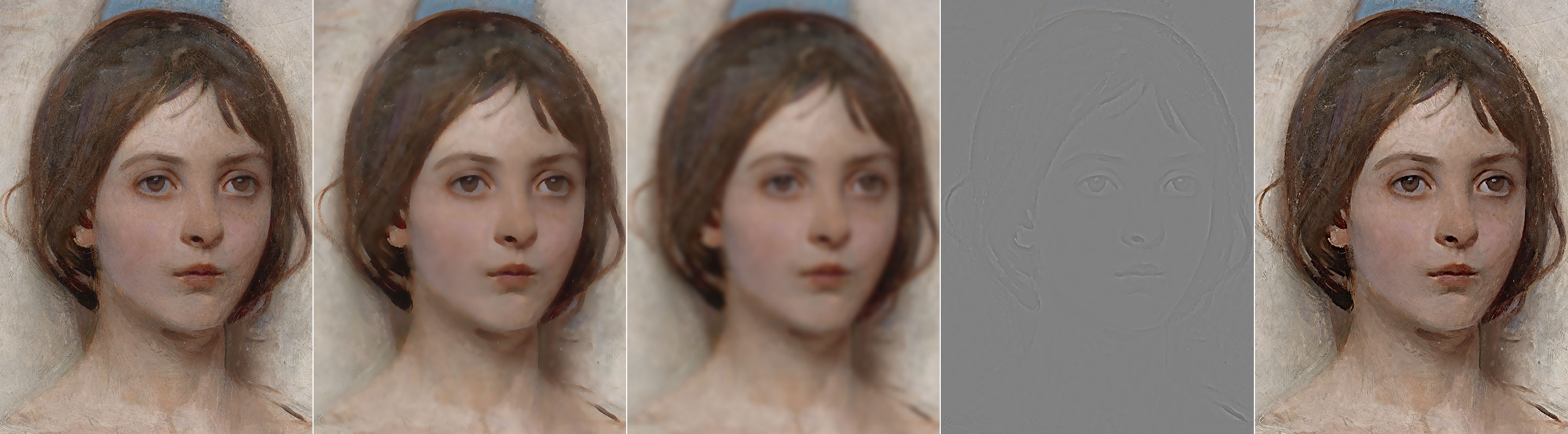
In the early days we used to combine the GB and HP layers (the latter in Linear Light blending mode, 50% opacity) but that’s not really precise enough for our purposes here. There are two ways to deal with a proper frequency decomposition, depending on whether the file is 16bit or 8bit.

  • Duplicate the original (O) twice, and call the two new layers L (low) and H (high).
  • Place H above L, hide H and select L.
  • Apply GB to L, with a radius large enough so that the detail that you want to migrate to the other layer disappears.
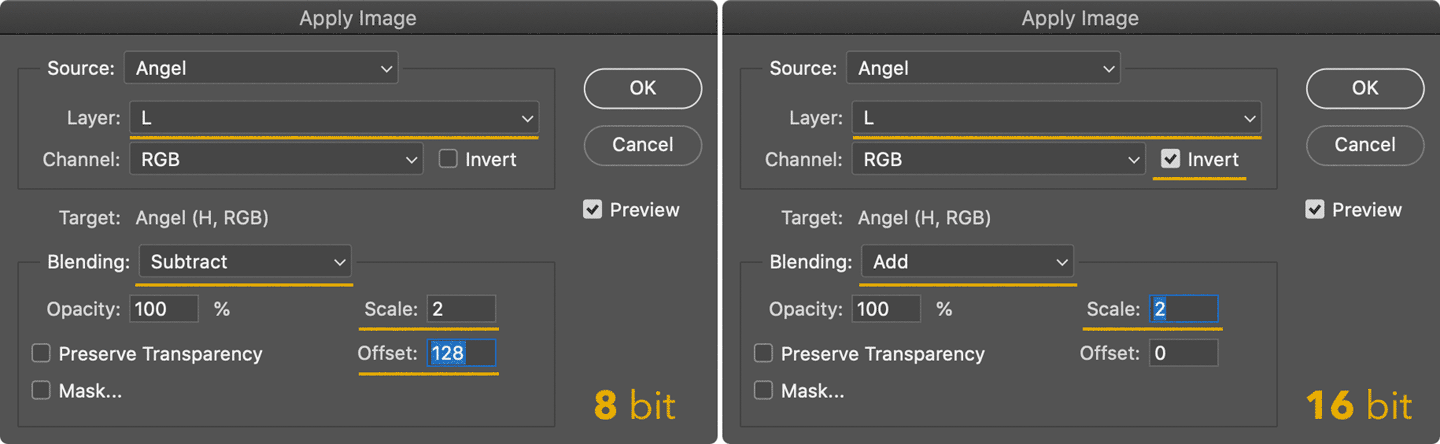
  • Select H, then Image > Apply Image with the following settings
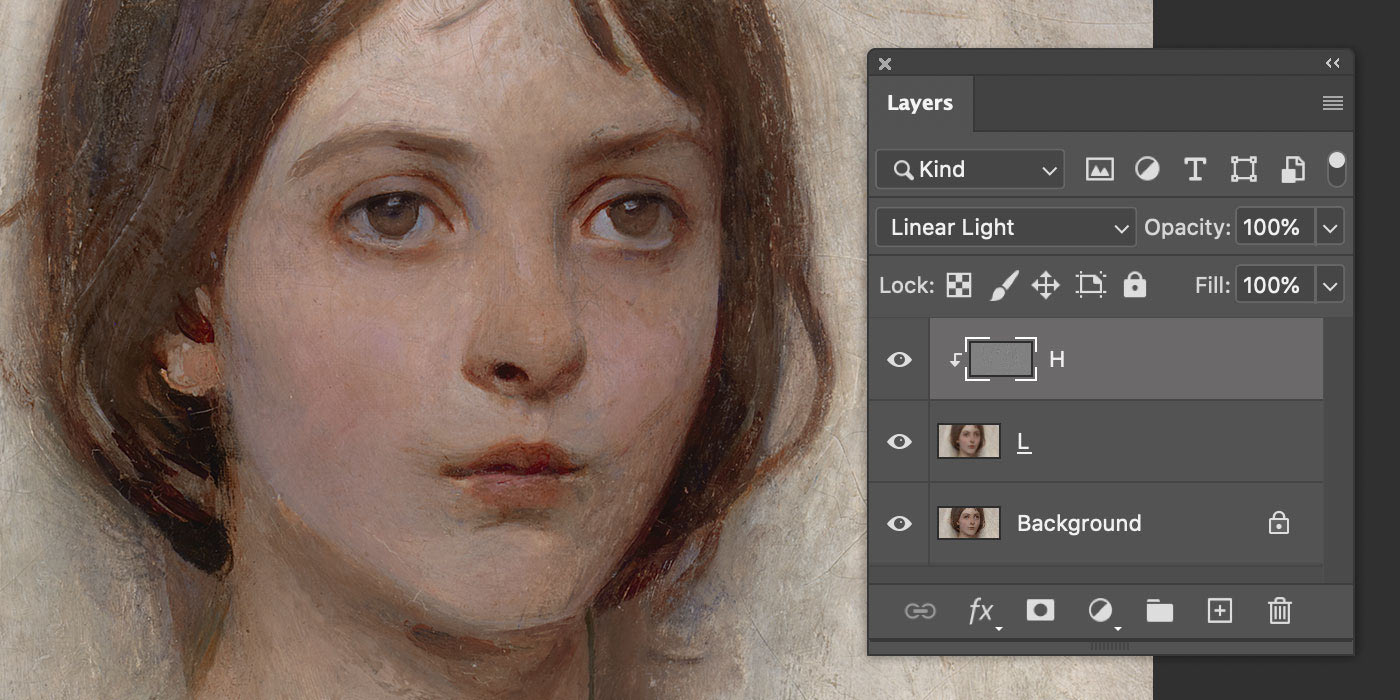
  • Change the H blending mode to Linear Light (LL from now on)
  • Optionally, clip H to the L layer (Alt or Option click the line in between the L and H layers in the Layers palette)

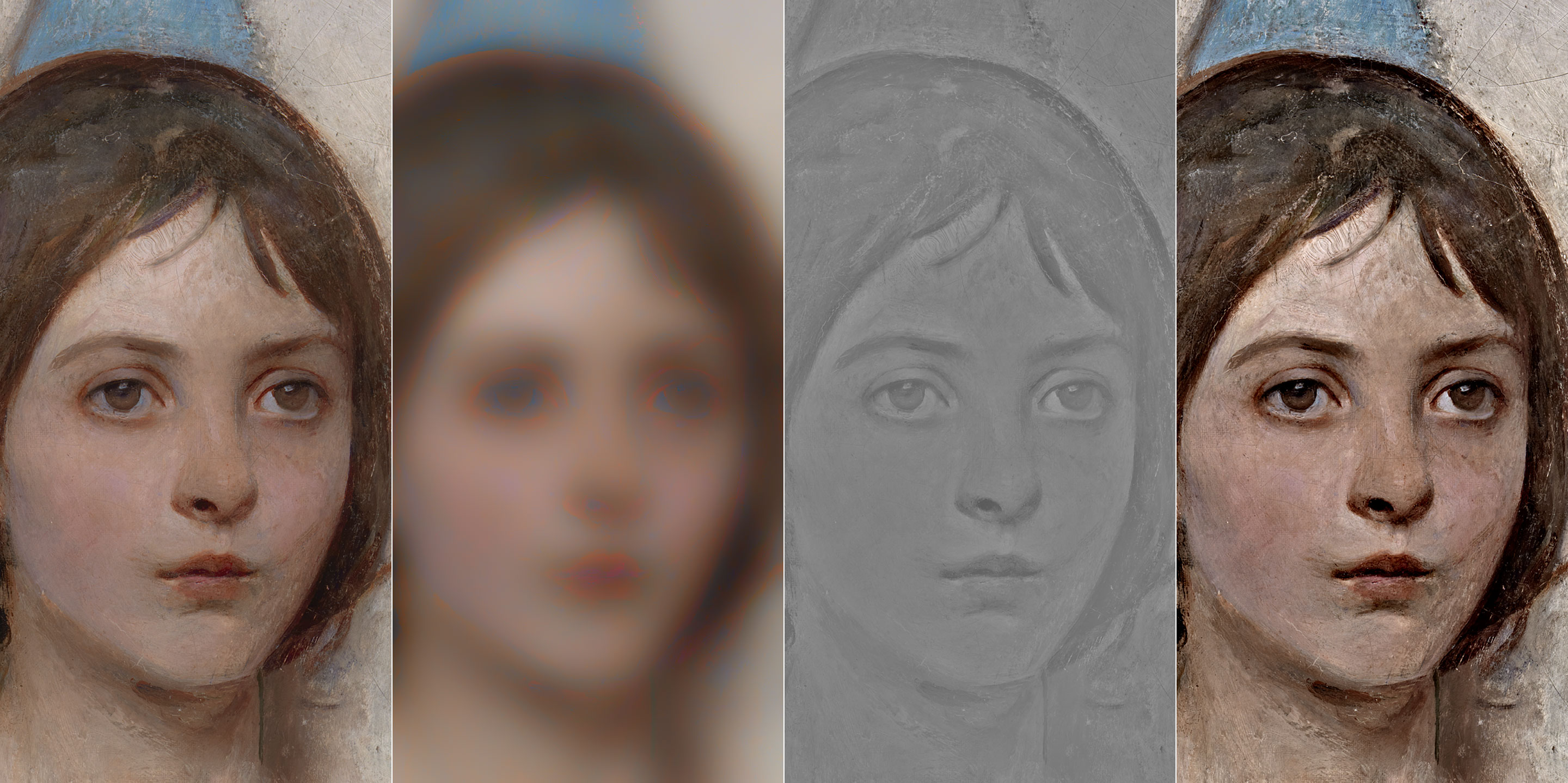
You should end up with this simple setup:

That is to say: the original layer, and the same built with a Low + High frequency decomposition. They are 100% identical, but why? And also, why different Apply Image settings for 8/16bit? That’s not been discussed very much (if at all): to properly understand we need to get into blending modes maths.

3. Blending Modes maths

Blending modes are arbitrary ways to mix two layers – say a Base (B) below and an Active (A) above – according to a formula.

Some blends are easier to understand if applied on normalized values, i.e. in the range (0,1). As an example, Multiply is a well known darkening blending mode, but not if the multiplication is calculated with pixel values in the (0,255) range. Let’s pretend that we have the following values1.A=51B=153A∗B=51∗153=7.803

A brightened result, that must be normalized with a 255 factor to be meaningful and appear darkened:51∗153255=30.6

If you normalize them first it’s just the sameA=51255=0.2B=153255=0.6A∗B=0.2∗0.6=0.120.12∗255=30.6

When the result is out of scale it’s clipped to 0 or 255, unless further blends are to be calculated.

Various online sources state that Linear Light is a mix of Linear Dodge (Add) and Linear Burn. Is it really? (Spoiler alert: nope) Let’s test it. With Linear Dodge (Add), the formula for the blend is (A + B). Being a simple addition, you can use both the normalized (0,1) or the (0,255) range: it makes no difference. Using the same values for A, B from the previous example:A+B=0.2+0.6=0.80.8∗255=204A+B=51+153=204

The Linear Burn formula is A + B – 1: an addition follwed by an inversion (white is subtracted).A+B−1=0.2+0.6−1=−0.2A+B−1=51+153−255=−51

Negative values are clipped to zero. Let me stress that “inversion” here means “subtraction with white”, which is 1 in the normalized range, and should be 255 for 8bit documents (more on that later).

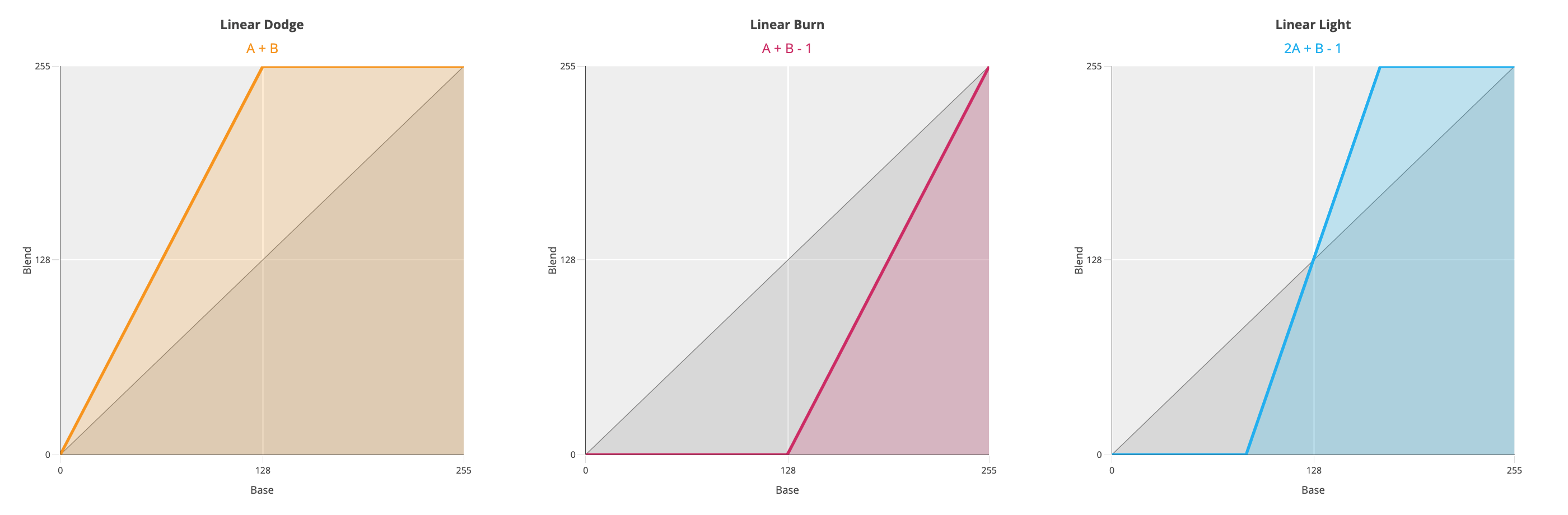
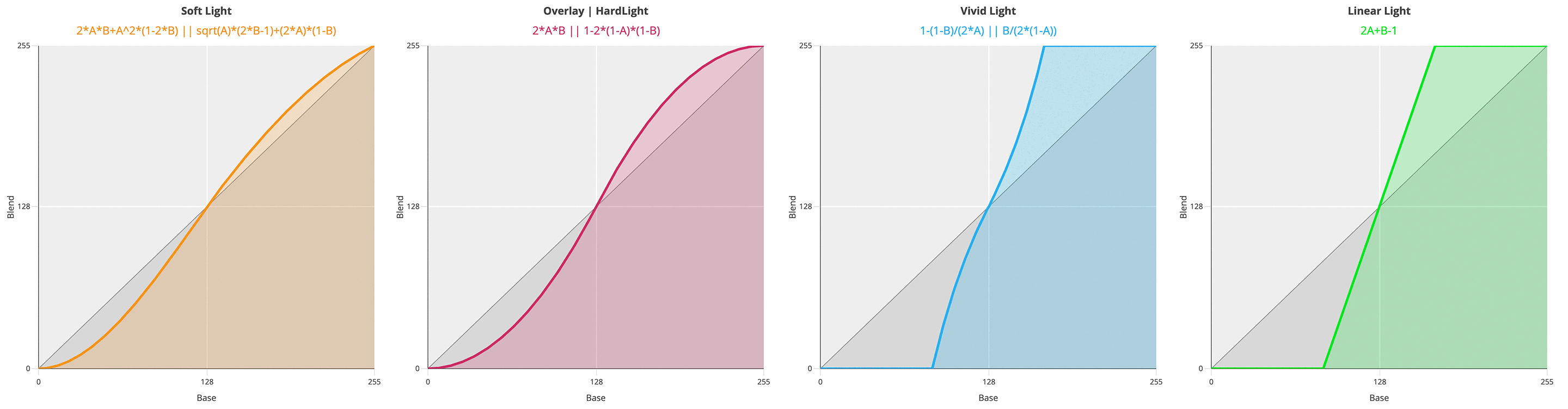
The Linear Light formula is instead 2A + B – 1, so twice the impact for the top layer. If you draw a gradient from Black to White on a new document, duplicate the layer and change its blend mode, these are the result for Linear Dodge/Burn/Light:

So I’m afraid no, LinearLight is not “a combination of Linear Dodge and Linear Burn” because the slope of the curve is different. It’s not a shift of either formulas (resulting in A + B – 0.5), which would have in fact pivoted the line around (0.5, 0.5). With Linear Light the slope is steeper – and in fact the formula is 2A + B -1.

Now that we’ve got this, let’s try to understand why Linear Light works with the kind of Apply Image that we’ve used. There’s nothing inherently “frequency separation-y” with Linear Light, it just happens to combine perfectly with the sort of Image Calculations we’ve performed. We’ll start with the 8bit version, and move to the 16bit next.

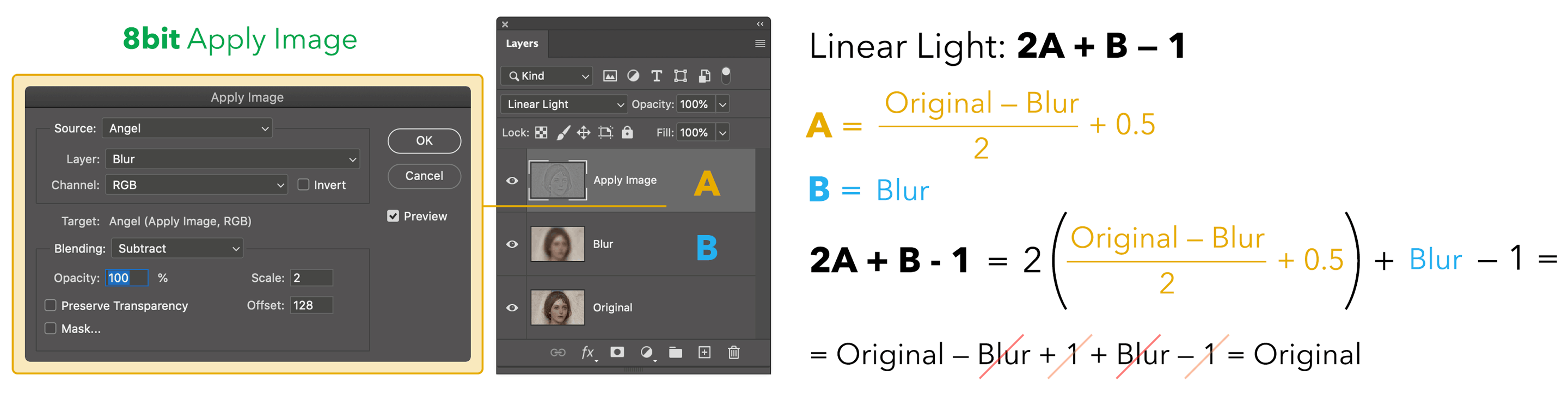
The Apply Image step was the Original minus the Blurred (hence the Subtract mode) with Scale 2 (meaning divided by 2) and Offset (i.e. plus) 128 that is normalized to 0.5. All this is equal to the grayish detail layer, which is then set to Linear Light blending mode: being on top, let’s call it A. The layer below (B) is the Original, and the blend formula for Linear Light is 2A + B – 1. Let’s substitute A with (Original – Blur)/2 + 0.5 in the formula and you see that everything simplifies to Original, QED.

In other words, we’ve demonstrated why this particular Subtraction (with Scale 2, Offset 128) perfectly combines with the Linear Light blending mode to return an identical copy of the original. Cool!

Let’s see how the theory works with 16 bit files and its different Apply Image.

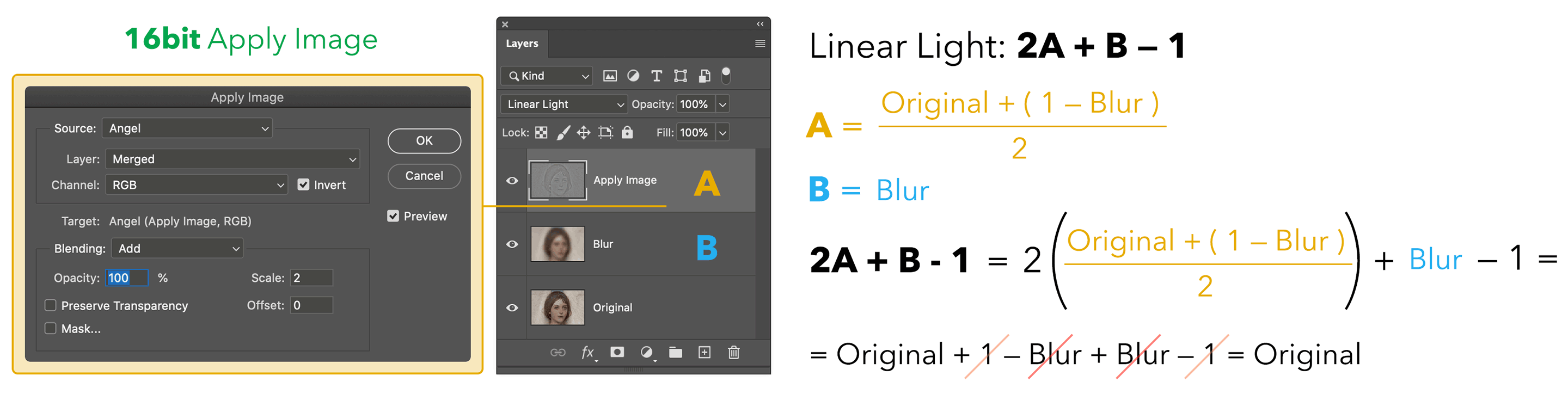
Here we’re Adding to the Original the inverted Blurred (hence 1 minus Blurred, this is how you invert pixels), scaling 2 (i.e. divided by 2). This is again the detail layer then set to Linear Light mode: we call this A, and B is the Original. Applying the same blending formula 2A + B – 1 we can substitute A in it and everything simplifies to the Original. Great!

So it’s not that Linear Light is a magic blend mode, nor that it fits Frequency Separation. The Apply Image settings happen to work with Linear Light in returning the original values.

Then… why two different methods with 8bit/16bit documents? You’re ready for some bit depth Maths.

4. 8bit vs. 16bit Maths

For 8bit images, pixel values are in 2^8 = 256 range, i.e. (0,255). Black is zero, White is two-hundred-fifty-five. You might be tempted to assume that 16bit works the same, but it turns out that Adobe Photoshop’s 16bit is in fact 15bit + 1, meaning 2^15 + 1 = 32768 + 1 = 32769, expressed in the range (0,32768). Why? The accepted answer is that “this gives a midpoint to the range (very useful for blending), and allows for faster math because we can use bit shifts instead of divides” (source).

4.1 8bit special inversion

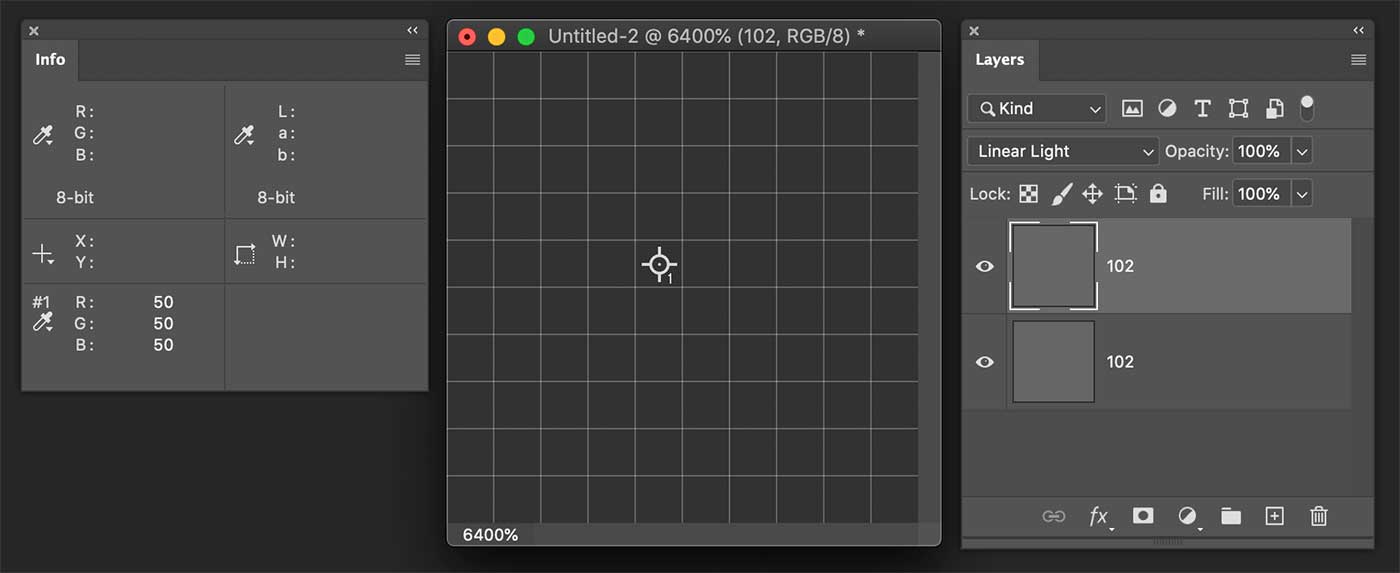
I’ve tried to reverse engineer the way Photoshop handles pixel calculations, and there is something interesting going on here. Let’s create a dummy test document, 8bit.

As you see I’ve created two layers, solid 102,102,102. When the topmost is in Linear Light I would expect the blend to be 2A + B – 1, where 1 is the highest value possible in the (0,255) 8bit range, that is to say White: 255. Hence the formula would give:LL=2A+B−1=2∗102+102−255=51

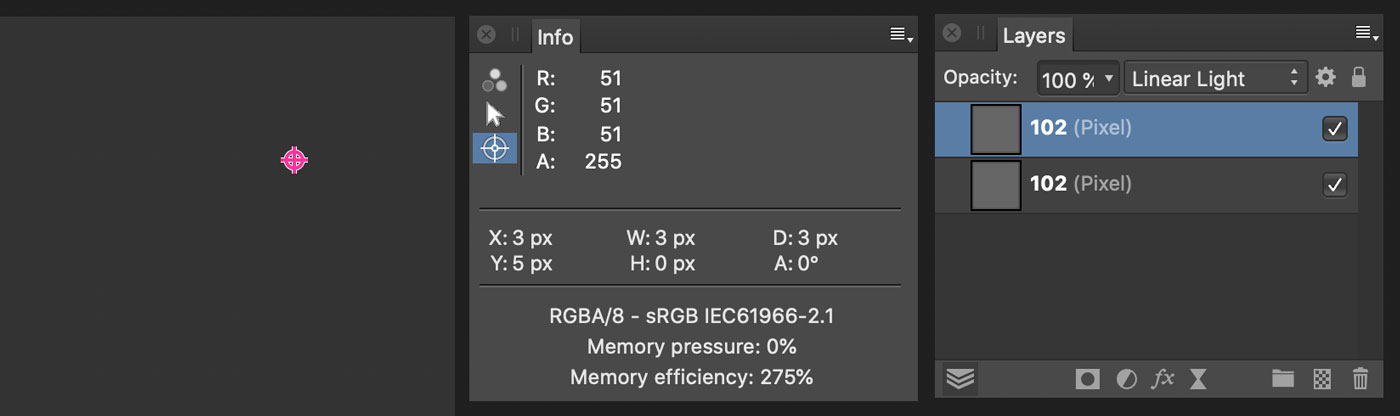
Alas, “computer says no”, and PS calculates 50. There are no divisions here, so I wouldn’t expect rounding errors of any sort, it’s quite straightforward. I’ve tested it with a bunch of different pixel values for the top and bottom layers, and the result is always off by 1.

Out of curiosity I’ve tested Affinity Photo and it works as I’d expect:

The only explanation is that Photoshop subtracts 256 instead of 255. This is in fact the case, and the reason is that otherwise there would be no neutral color in Linear Light with 8bit documents.LL=2A+B−1

A is the layer above, the one which middle gray is meant to be “neutral” (have no effect) in the blend. Let’s rewrite it as:LL=B+(2A−1)LL=B+ΔA

Where:ΔA=2A−1

There must be a value of A (the neutral, mid-gray) such that deltaA is equal to zero. But using 255 as the white, zero is nowhere to be found.A=128ΔA=2∗128−255=1A=127ΔA=2∗127−255=−1

Instead, if you subtract 256 the neutral value happens to be 128, which is in fact the proper mid-gray value in use:A=128ΔA=2∗128−256=0

This is true for 8bit documents only.

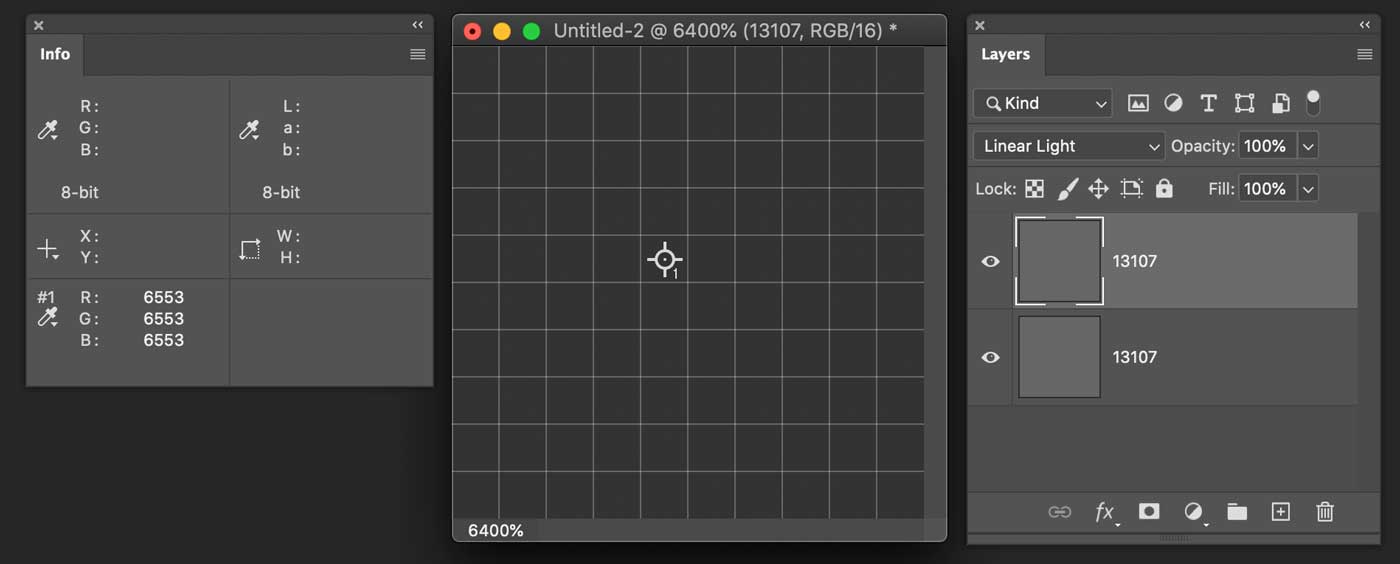
For 16bit documents, given their particular nature of 15bit + 1, there are 32769 values in the (0, 32768) range, hence no need to tweak the white subtraction. In fact, the used value is the proper 32768.

LL=2A+B−1=2∗13107+13107−32768=6553

4.2 Image Calculations: 8bit

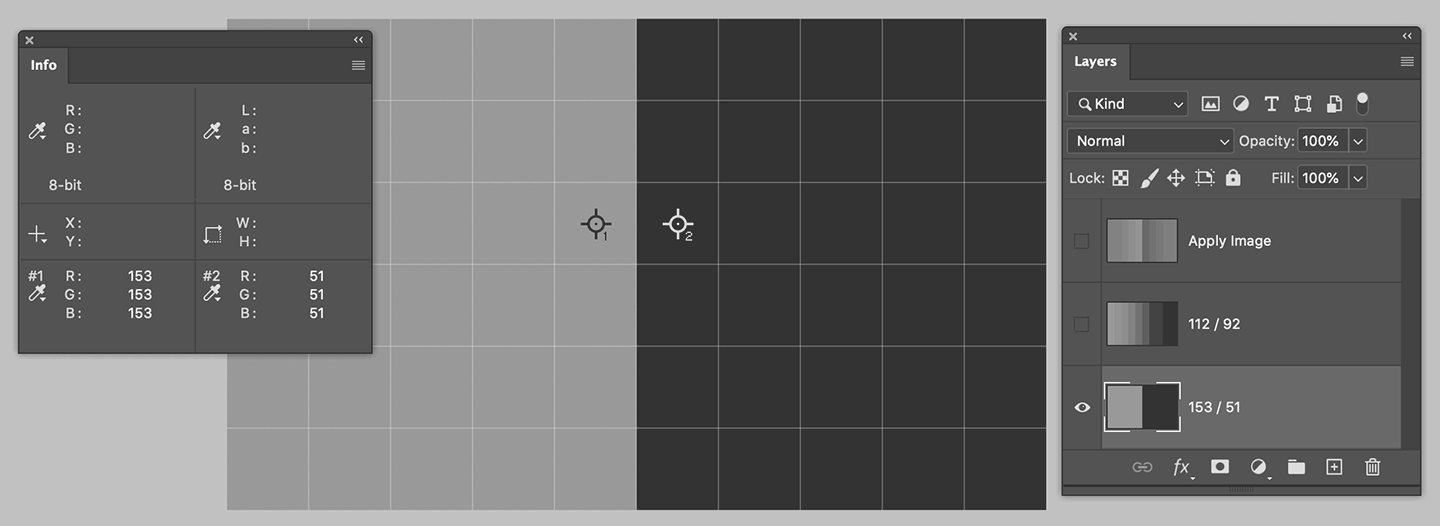
I’ve created an edge and noted the pixel values for the Original layer that you can see either in the Info palette for the two color samplers and in the layer name as well. I’ve also added a Blurred (2px radius) layer – trust me the color sampler values are ones in the Layers palette.

Let’s crank some numbers and see if we’re able to calculate the Apply Image value.

Please note this is an 8bit file, so let’s start with the recommended calculation, a Subtraction with Scale 2 and Offset 128.O=153GB=112ApplyImage=O−GB2+128=153−1122+128=412+128

Let me pause for a moment: 41/2 here is equal to 20, for there’s no such a thing as 20.5 in the integers (0,255) range – more on rounding in a minute.ApplyImage=20+128=148

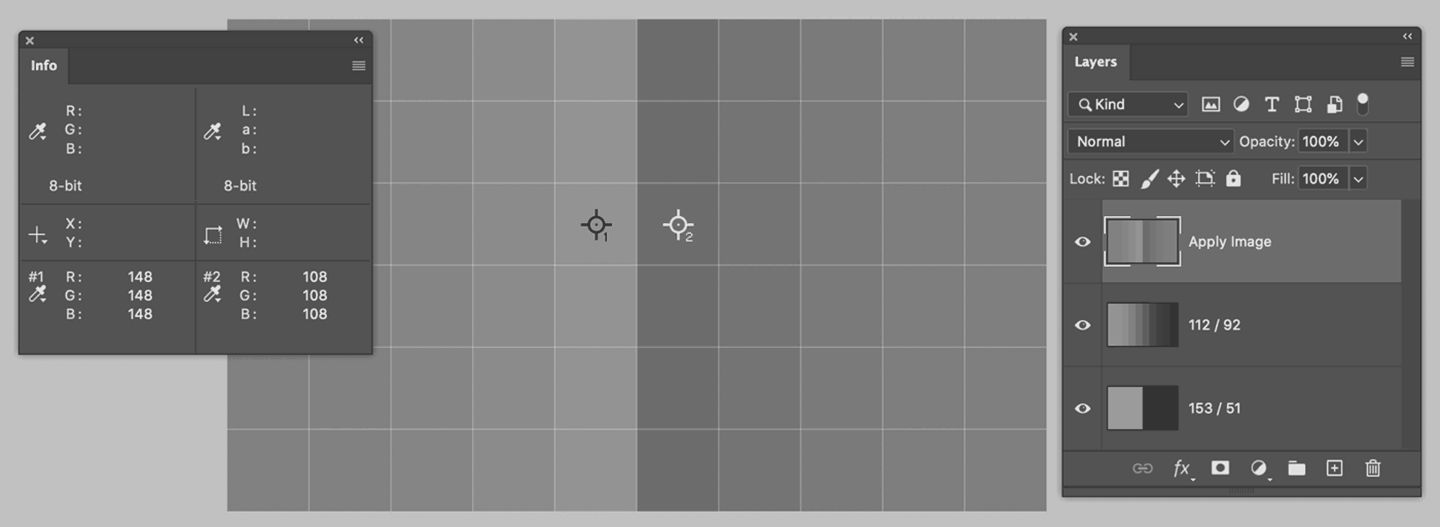
Which is exactly the correct value that Photoshop comes up with:

A quick check for the darker values too:O=51GB=92ApplyImage=51−922+128=−412+128=−20+128=108

Which is exactly what you can see in the Info palette above. We’ve confirmed the Apply Image result.

Now it’s kinda easy, we need to apply the Linear Light formula (2A + B – 1), where A is the value we’ve calculated, B is the Blurred, and 1 is the “special” white that Adobe uses for 8bit Linear Light, i.e. 256.

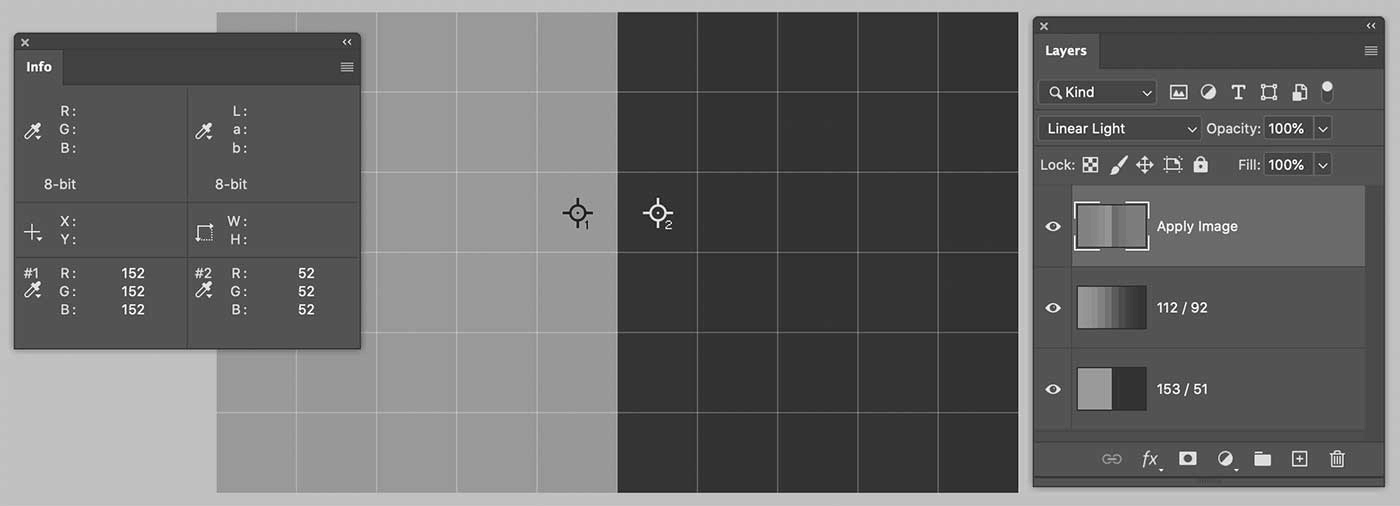
Lighter values on the left:LL=2∗148+112−256=152

Darker values on the right:LL=2∗108+92−256=52

Photoshop confirms:

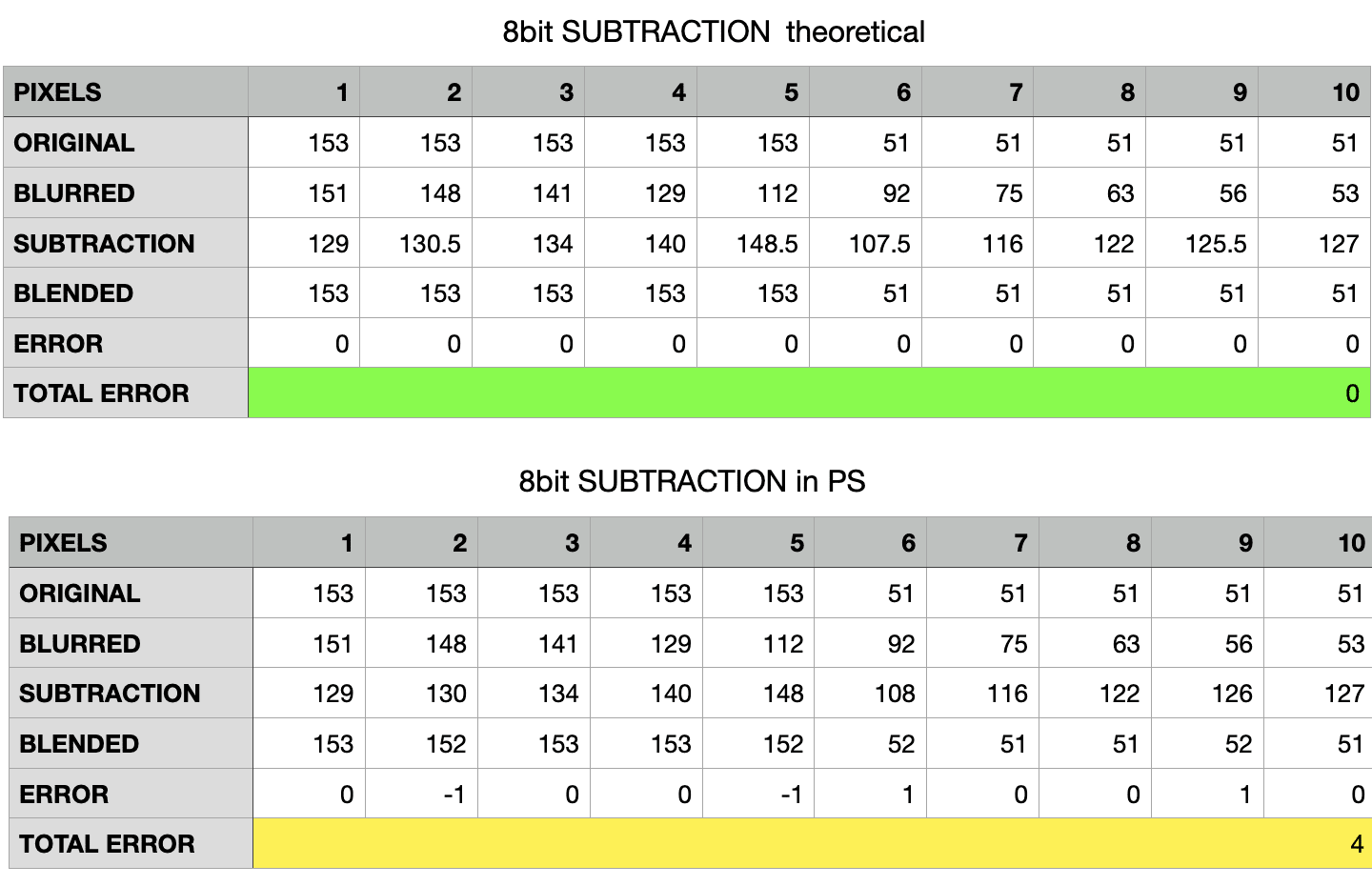
So we’re off one point in both dark and light side. I’ve noted all the values along the 10 pixels the image is wide:

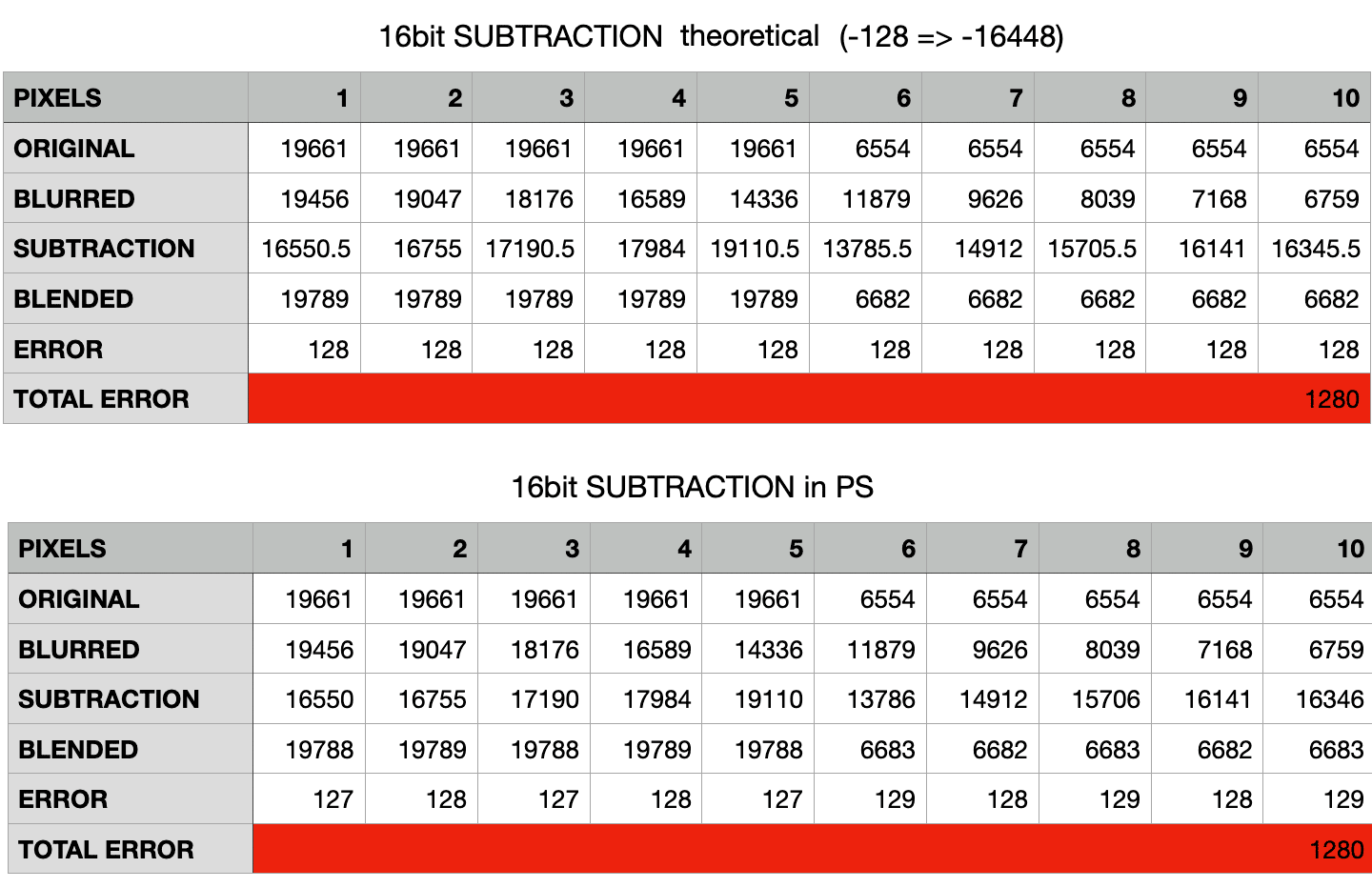
Why two different tables? Because Photoshop rounds values to the integer in an inconsistent way – or at least in a way for which I haven’t been able to find the rule. The table above shows the “theoretical values” (floats, which would lead to zero errors everywhere), while the bottom one is filled with the actual readings. I say PS rounds inconsistently because for reasons unknown to me the first five values in the Subtraction row are rounded down (130.5 → 130, the floor), while the last five values are rounded up (125.5 → 126, the ceiling). Go figure.

All in all, for 10 pixels we’ve got 4 off by 1 (in absolute value), so a total error of 4.

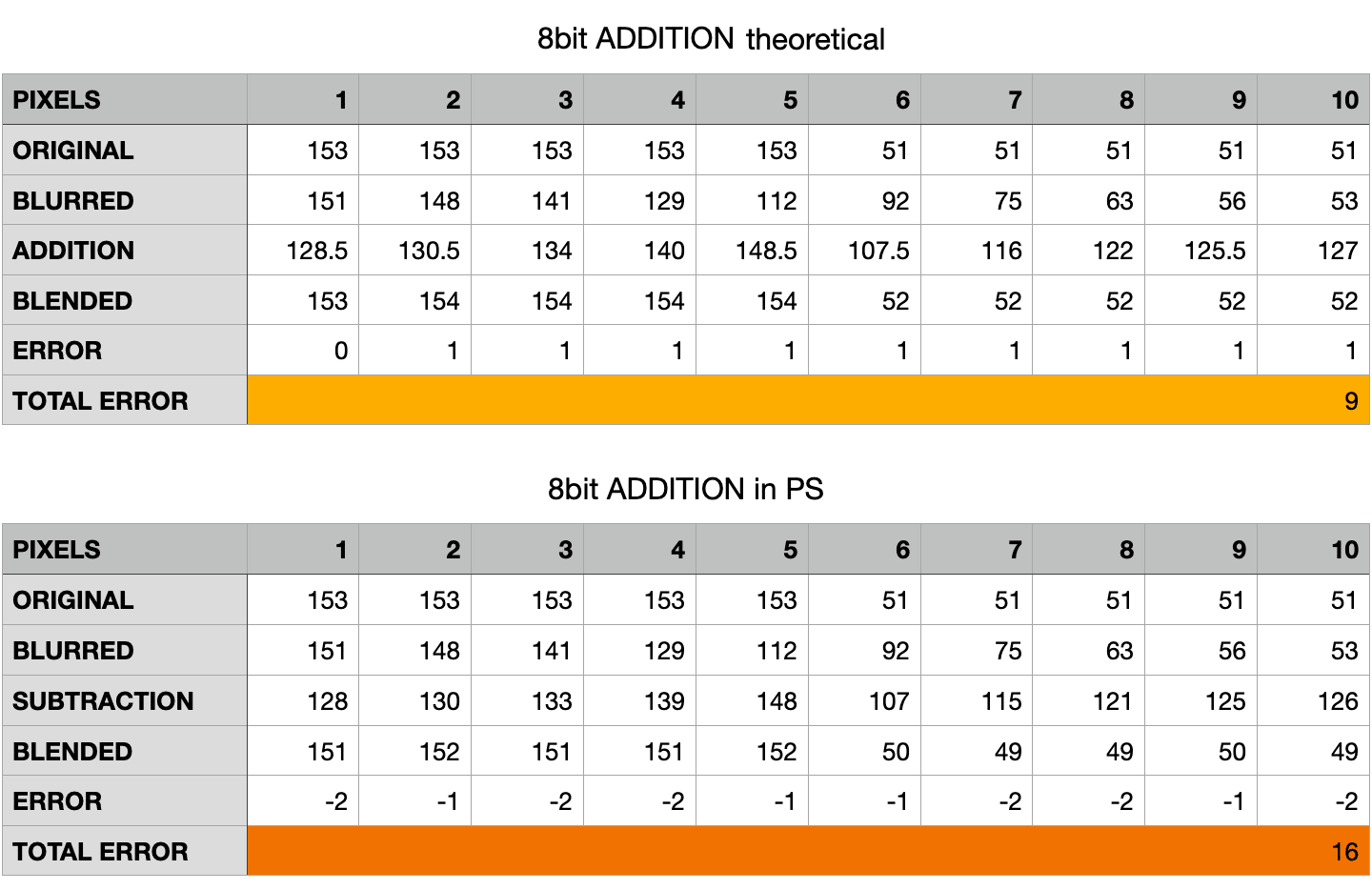
Let’s try with the same 8bit document, but with the 16bit Calculations instead (the Addition of the inverted, Scaled 2)

The results are much worse. On the one hand there are the same weird behaviour mixing ceiling and floor rounding. On the other hand, the theoretical error is more than twice the real error for the Subtraction calculation, and 4 times that in the actual document!

Even when rounding is not needed (e.g. for pixels 3, 4, 7, 8, 10) the theoretical value is always off by 1. My understanding is that the special white value (256 instead of 255) used in the LL blend is compensated with the 128 offset in the Subtraction method only. Why some values are even worse in the actual readings (same pixels 3, 4, 7, 8, 10) I have no explanation for. But the experimental result is that Addition in an 8bit file results in a greater error, 4 times the Subtraction’s.

4.3 Image Calculations: 16bit

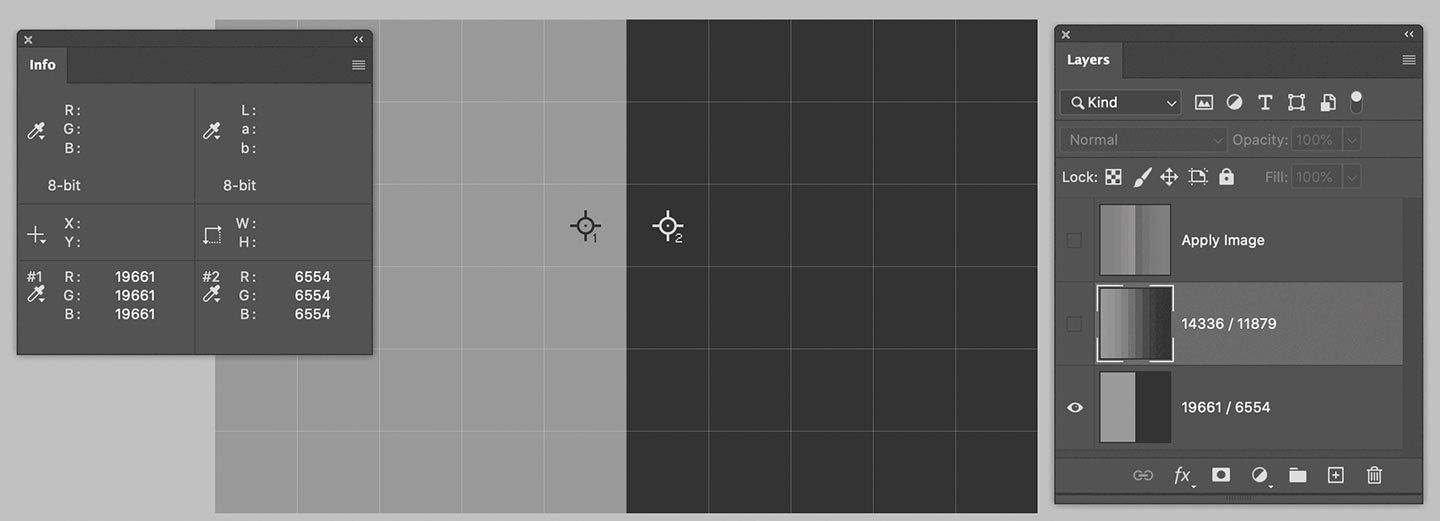
I’ve set up a similar document, but 16bit (with the sampler set to read 16bit values):

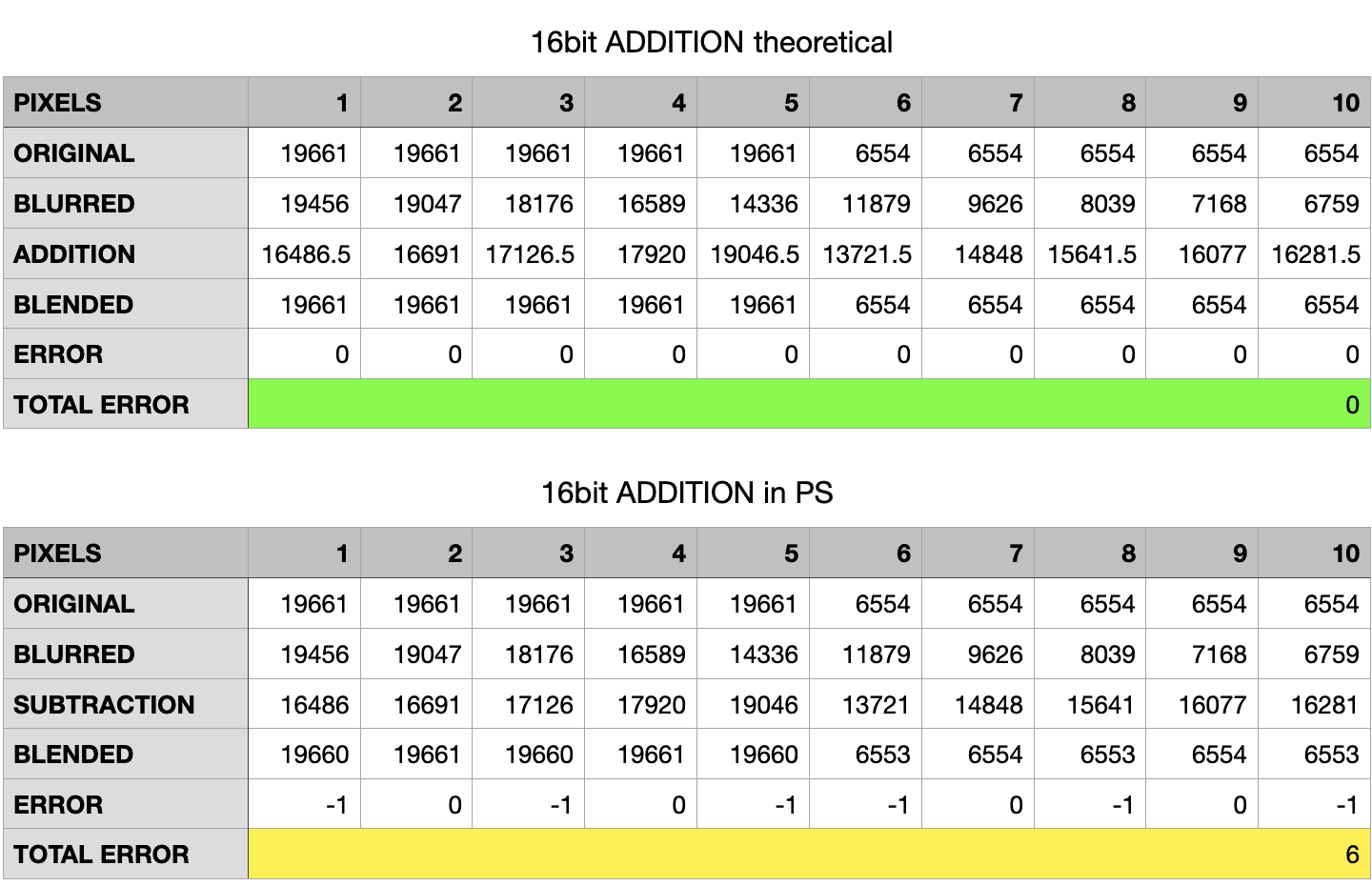
Let me show you the spreadsheets for the recommended 16bit calculation, Addition of the inverse, Scaled 2

Here the theoretical error is always zero, whereas the actual document shows minimal deviation. Different story if you try the recommended Apply Image settings for 8bit, the Subtraction with Scale 2 and 128 Offset:

Here the error is much greater: I’d say due to the fact that 128 translates (in 16bit) to 16448. Try adding a 128 solid color layer and measure it in Photoshop with the color sampler set to 16bit, this is the value you’re going to get. My interpretation of the experimental results is that the difference is due to the mismatch between the theoretical middle-gray offset for 16bit documents (16384) and the one used in Apply Image (16448) – where you have to enter an 8bit number even if the document is 16bit.

Mind you: 1280 seems to be a much bigger error than the 16 points of the 8bit Addition case, but it’s actually lower: it’s a 4% error, compared to 6% of the 8bit.

Fun fact: in 16bit documents, it seems that rounding is always floor in the Addition, ceiling in the Subtraction.

There still are some points for which I haven’t a proper explanation:

  1. Why there are differences between theoretical and actual readings even with non rounded values.
  2. How can PS rounds using both floor or ceiling values for x.5 numbers.

All in all, the above experiment proves that no method hits the bull’s eye but the measured errors are smaller when using Subtraction with Scale 2 and 128 Offset on 8bit documents and Addition of the inverse with Scale 2 on 16bit documents.

4.4 High Pass

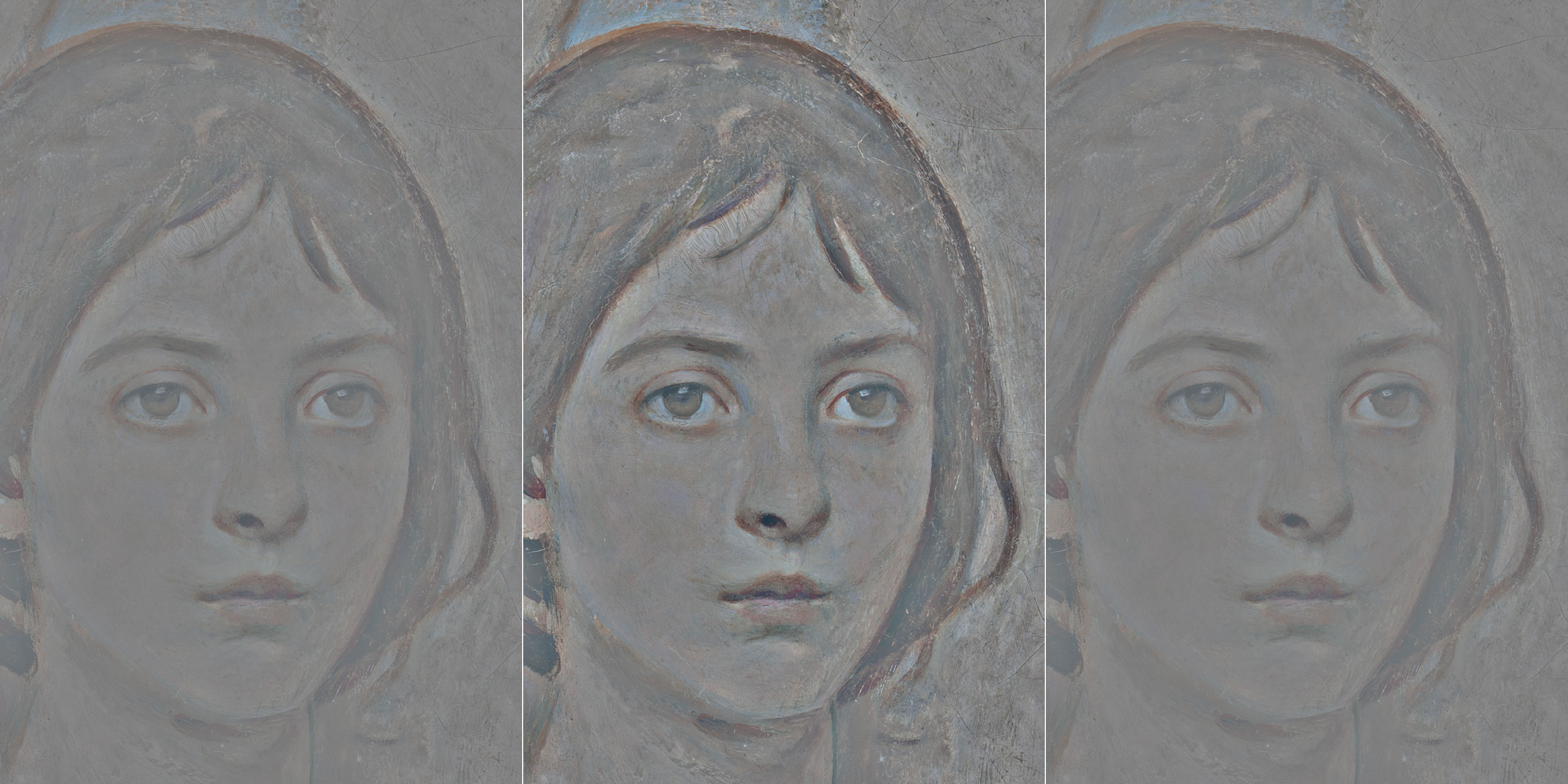
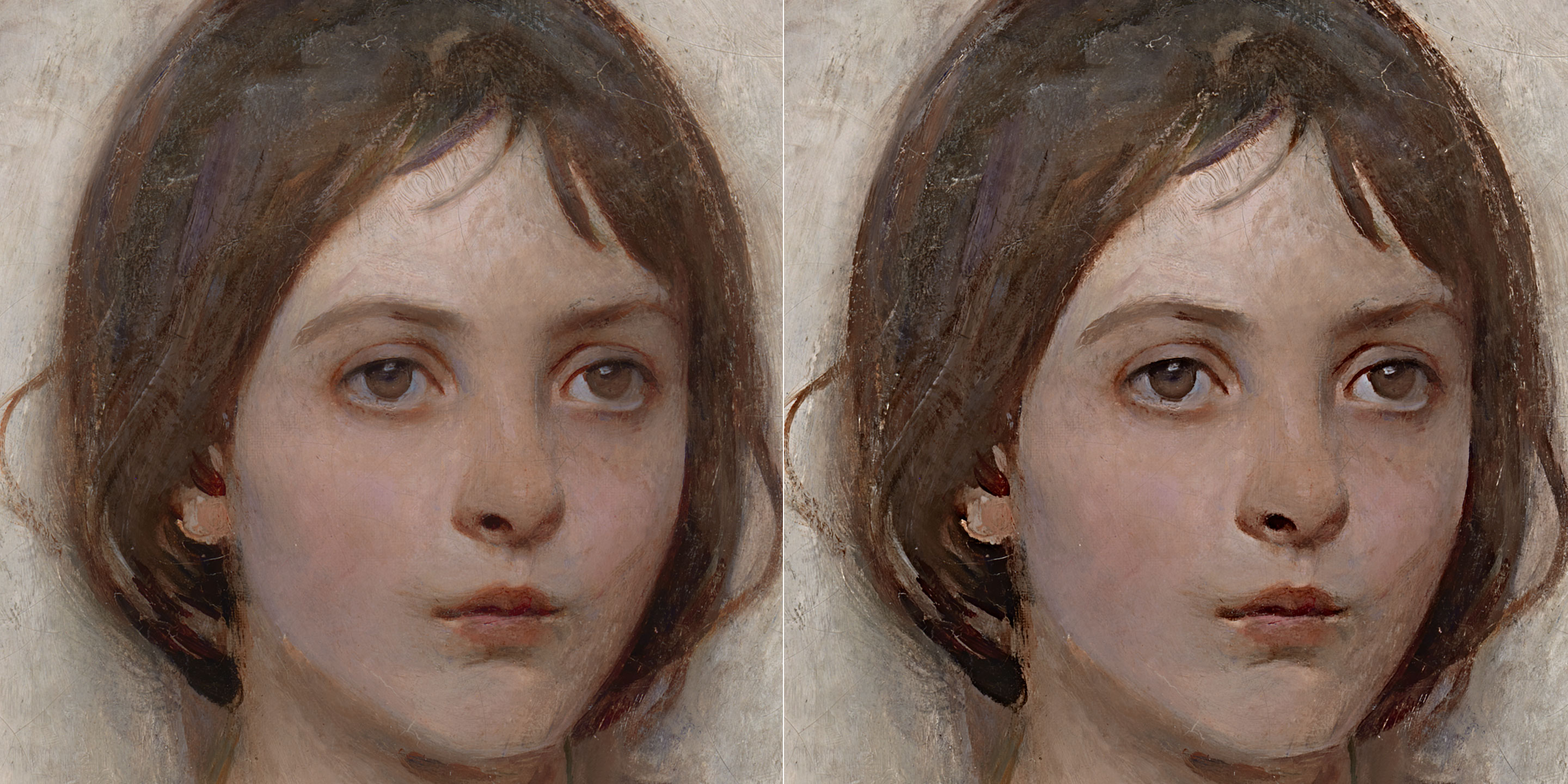
Before going any further, let me point out that the High Pass filter doesn’t output the same Detail layer as the decomposition we’ve performed.

On the left you see the Detail layer, center the High Pass with same radius as the Gaussian Blur (much stronger effect). Right, putting the HP layer half opacity on top of a mid-gray layer (Edit > Fill > 50% Gray). Apparently it’s now identical: if you put the HP on top of the Detail, Difference blending mode, the result is full black and both Mean and Std Deviation (from the Histogram palette) are equal to zero. This for a 16bit file, while an 8bit file shows 0.50. In both cases, an extreme contrasting curve shows noise, which in the 16bit case might be just rounding errors (not so sure about the 8bit one).

All in all, I will keep using the Apply Image method, especially when decomposing the image for retouching purposes.

5. Single Kernels

In my experience, Photoshop people tend to think about Frequency Separation mainly as a retouching tool. Sure the image decomposition helps targeting the retouching process in ways and with such precision/ease that would be otherwise impossible, but I am personally also interested in contrast enhancements.

5.1 Gaussian kernel

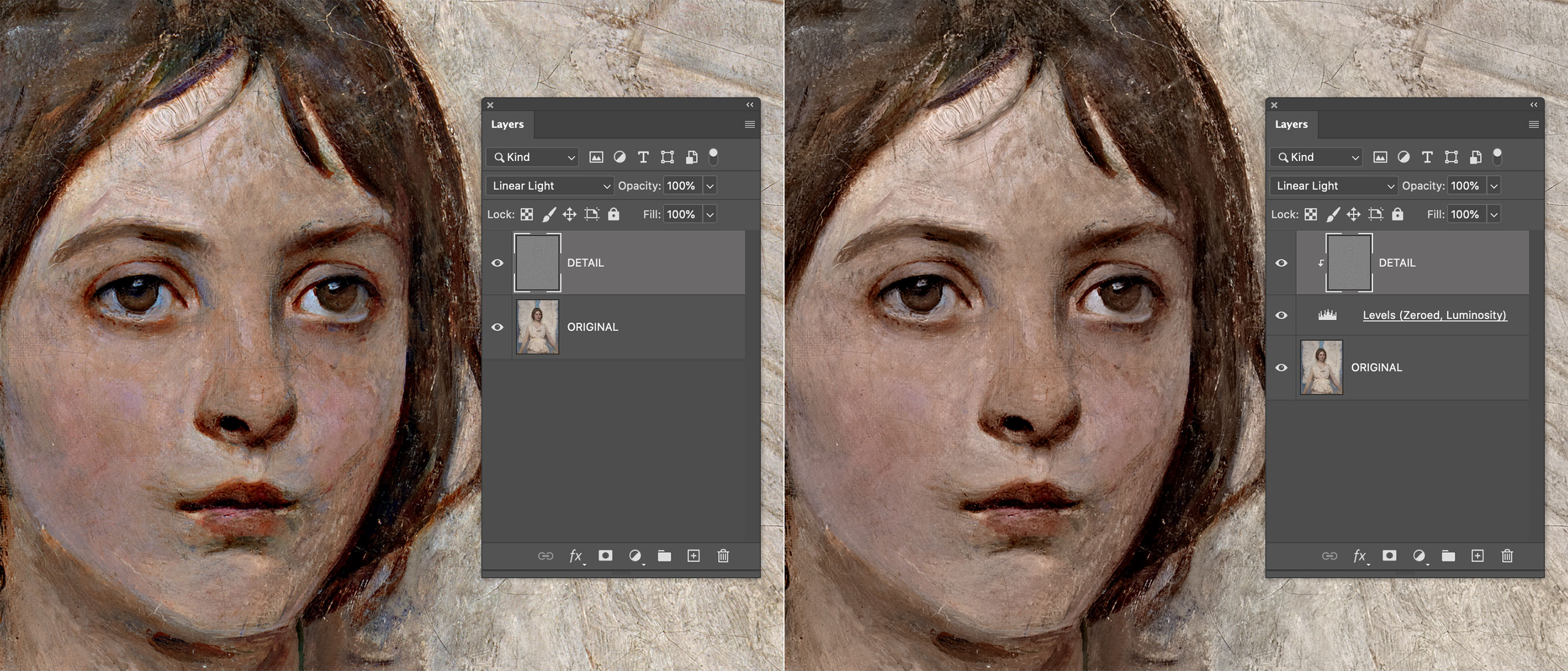
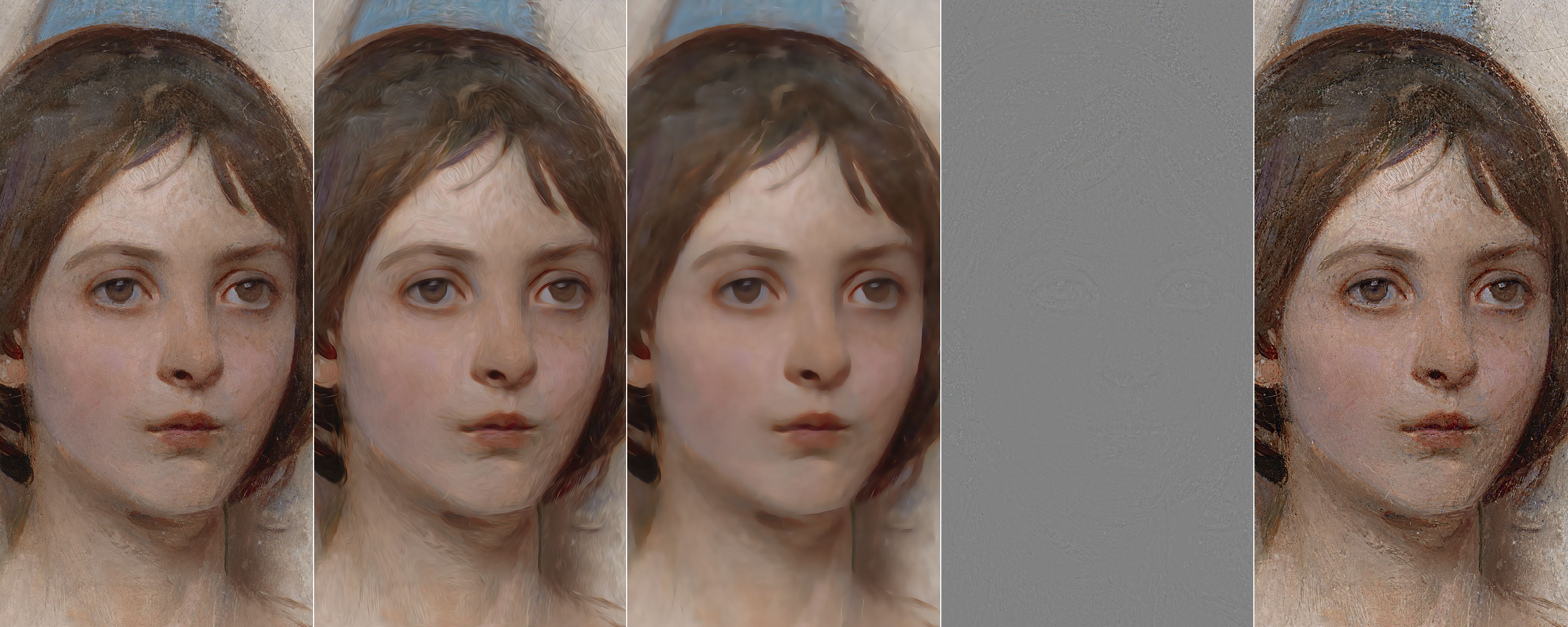
As soon as you’re able to separate frequency ranges into their own layers, they can be successfully used to enhance or dampen those features in the original image. Gaussian Sharpening is a classic example: without entering the details of the three parameters of the UnSharpMask filter here, conceptually it’s just a matter of creating a Gaussian separation and adding the frequencies back to the original – basically discarding the Blurred layer and using the Detail one only. Exaggerated radius (40px) demonstration as follows.

Several things to point out ASAP.

  • First, a “Gaussian separation” means a Frequency Separation that uses the Gaussian Blur filter. As we’ll see in a short while, we’re not limited to that at all.
  • Second, “adding back” is a loose term that means putting the Detail layer (the one that’s the result of the Apply Image step) into Linear Light blending mode directly on top of the Original, discarding the Base (blurred) layer.
  • Third, as soon as we enter the realm of contrast enhancement we can leave the rigorous math we needed for the decomposition behind. In the image above I’ve used Linear Light at full opacity. You can experiment lowering the opacity or using different contrast blending modes2.
  • Fourth, due to the fact that Apply Image and the Linear Light blend work on a per channel basis, as a result the color is expected to be saturated and the hue sometimes shifted. The effect may be welcome or may be not. Without the need to bother with a Merge Layer on top switched then to Luminosity blending mode, you can force the Luminosity only by clipping the Detail layer to whatever blank/zeroed Adjustment Layer you want, provided that the latter (only) is set in Luminosity, while the Detail layer is whatever contrast blending mode you like.

This is a little known technique that lets you mix blending modes in a very fast and cheap (in terms of filesize) way.

Alternatively, you can slightly tweak the procedure. If after the Gaussian Blur you Edit > Fade Gaussian Blur… and set it to “Luminosity” you end up with a weird looking blurred thing.

When using that one for the Image Apply step, then the resulting Detail layer is completely desaturated, hence the result when applying it back to the original has the same effect as retaining only the Luminosity part.

It’s quite important that you understand how the above works. We’ve subtracted a Blurred version from the Original, in order to get the gray-blob that I’ve called the Detail layer.D=O−GB

Where D is Detail, O is Original, and GB stands for Gaussian Blur (the blurred layer). If the GB is blurred in the Luminosity only, then:Dlum=O−GBlum

Finally, nothing prevents you to use the regular decomposition and retain the color only, in order to emphasize a more impressionistic effect – some sort of Michel Eugène Chevreul influenced simultaneous contrast boosted look.

Feel free to mix different amounts of Color and Luminosity for greater control. Also note that if you invert the Detail layer you get the opposite effect: dampening that frequency range rather than enhancing them. It’s of little use with a Gaussian kernel (a decomposition which is based on a Gaussian Blur filter) because it would just return a blurred version:

But with other kernels (especially mixed ones) and varying the opacity it can lead to very interesting results.

5.2 Non-Gaussian kernels

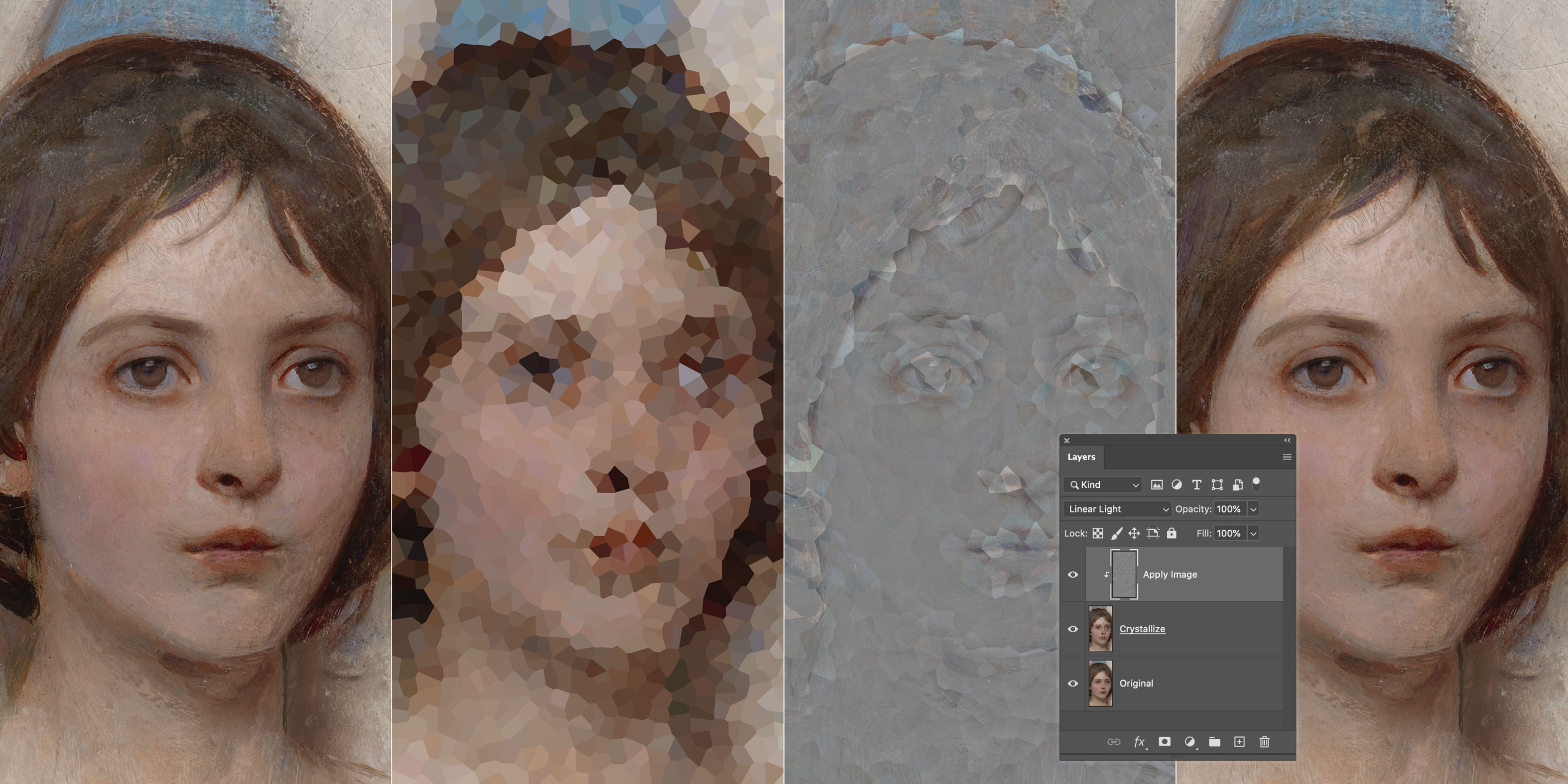
There’s nothing special in the Gaussian Blur filter when it comes to image decomposition as we’ve seen it so far. Provided that you subtract3 the Original with the “processed” version and you put the result on top of the filtered in Linear Light, you’re going to get the Original back. You can try silly filters if you want:

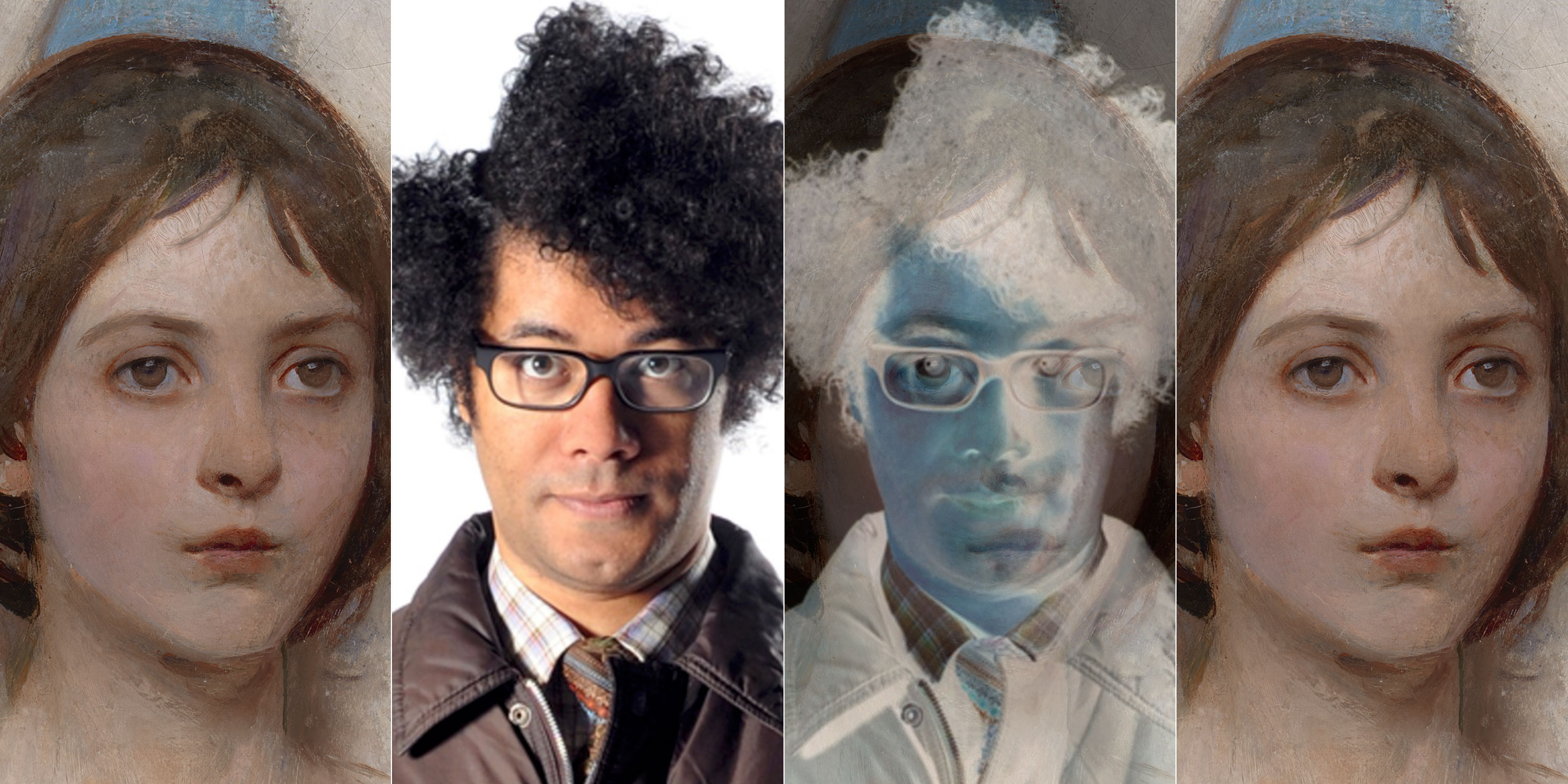
You can even throw in something totally unrelated and it’ll work all the same.

Think about the Apply Image step like noise cancelling headphones: you’re somehow factoring out the “interference” (the altered image) and find a signal that, combined with it, returns the frequencies you want to hear. All those weird filters have no use, but to help you get the point.

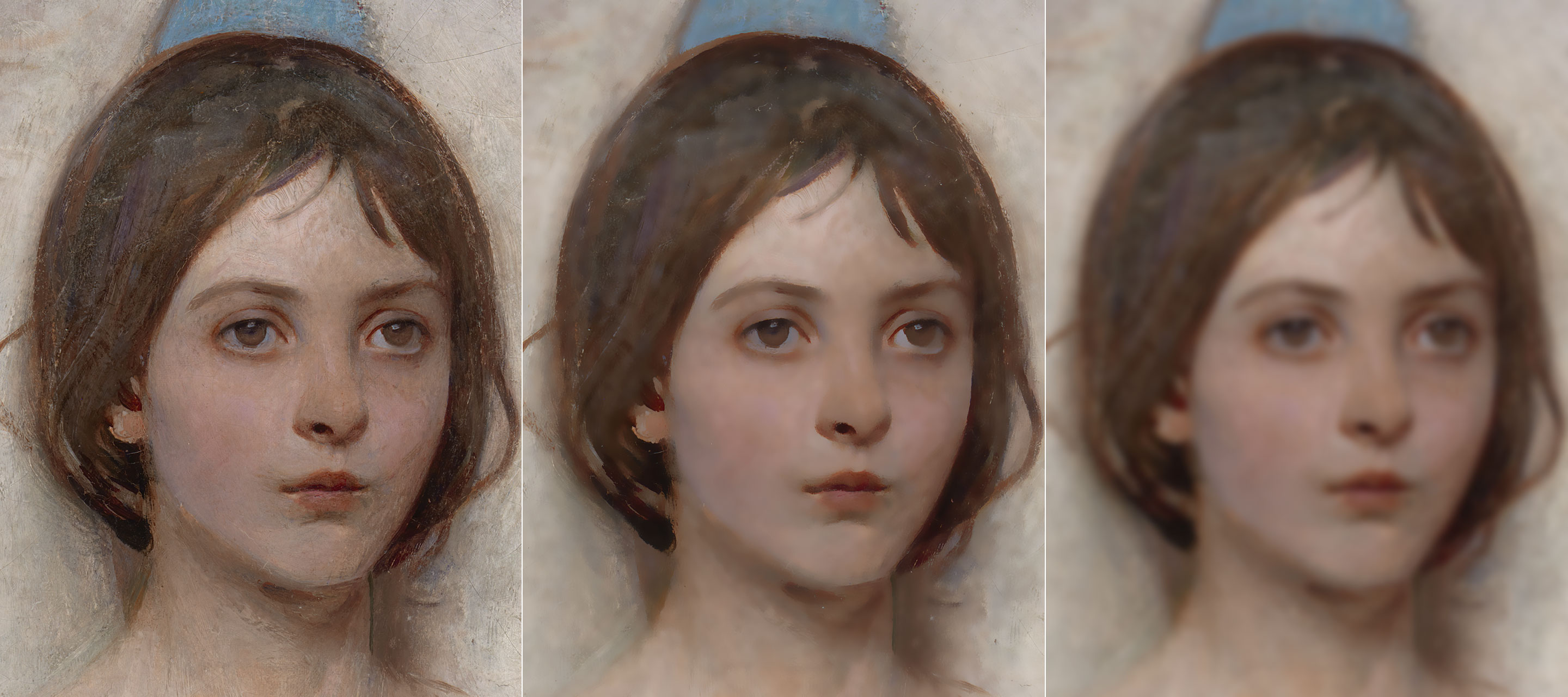
At this point you should have built the intuition that what the kind of detail that the kernel destroys, is the kind of stuff that migrates in the Detail layer and you’ll be able to enhance/retouch in the original image. One well-known kernel used in such decompositions is the Bilateral Filter, a.k.a. the Surface Blur. Killing (in theory) everything but edges, you can expect that it’s going to enhance Textures and leave Edges more or less alone.

The result is not meant to be pretty here: it illustrates the point, and it’s yet another item in your toolbox to grab when the right image comes along. Please remember that these two-layers decompositions can be used for retouching purposes with a Base (blurred) + Detail layer, so it can be interesting, depending on the image, to be able to target fine textures and leave edges alone.

Another quite common kernel is the Median, mostly because it suits retouchers when they need to address the Detail layer:

But even weird kernels can lead to surprisingly interesting results. For instance Maximum (dilation filter) that expands the maximum values of a round (or square) region of pixels; resulting in a visually lighter image, we know that the result of the Detail layer application is the opposite: darkened. As follows a 2px radius, with the Detail in Linear Light 50% opacity.

Similarly, the Minimum (erosion) darkens the intermediate hence it’ll lighten the composite:

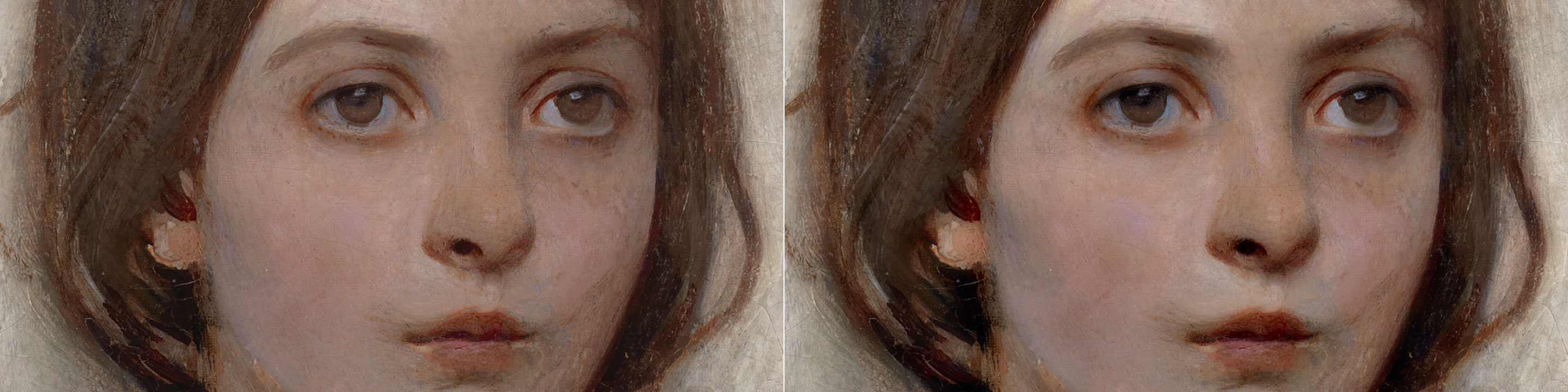
Speaking of Sharpening, you can get fancy with all sort of Blur kernels (e.g. the ones in the Filters’ Blur Gallery). In the following example I’ve created a new Channel with a gradient that it’s used to apply a Lens Blur filter nicely faded in around the eyes region only. The resulting Detail layer is able to apply a sharpening effect that fades in a way so natural that no layer mask would ever be able to replicate.

6. Multiple Kernels

6.1 Polyfiltered Detail layers

Nothing prevents you from using more than one filter (applied on top of the previous one) to build the layer that will be used to extract the Detail. In the following example I’ve used the Oil Paint filter plus a Smart Blur round.

That still makes a perfectly valid candidate for a two-layers frequency separation that can be used for both retouching or contrast enhancement. Possibilities are endless, provided that you’re able to invent ways to destroy the kind of detail that you want to migrate to a separate layer.

Leaving for the moment the field of perfect decomposition stacks of one base, filtered layer plus the Apply Image on top, there are ways to build interesting Detail layers for contrast enhancement purposes. Later on we’ll learn how to bring them back to decomposition stacks.

6.2 Difference of Gaussians

So far we’ve subtracted a Blurred version from the Original, in order to get the gray-blob that I’ve called the Detail layer. In the case of the Gaussian enhancement, we’ve added the Detail back to the Original (using your preferred blend mode/opacity).D=O−GBEnhanced=O+D

The enhancement targets the frequency range from whatever is the Gaussian Blur radius used (in my case 40px) down: so the (0,40)px range4. If you think about GB as a filter that wipes out the higher-than-the-radius frequencies:GB(40)=O(40→∞)

Then you can re-write the equation as:O(0→∞)−O(40→∞)=D(0→40)

That is to say, the Detail layer that contains the frequencies in the range (0,40)px is obtained subtracting an image with frequencies only in the (40→∞) pixels range from the original image that contains all the frequencies.

We’re not limited to use the Original for the subtraction. What if for instance we use two differently blurred images?GB(20)=O(20→∞)GB(40)=O(40→∞)O(20→∞)−O(40→∞)=D(20→40)

The result is as follows:

It’s a technique known as Difference of Gaussians, or DoG.

At the moment we’re not yet equipped to use this Detail layer for retouching purposes as well, but I’ll get to that in a short while. Meanwhile, feel free to experiment with different DoG values.

6.3 Edges layer

In the DoG example above we’ve combined two identical (Gaussian) kernels with different parameters. We may now try to combine two different kernels – it’s entirely within the realm of possibilities.

We’ve already met the candidates. Surface Blur (SB) is able to discern the image content, blurring “surfaces” and not “edges”; Gaussian Blur (GB), instead, wipes out everything that is within its frequency range. With a bold leap of faith you can consider the original image (O) to be made of “edges” (E) and “texture” (T): wildly unorthodox math ensues.O=OT+OESB=O−OTGB=O−(OT+OE)SB−GB=(O−OT)−(O−(OT+OE))=O−OT−O+OT+OE=OE

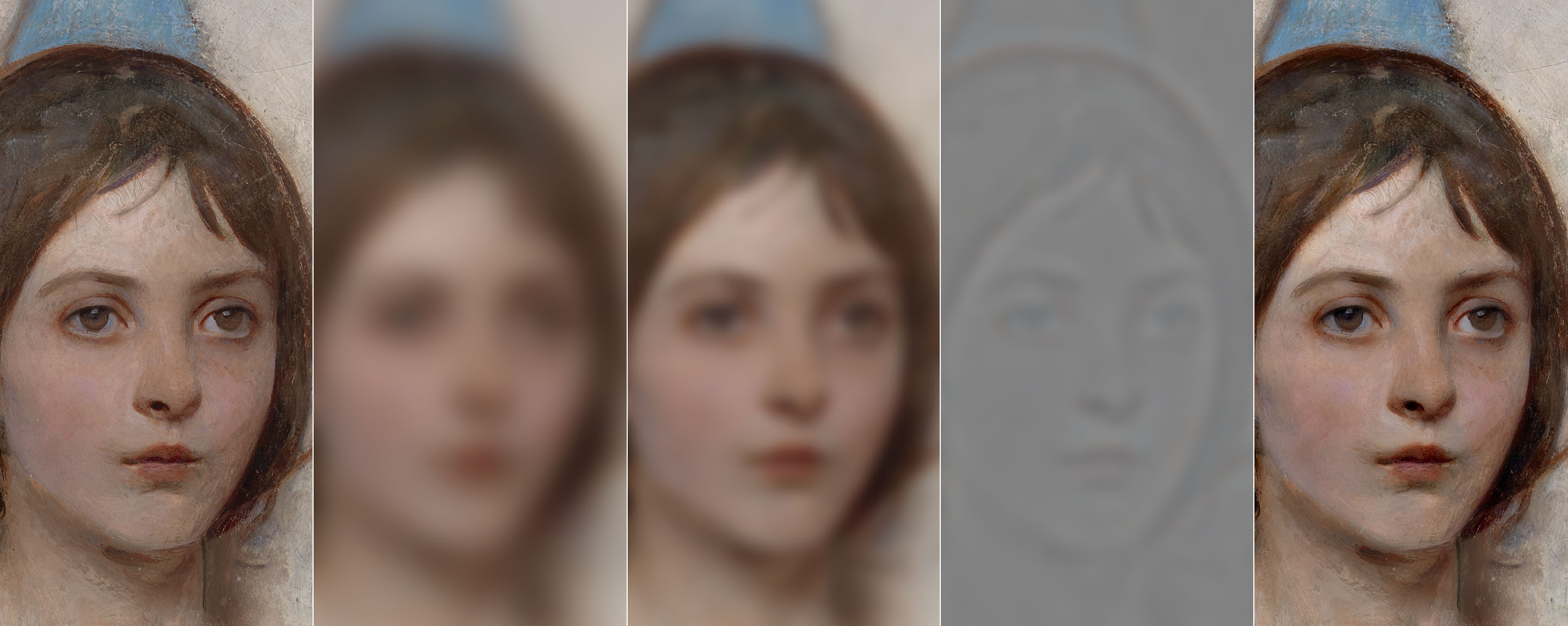
In other words: if GB subtracts both texture plus edges, and SF subtracts texture only, then if you subtract SB from GB you get a Detail layer that contains Edges only without texture. An image might help demonstrating the concept.

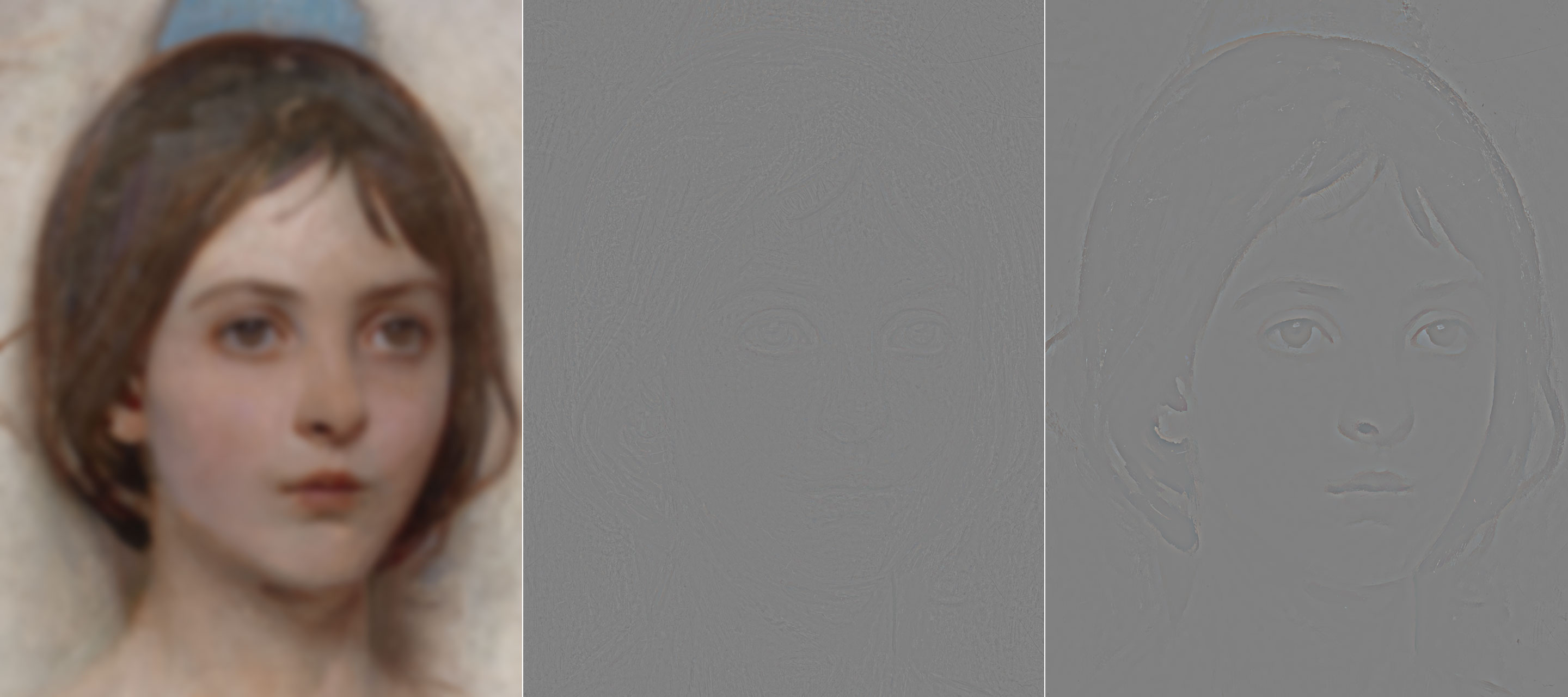
This Detail layer has been built with Surface Blur (Radius 12px, Threshold 15px) and Gaussian Blur (radius 10px). The intuition is always the same: how are the two operands different? That difference is what will be enhanced.

Here both textures are more or less blurred the same way: they aren’t different hence they’ll stay the same. Edges (the broad strokes that draw the main traits such as eyes, nose, mouth and hair) are instead dramatically different, hence they’ll get enhanced.

7. Image decomposition

So far we have either performed frequency separations to rebuild a clone of the original image split in two layers (a filtered one, e.g. blurred, plus a difference e.g. the detail in Linear Light blend mode) or we’ve create a variety of independent detail layers for contrast enhancing purposes. It’s time to join the two worlds.

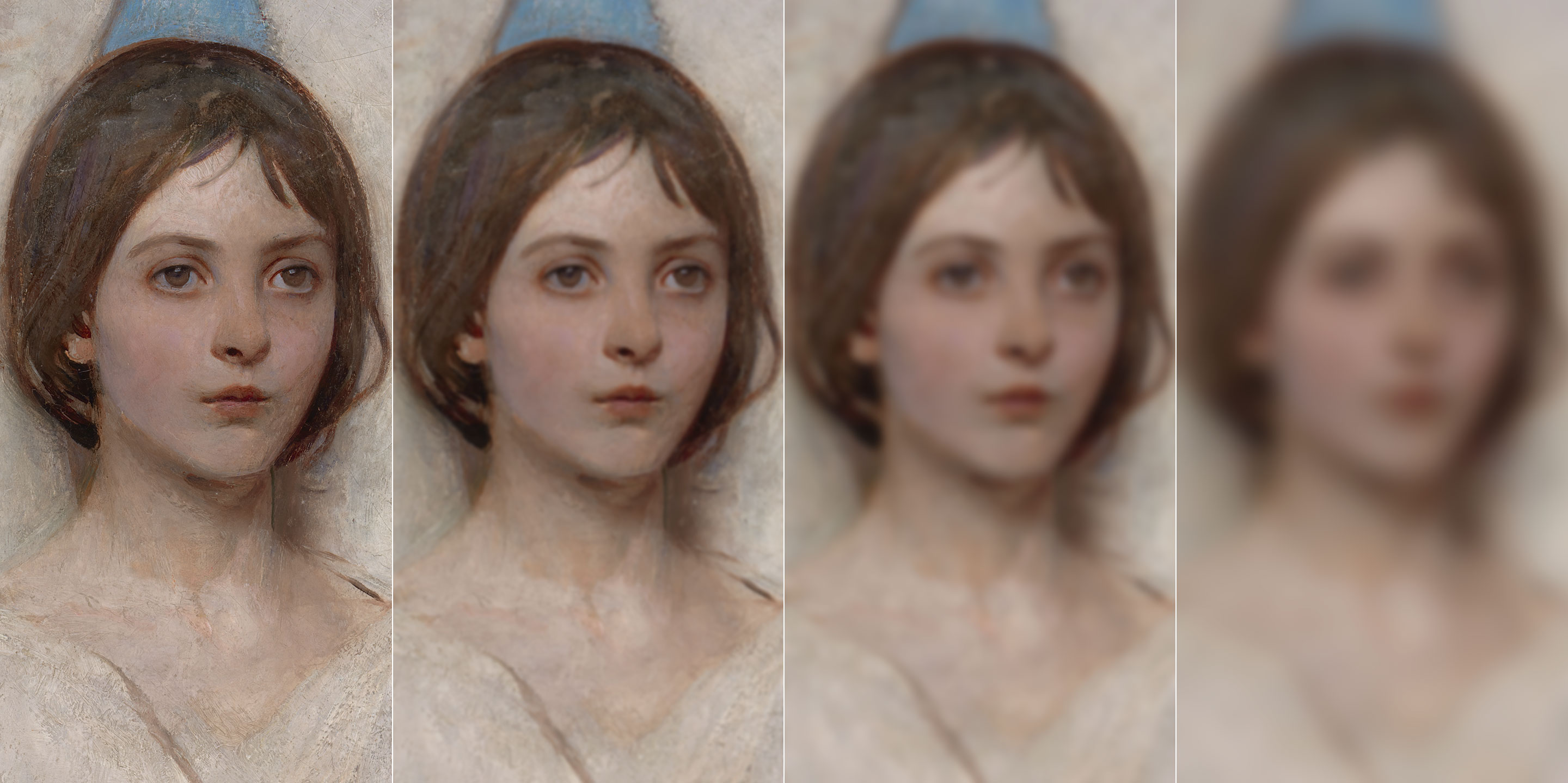
7.1 Gaussian pyramid

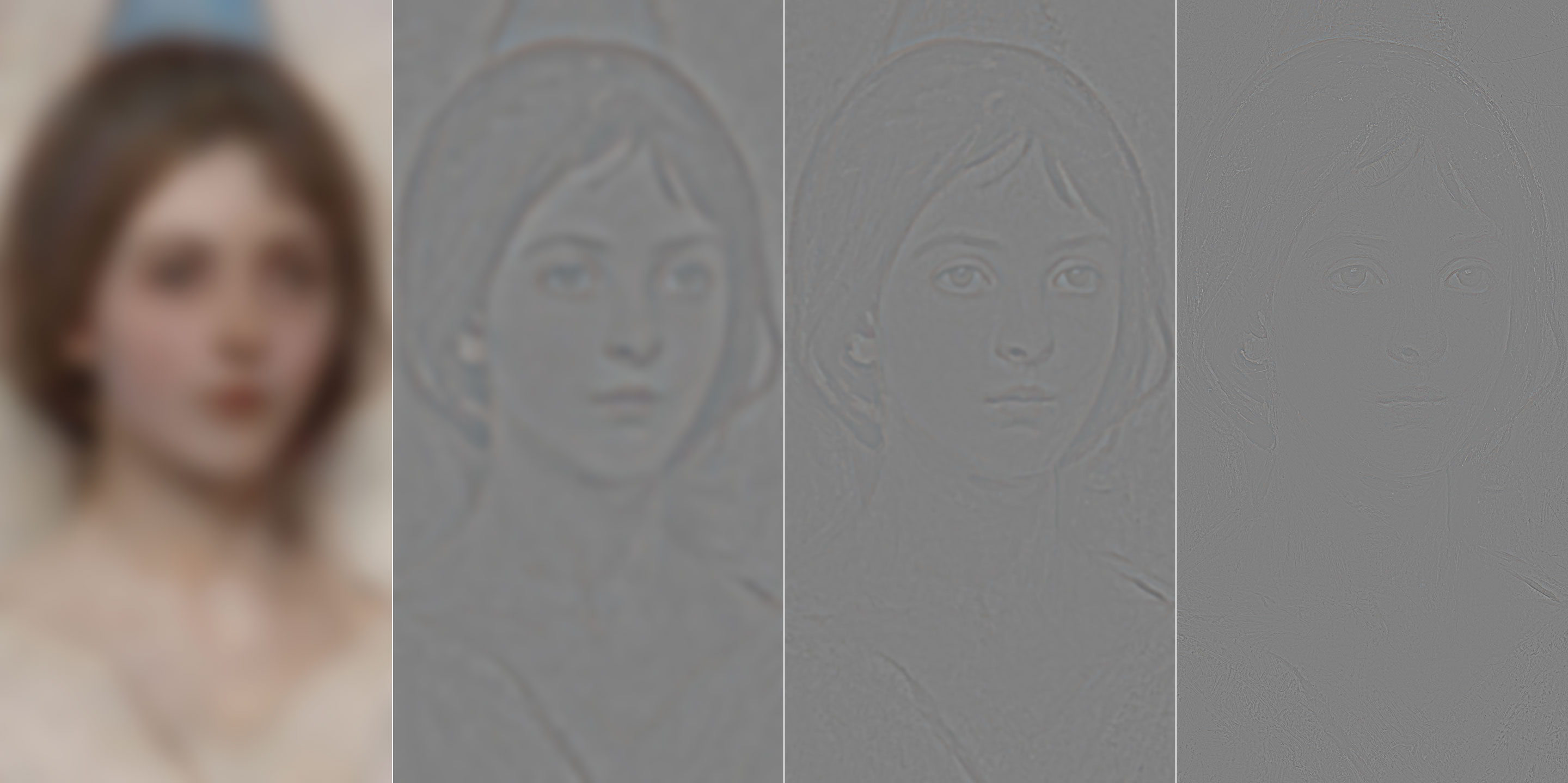
Let’s start with the familiar Gaussian kernel. If you recall, with the DoG we’ve targeted very specific frequency ranges, eg. from 40px to 20px. It’s possible to build a pyramid (i.e. a multi-frequency decomposition) splitting the image into more than two layers, e.g. four. These four layers will describe and represent the original image as a sum of four frequency ranges: from “infinity” to 40px; from 40px to 15px; from 15px to 5px; from 5px to zero.

The math is quite straightforward. Let’s call O the Original picture as usual, GB(n) the GB filter applied with radius n. We need four layers:O,GB(5),GB(15),GB(40)

Let’s define differences Dn as follows:D1=O−GB(5)D2=GB(5)–GB(15)D3=GB(15)−GB(40)

So the image can be decomposed into:O=GB(40)+D1+D2+D3

In fact, substituting all the elements we get:O=GB(40)+O−GB(5)+GB(5)−GB(15)+GB(15)−GB(40)=O

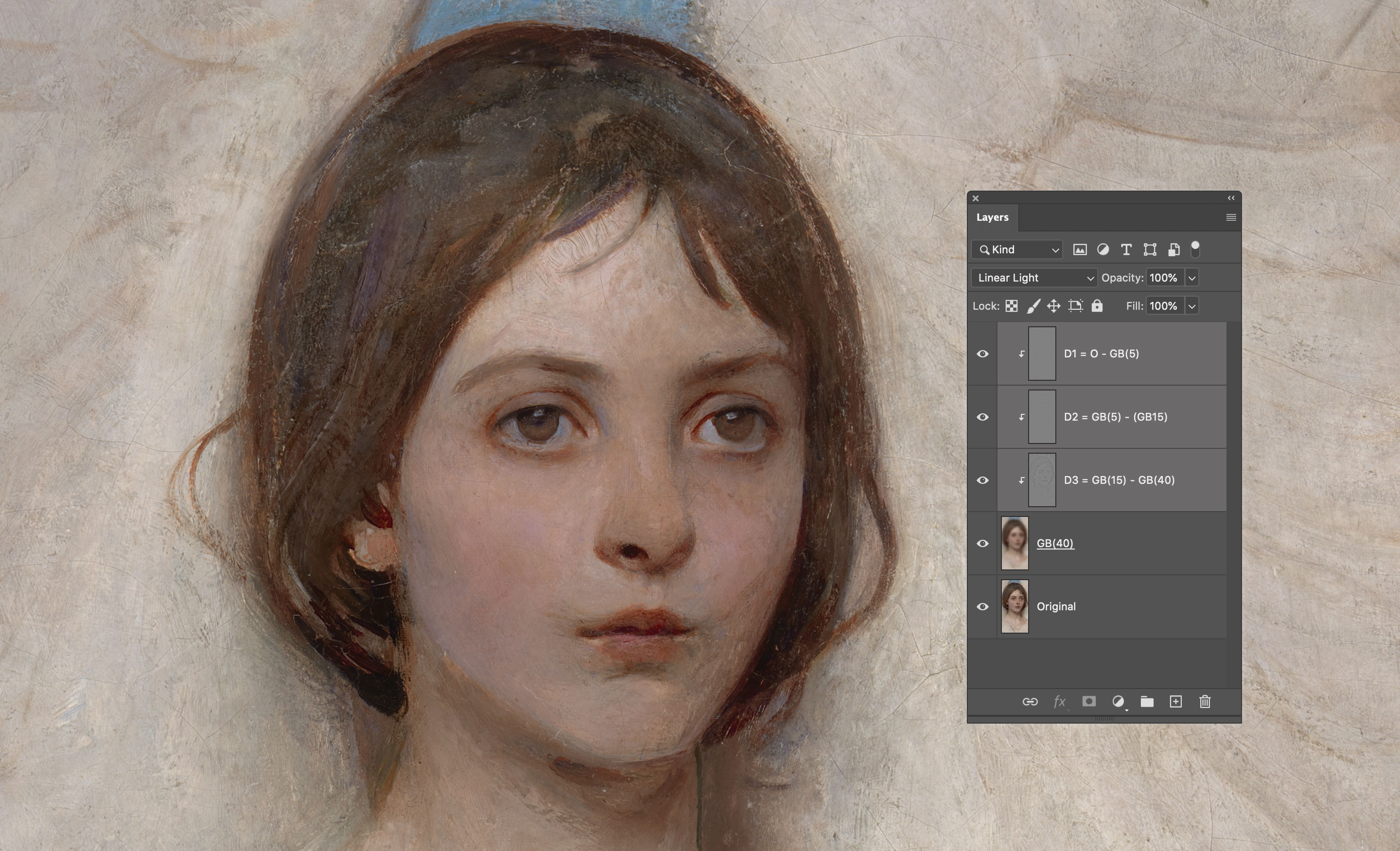
Everything simplifies and we’re left with the same original image. Let’s switch to Photoshop and try to build this pyramid: first thing, we need the original plus three progressively more blurred layers.

Second, we need the GB(40) and D1,D2,D3. These are just Difference of Gaussians, the same DoG we’ve already encountered.

When you have all the ingredients, you can add them together via Linear Light blending.

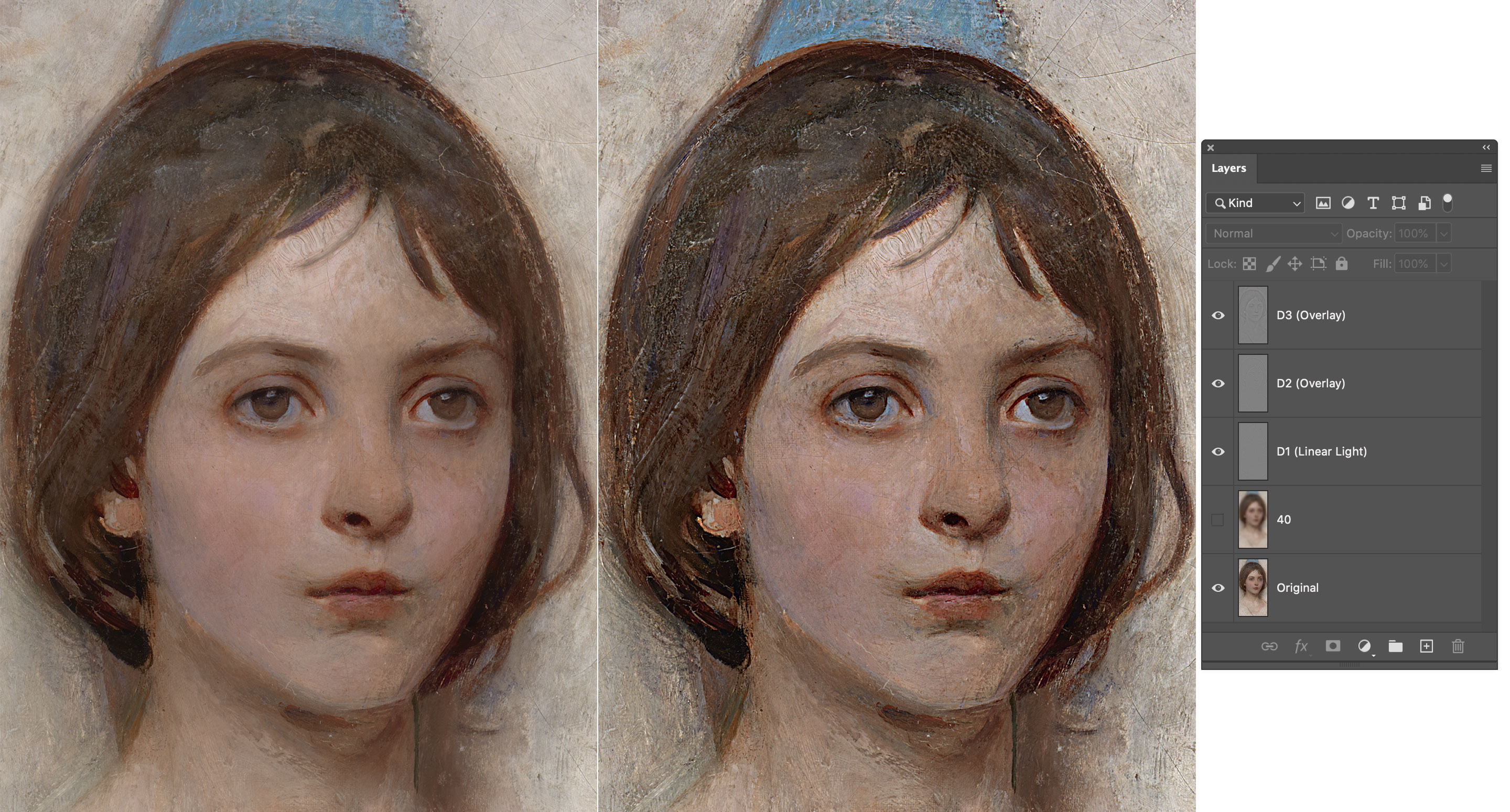
The result is a pixel perfect copy of the original with all the three Detail ranges exposed: (40→15),(15→5),(5→0) pixels.

You can now either exploit this frequency separation for retouching purposes, or add each Detail layer back to the original (with various blending modes and/or opacities) for a frequency range targeted contrast boost.

Keep in mind that:

  • If instead of boost, you need to decrease the impact of a particular frequency range, do invert the Detail layer.
  • The order of the Detail layers in the stack doesn’t really matter, you can freely mix them.
  • There’s no limit to the amount of Detail layers you want to create.
  • You can always clip a Curves adjustment if you want to perform some peculiar edit to a Detail layer.

7.2 Mixed pyramids

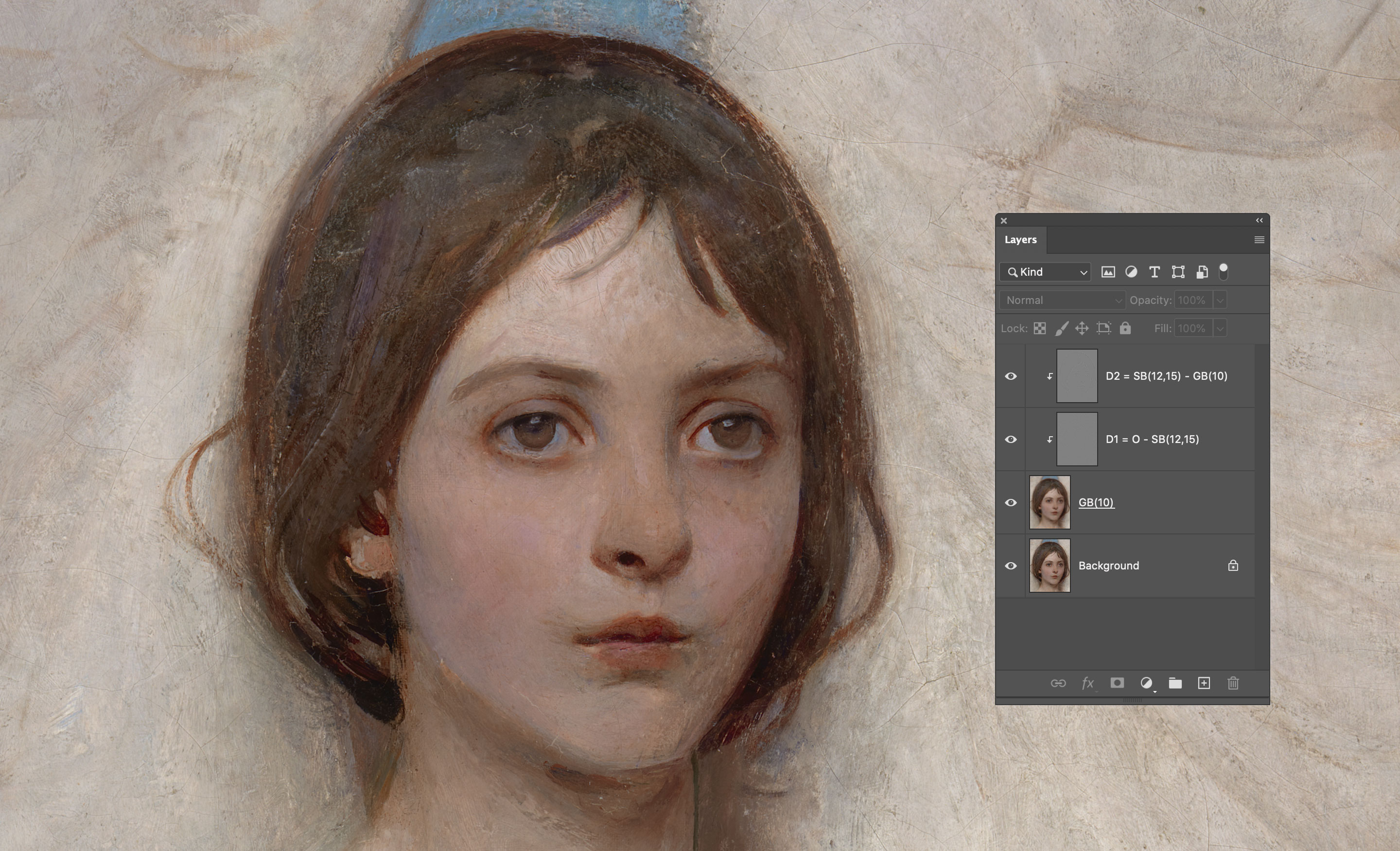
To properly conclude, there’s still one technique that needs to be revisited and incorporated into multi-layer frequency decompositions. If you remember, not long ago we’ve mixed Gaussian and Surface Blur to obtain an “Edges” Detail layer. It may surprise you (or it may not, at this point) to know that you’re not at all forced to use the same kernel in a decomposition: you’re free to use any kernel that make sense. Let’s try to build a GB/SB pyramid!

We need three layers:O,SB(12,15),GB(10)

Let’s define differences Dn as follows:D1=O−SB(12,15)D2=SB(12,15)–GB(10)

So the image can be decomposed into:O=GB(10)+D1+D2

In fact, substituting all the elements we get:O=GB(10)+O−SB(12,15)+SB(12,15)–GB(10)=O

The image can be then recomposed as usual.

The Detail layers can be used for either retouching purposed or contrast enhancement.

The general equations for the decomposition are:U0=OU1=Filter1(O)U2=Filter2(O)⋯Un−1=Filtern−1(O)Un=Filtern(O)D1=U0–U1D2=U1–U2⋯Dn−1=Un−2–Un−1Dn=Un−1–UnO=Un+D1+D2+⋯+Dn−1+Dn

At this point it’s up to you to decide which kernels to mix, and for which goal. Always remember to look for filters and filter combinations/subtractions that affects the feature you’re interested into – imagination can fly high!

References

  • Abbott Handerson Thayer, a portrait of his daughter from the Smithsonian Institute collection, 1887.
  • The Ultimate Guide To The Frequency Separation Technique by Julia Kuzmenko McKim is a nice introductory guide to simple 2-layers decompositions.
  • Former Adobe’s Imaging Senior Engineer Chris Cox about the decision to use 15bit + 1.
  • As for why Linear Light Blend uses 256 as a white point, see here.
  • Blend modes info are found everywhere but with various degree of precision. I’ve used
    Wikipedia of course, PhotoBlogStop, but the most interesting have been Murphy Chen (Chinese language) and Pegtop.
  • If you’re curious, my 2009 original article can still be found here.
  • All illustrations are mine. Blend mode graphs are plotted with p5.js.

  1. I take in consideration one channel only for simplicity’s sake. ↩
  2. HardLight has the same formula than Overlay, but it uses the upper layer to determine which formula to apply (Overlay uses the layer below instead). ↩
  3. I keep using “subtract” as a verb, but you should use the more appropriate Apply Image to the document’s bit depth. ↩
  4. It’s a bit counter-intuitive at first, because “down” in this case means to higher frequencies. ↩
27/04/2026 0 comments
0 FacebookTwitterPinterestEmail
Makeup cô dâu resort Cam Lâm

Hướng dẫn cài đặt Delicious Retouch Panel 4.1.0 Full bản quyền

by nhiepanhcamranh 26/04/2026
written by nhiepanhcamranh

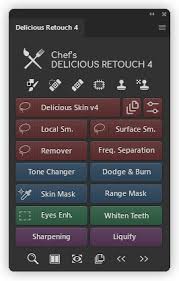
Delicious Retouch Panel là một plugin photoshop giúp bạn dễ dàng chỉnh sửa chân dung với rất nhiều tính năng mạnh mẽ giúp cho việc chỉnh sửa chân dung nhanh hơn, tốt hơn và tiết kiệm thời gian.

Delicious Retouch một plugin mạnh mẽ không thể thiếu nếu như bạn thường làm việc để chỉnh sửa ảnh chân dung, tuy nhiên có nhiều bạn không cài đặt và kích hoạt bản quyền được nên bài viết hôm nay mình sẽ hướng dẫn các bạn cài đặt Delicious Retouch Panel 4.1.0 Full bản quyền.

Download Delicious Retouch Panel 4.1.0

Trước tiên các bạn cần tải về bản cài đặt Delicious Retouch Panel 4.1.0 ở link bên dưới đây:

Cài đặt Delicious Retouch Panel 4.1.0 như thế nào?

Cách này mình thực hiện trên Photoshop CC 2018 trên Mac OS, nếu các bạn dùng Windows thì cũng làm tương tự.

Bước 1: Giải nén file vừa tải về ở trên. Sau đó copy folder DeliciousRetouch4 theo đường dẫn:

  • Mac OS: /Library/ApplicationSupport/Adobe/CEP/extensions/
  • Windows x64: C:/Program Files(x86)/CommonFiles/Adobe/CEP/extensions/
  • Windows x32: C:/Program Files/CommonFiles/Adobe/CEP/extensions/

Bước 2: Chỉnh sửa file hosts theo đường dẫn:

Đối với Windows: C:\Windows\System32\Drivers\etc\hosts (các bạn chỉ cần copy file hosts ra ngoài Desktop sau đó thêm hai dòng bên dưới vào save lại và ghi đè lại vào đường dẫn lúc đầu là được.

Đối với Mac OS: Các bạn xem video hướng dẫn bên dưới:

Bước 3: Thêm 2 dòng này vào file hosts.

Hãy nhớ rằng việc chặn thông qua các máy chủ có các dòng dưới đây là rất quan trọng. Do đó các bạn bắt buộc phải thêm 2 dòng này vào file hosts thì mới kích hoạt được nhé.

127.0.0.1 www.checksite.us
127.0.0.1 photoshopchef.com

Bước 3: Mở Photoshop lên và mở Delicious Retouch: Windows > Extensions > Delicious Retouch 4.

Chọn Buy/Enter license key:

Sau đó nhập Product key sau: KG9999999999L8000000 và nhấn Submit.

Bước 4: Vậy là đã kích hoạt bản quyền thành công. Thưởng thức thôi.

Chúc các bạn thành công!

26/04/2026 0 comments
0 FacebookTwitterPinterestEmail
Dịch vụ makeup Cam Ranh

Bảng Giá Makeup Cô Dâu Tại Cam Ranh & Resort Cam Lâm 2026

by nhiepanhcamranh 13/04/2026
written by nhiepanhcamranh

Chào đón mùa cưới và mùa du lịch nghỉ dưỡng, Hi-en Makeup chính thức triển khai dịch vụ trang điểm chuyên nghiệp tận nơi tại các Resort khu vực Cam Ranh và Cam Lâm. Nếu bạn đang lên kế hoạch cho một đám cưới lãng mạn bên bờ biển hay một buổi chụp ảnh kỷ niệm tại các khu nghỉ dưỡng cao cấp, hãy để Hi-en giúp bạn tỏa sáng một cách tự nhiên nhất.

1. Chi tiết gói Makeup Cô dâu tại Cam Ranh (2.500.000 VNĐ)

Mức giá áp dụng cho dịch vụ thực hiện tận nơi tại các Resort/Khách sạn khu vực Cam Lâm & Cam Ranh:

  • Trang điểm & Làm tóc: Layout được thiết kế riêng để phù hợp với gió biển và ánh sáng ngoài trời, đảm bảo bạn vẫn rạng rỡ mà không bị “dày phấn”.
  • Kỹ thuật nền chống trôi (Long-lasting): Đặc biệt chú trọng kỹ thuật khóa nền chuyên sâu, giúp lớp trang điểm bền bỉ trước độ ẩm và gió biển Cam Ranh.
  • Mỹ phẩm High-end: Sử dụng 100% các dòng mỹ phẩm chính hãng giúp lớp nền mỏng nhẹ, tự nhiên như làn da thật.
  • Phụ kiện đi kèm: Hỗ trợ dán mi từng chùm tạo độ tự nhiên và các phụ kiện cài tóc cơ bản.

2. Tại sao nên chọn Hi-en Makeup cho ngày vui tại Resort?

  • Di chuyển tận nơi: Hi-en trực tiếp đến tận phòng resort của bạn tại Cam Ranh/Cam Lâm, giúp bạn tiết kiệm thời gian và giữ tâm trạng thoải mái nhất trước buổi lễ.
  • Phong cách Natural Glow: Rất phù hợp với không gian tiệc cưới ngoài trời hoặc concept chụp ảnh nghỉ dưỡng (Beach/Resort Style).
  • Sự kết hợp hoàn hảo: Layout makeup được tính toán kỹ lưỡng để lên hình đẹp nhất dưới cái nắng đặc trưng của vùng biển Khánh Hòa.
13/04/2026 0 comments
0 FacebookTwitterPinterestEmail
Dịch Vụ Nhiếp Ảnh Cam Ranh

Studio Chụp Ảnh Concept Chân Dung Đẹp Nhất Cam Ranh: Ghé Ngay Tiệm Ảnh Chú Hồng

by nhiepanhcamranh 22/03/2026
written by nhiepanhcamranh

Bạn đang tìm kiếm một nơi để lưu giữ vẻ đẹp cá nhân, một bộ ảnh chân dung “thần thái” hay đơn giản là muốn thay đổi diện mạo trên mạng xã hội? Giữa lòng thành phố biển, Tiệm ảnh chú Hồng tự hào là studio chụp ảnh concept chân dung hàng đầu tại Cam Ranh, nơi biến mỗi khung hình thành một tác phẩm nghệ thuật.

Tại sao nên chọn chụp ảnh chân dung concept tại Cam Ranh?

Chụp ảnh chân dung (Portrait) không chỉ là việc đứng trước ống kính và mỉm cười. Đó là sự kết hợp giữa ánh sáng, góc mặt và linh hồn của bộ ảnh thông qua các concept (chủ đề) riêng biệt. Tại Cam Ranh, việc tìm kiếm một studio có tâm và có tầm là điều cực kỳ quan trọng để bạn có được bộ ảnh “để đời”.


Tiệm ảnh chú Hồng – Nơi “phù phép” mọi khung hình chân dung

Nếu bạn hỏi người dân địa phương về một địa chỉ chụp ảnh có gu, câu trả lời chắc chắn sẽ là Tiệm ảnh chú Hồng. Không chạy theo lối mòn của các studio truyền thống, Chú Hồng mang đến hơi thở mới lạ trong từng concept.

1. Đa dạng Concept – Từ nàng thơ đến cá tính

Tại Tiệm ảnh chú Hồng, chúng mình không giới hạn sự sáng tạo. Bạn có thể chọn:

  • Concept Nàng Thơ: Nhẹ nhàng, trong trẻo với ánh nắng tự nhiên.
  • Concept Vintage/Retro: Mang màu sắc hoài cổ, sâu lắng và nghệ thuật.
  • Concept Doanh Nhân/Profile: Chuyên nghiệp, hiện đại và đẳng cấp.
  • Concept High Fashion: Độc lạ, phá cách với cách đánh đèn chuyên sâu.

2. Đội ngũ tận tâm, “chỉnh dáng” cực chuẩn

Nhiều khách hàng thường ngại ngùng vì không biết tạo dáng. Đừng lo! Tại studio của Chú Hồng, bạn sẽ được hướng dẫn tận tình từ cách đặt tay, hướng mắt đến biểu cảm khuôn mặt. Chúng mình không chỉ chụp ảnh, chúng mình tạo ra sự tự tin cho bạn.

3. Trang thiết bị hiện đại & Hậu kỳ kỹ lưỡng

Chúng mình đầu tư hệ thống đèn Studio chuyên dụng và các dòng máy ảnh cao cấp nhất hiện nay. Đặc biệt, khâu hậu kỳ (retouch) tại Tiệm ảnh chú Hồng luôn giữ được độ chân thực của làn da nhưng vẫn đảm bảo sự lung linh, sắc nét.


Quy trình làm việc chuyên nghiệp tại Tiệm ảnh chú Hồng

Để đảm bảo mỗi khách hàng đều có trải nghiệm 5 sao, chúng mình áp dụng quy trình rõ ràng:

  1. Tư vấn ý tưởng: Lắng nghe mong muốn và tư vấn concept phù hợp với khuôn mặt và cá tính của bạn.
  2. Chuẩn bị trang phục & Makeup: Studio hỗ trợ tư vấn trang phục và liên kết với các makeup artist chuyên nghiệp nhất Cam Ranh.
  3. Tiến hành buổi chụp: Không gian thoải mái, âm nhạc nhẹ nhàng giúp bạn thả lỏng tối đa.
  4. Chọn ảnh & Retouch: Khách hàng tự tay chọn những tấm ảnh ưng ý nhất để studio chỉnh sửa.
Tiệm ảnh chú Hồng cam kết: Không trả ảnh đại trà, mỗi bộ ảnh là một màu sắc riêng biệt không hòa lẫn!


Thông tin liên hệ đặt lịch

Đừng để thanh xuân trôi qua mà thiếu đi những tấm hình đẹp. Hãy để Tiệm ảnh chú Hồng giúp bạn kể câu chuyện của chính mình qua ống kính.

  • Địa chỉ: Phan Chu Trinh – TP.Cam Ranh
  • Hotline/Zalo: 0354726773

22/03/2026 156 comments
0 FacebookTwitterPinterestEmail
Newer Posts
Older Posts

Recent Posts

  • Dịch vụ chụp ảnh resort Cam Ranh: 3 gói chụp, đủ phong cách cho mọi chuyến đi
  • Dịch Vụ Chụp Ảnh Chân Dung Sinh Nhật Tại Studio Cam Ranh – Tiệm Ảnh Chú Hồng
  • Khóa Học Makeup Cá Nhân TP. Cam Ranh – Tự Tin Tỏa Sáng Sau 5 Buổi 1 Kèm 1
  • Chụp Ảnh Chân Dung Studio Tại Cam Ranh – Bắt Trọn Thần Thái Tự Nhiên Cùng Tiệm Ảnh Chú Hồng
  • Dịch Vụ Chụp Ảnh Chân Dung Resort Cam Ranh

VỀ CHÚNG TÔI

VỀ CHÚNG TÔI

Bắt đầu hành trình với nhiếp ảnh chuyên nghiệp từ năm 2022, tôi đã có cơ hội làm việc với hàng trăm khách hàng trong các mảng ảnh thẻ, profile, thôi nôi và đặc biệt là những bộ ảnh nghệ thuật tại các resort cao cấp. Với tư cách là người sáng lập hệ sinh thái nhiếp ảnh chuyên nghiệp (trong đó có Tiệm Ảnh Chú Hồng), tôi hiểu rằng mỗi bức ảnh không chỉ là kỹ thuật, mà là cảm xúc và câu chuyện của bạn.

Recent Posts

  • Dịch vụ chụp ảnh resort Cam Ranh: 3 gói chụp, đủ phong cách cho mọi chuyến đi

    19/10/2026
  • Dịch Vụ Chụp Ảnh Chân Dung Sinh Nhật Tại Studio Cam Ranh – Tiệm Ảnh Chú Hồng

    13/10/2026
  • Khóa Học Makeup Cá Nhân TP. Cam Ranh – Tự Tin Tỏa Sáng Sau 5 Buổi 1 Kèm 1

    12/10/2026

Categories

  • Cẩm Nang & Kinh Nghiệm (5)
  • Chụp Ảnh Resort Cam Lâm (10)
  • Dịch vụ makeup Cam Ranh (9)
  • Dịch Vụ Nhiếp Ảnh Cam Ranh (5)
  • Makeup cô dâu resort Cam Lâm (11)
  • Review Địa Điểm Chụp Ảnh (1)

About Me

About Me

Bắt đầu hành trình với nhiếp ảnh chuyên nghiệp từ năm 2022, tôi đã có cơ hội làm việc với hàng trăm khách hàng trong các mảng ảnh thẻ, profile, thôi nôi và đặc biệt là những bộ ảnh nghệ thuật tại các resort cao cấp. Với tư cách là người sáng lập hệ sinh thái nhiếp ảnh chuyên nghiệp (trong đó có Tiệm Ảnh Chú Hồng), tôi hiểu rằng mỗi bức ảnh không chỉ là kỹ thuật, mà là cảm xúc và câu chuyện của bạn.

Categories

  • Cẩm Nang & Kinh Nghiệm (5)
  • Chụp Ảnh Resort Cam Lâm (10)
  • Dịch vụ makeup Cam Ranh (9)
  • Dịch Vụ Nhiếp Ảnh Cam Ranh (5)
  • Makeup cô dâu resort Cam Lâm (11)
  • Review Địa Điểm Chụp Ảnh (1)

Popular Posts

  • 1

    Top 5 Dịch Vụ Makeup Tận Nơi Tại Các Resort Cam Lâm, Bãi Dài Chuyên Nghiệp Nhất

    09/07/2017
  • 2

    Chụp Ảnh Bikini Tại Resort Cam Ranh: Tỏa Sáng Với Body “Vạn Người Mê”

    18/03/2026
  • 3

    Bảng Giá Gói Chụp Concept Phông Trơn Tại TP. Cam Ranh

    09/07/2017

KEEP CONNECTED

  • Facebook
  • Twitter
  • Instagram
  • Pinterest
  • Flickr
  • Behance
  • Youtube
  • Snapchat

@2019 - All Right Reserved. Designed and Developed by PenciDesign

NHIẾP ẢNH CAM RANH
  • Trang chủ
  • Makeup resort Cam Lâm
  • Chụp Ảnh Resort Cam Lâm
  • Dịch vụ makeup Cam Ranh
  • Cẩm Nang & Kinh Nghiệm
  • Dịch Vụ Nhiếp Ảnh Cam Ranh
  • CHÍNH SÁCH QUYỀN RIÊNG TƯ – AutoPost Chu Hong