• Trang Chủ
  • Địa điểm chụp ảnh
  • Dịch vụ Cam Ranh
  • Review & Kinh Nghiệm
  • Bảng Giá
  • Liên Hệ
NHIẾP ẢNH CAM RANH
Author

nhiepanhcamranh

nhiepanhcamranh

Dịch vụ makeup Cam Ranh

Dịch Vụ Makeup Cô Dâu Uy Tín Tại Cam Ranh – Rạng Rỡ Trong Ngày Trọng Đại

by nhiepanhcamranh 01/05/2026
written by nhiepanhcamranh

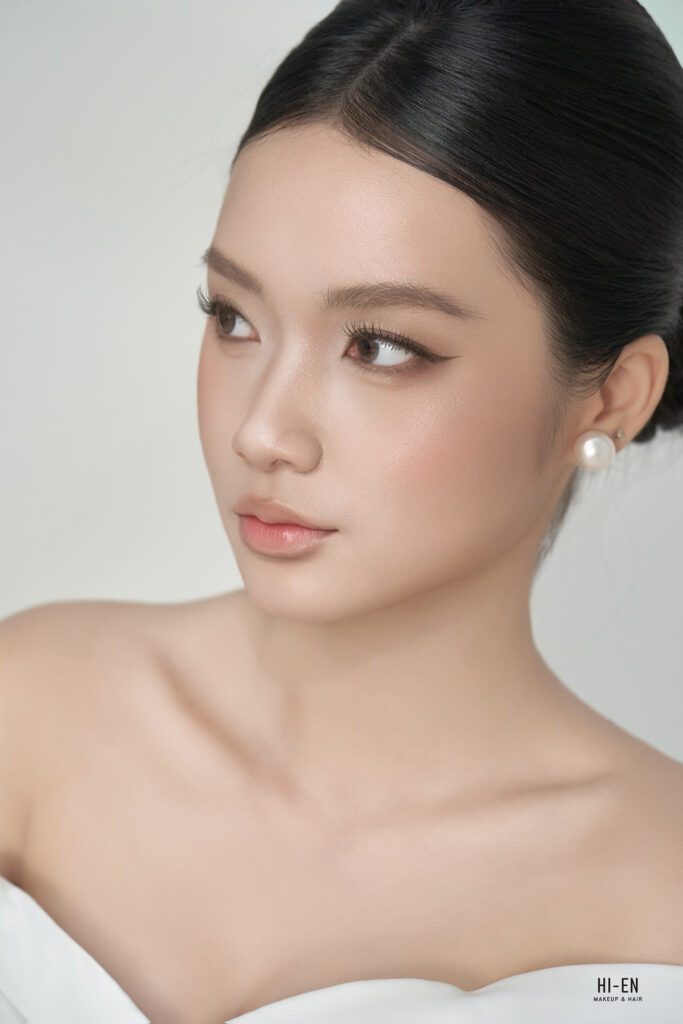
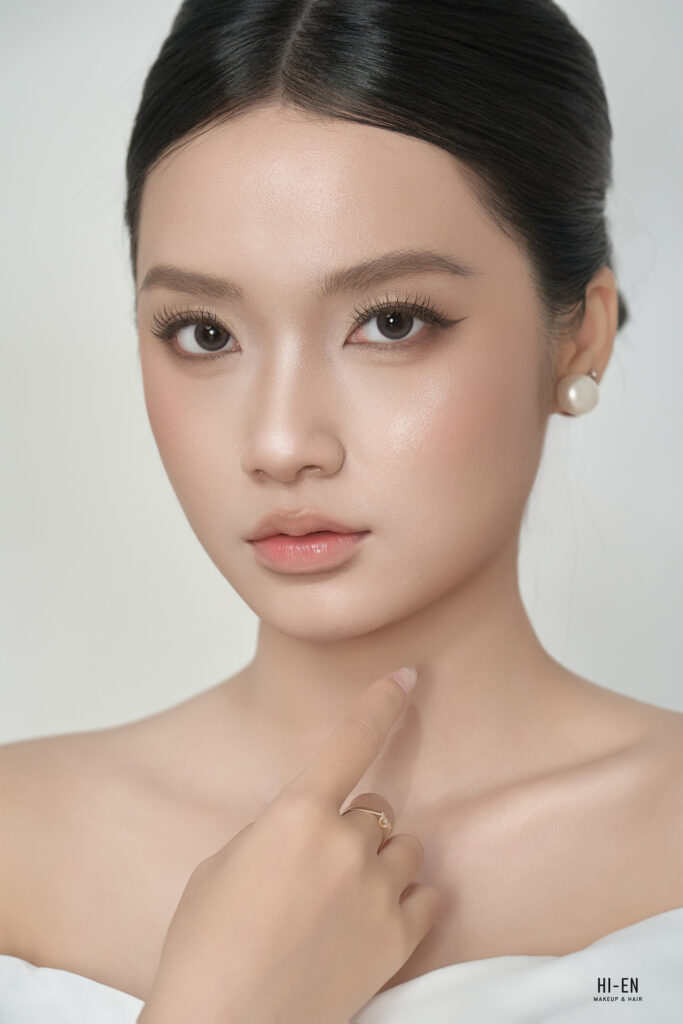
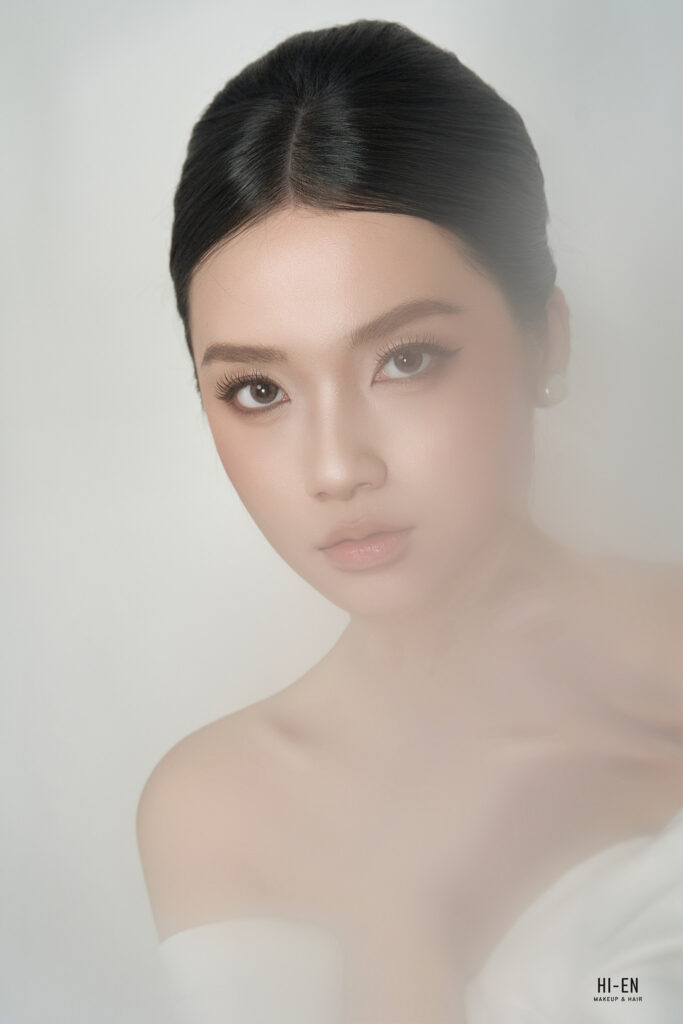
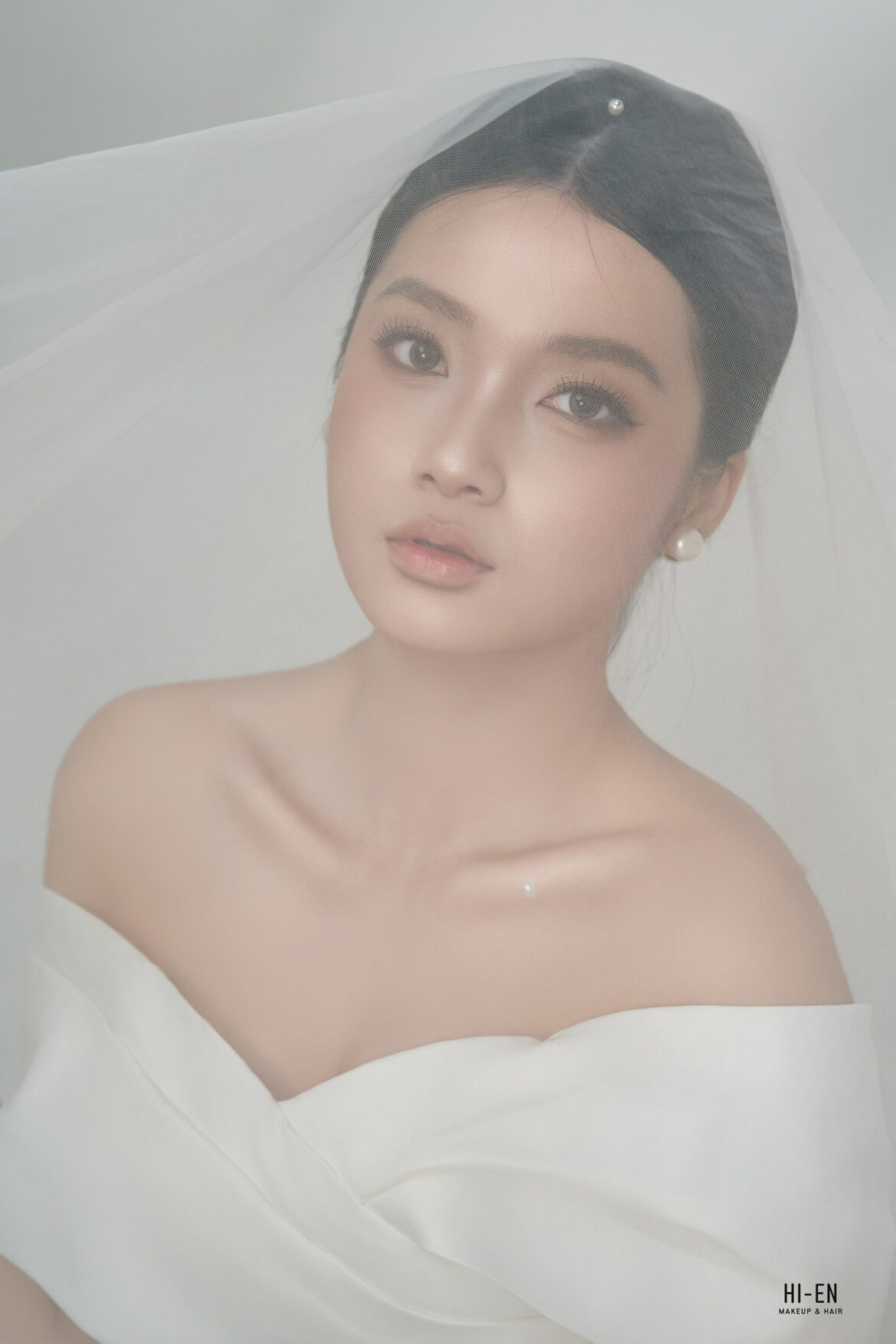
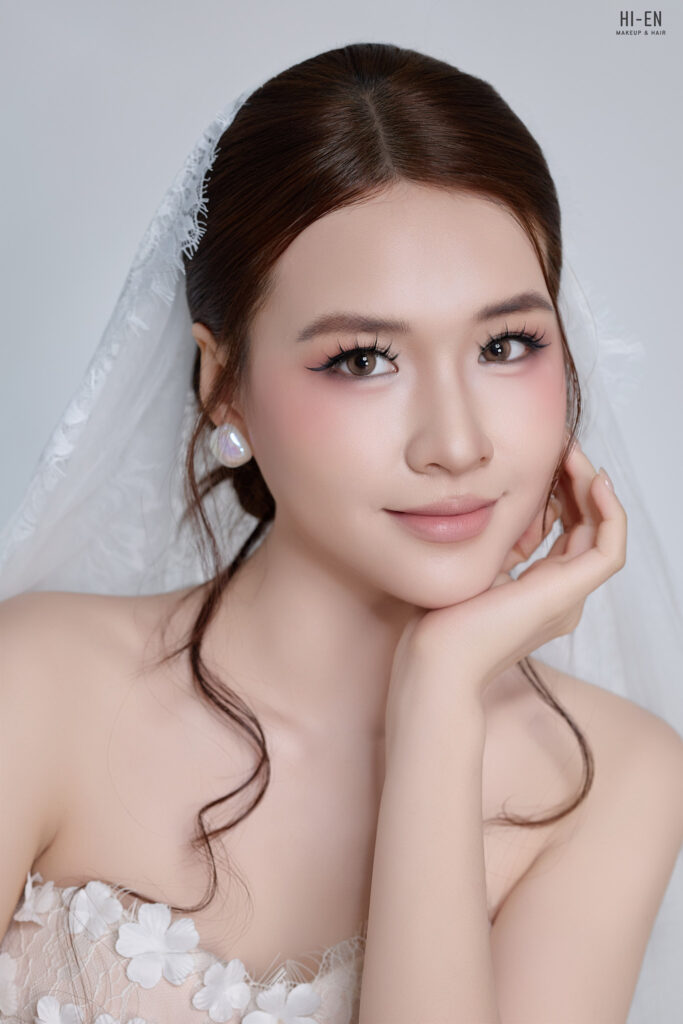
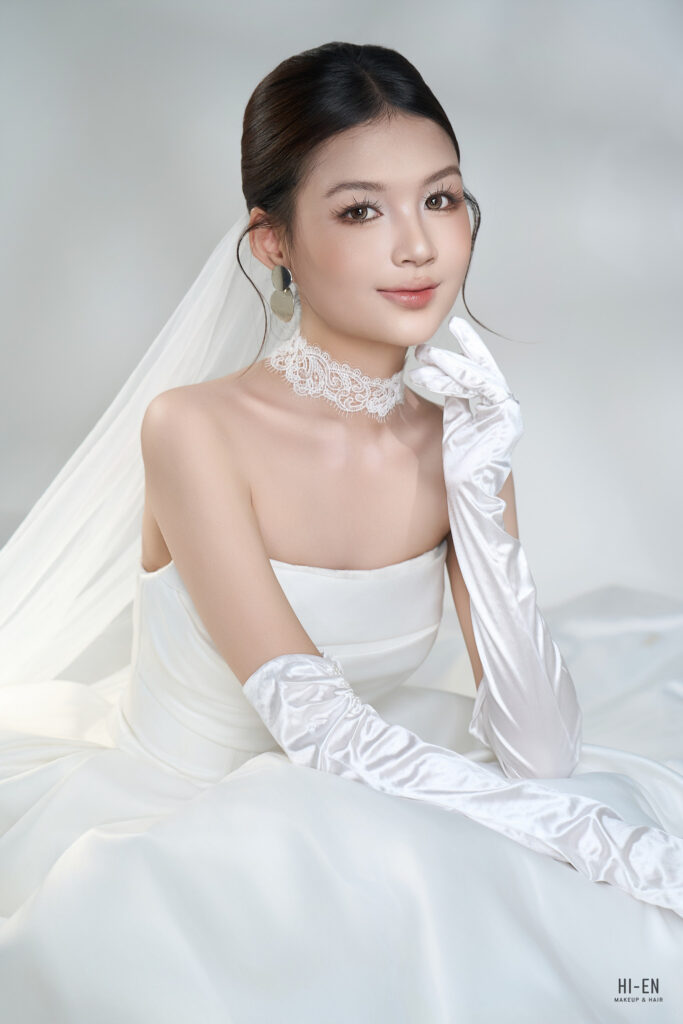
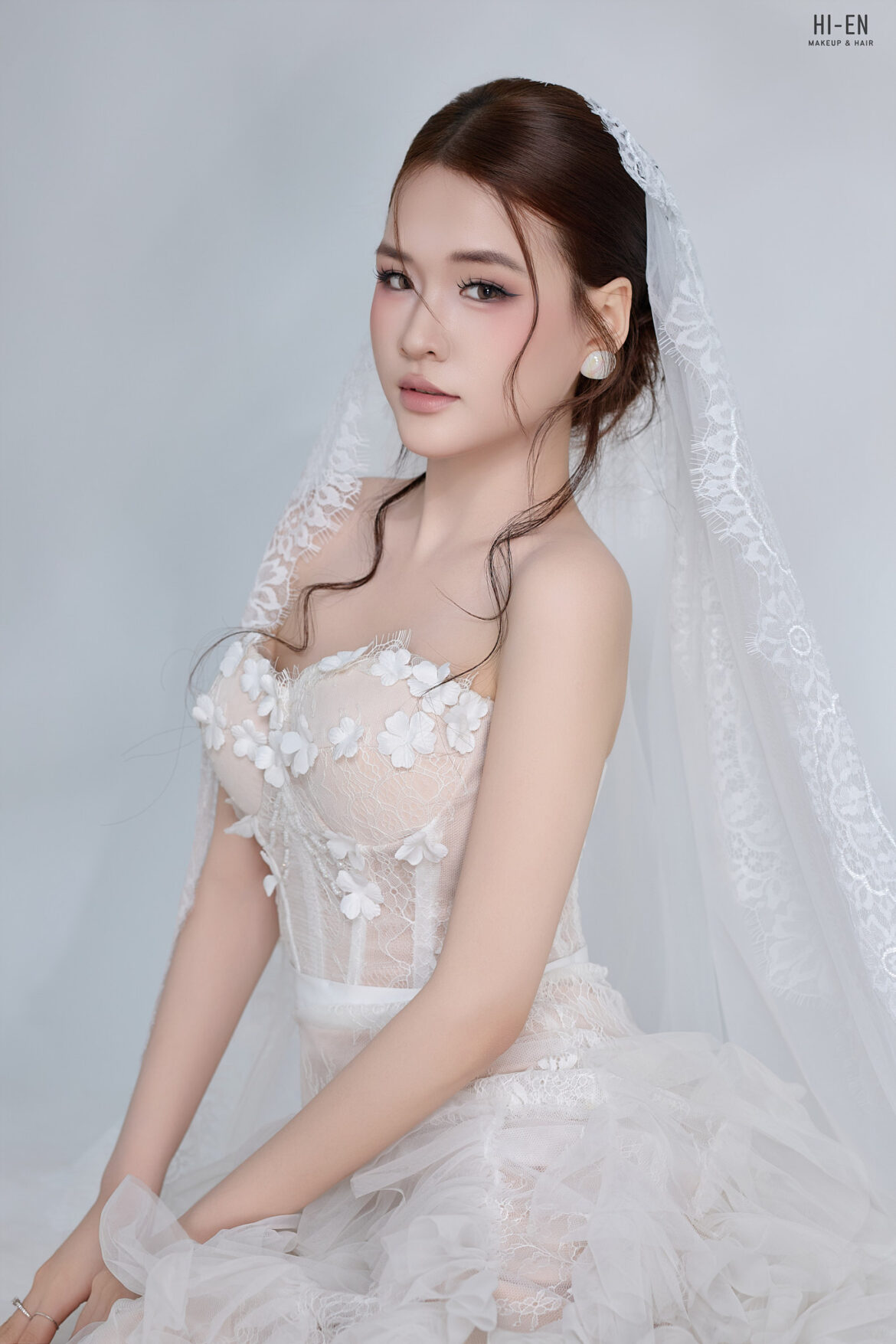
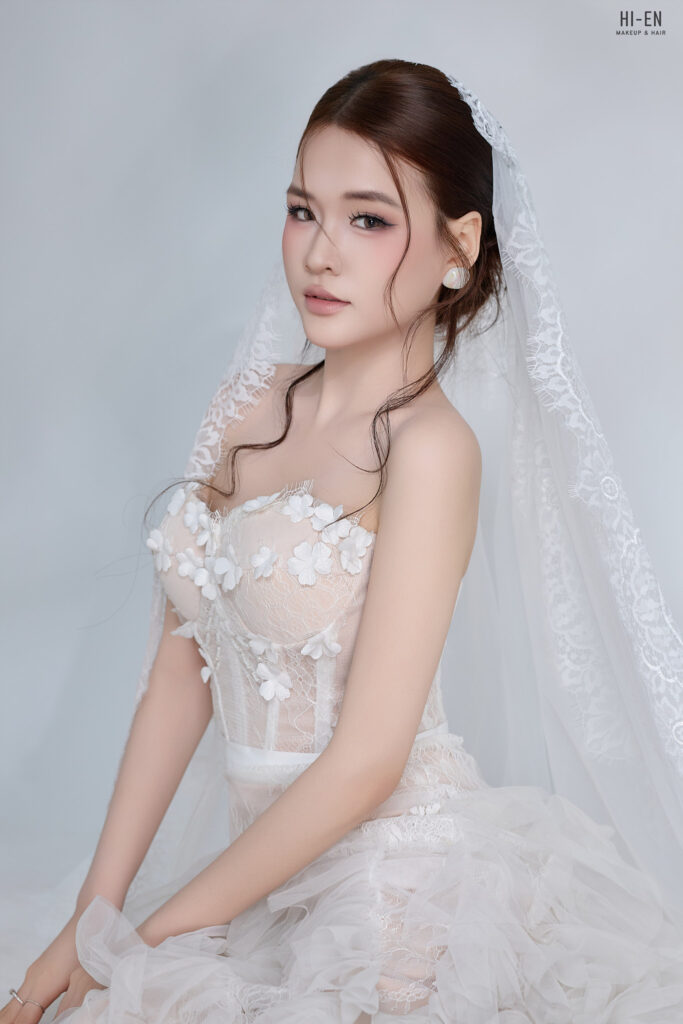
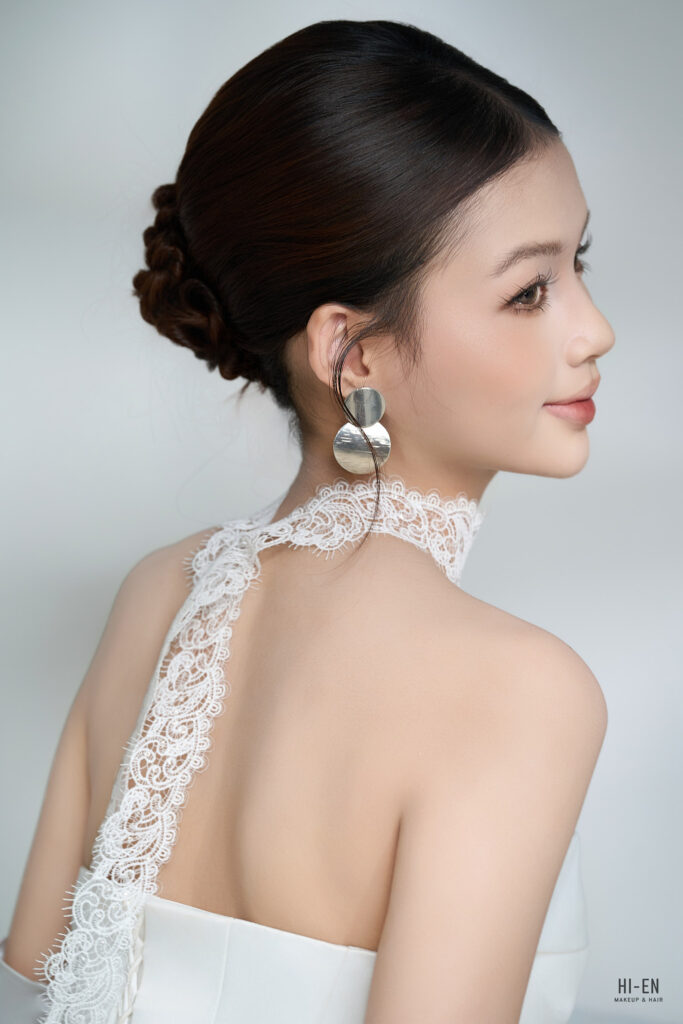
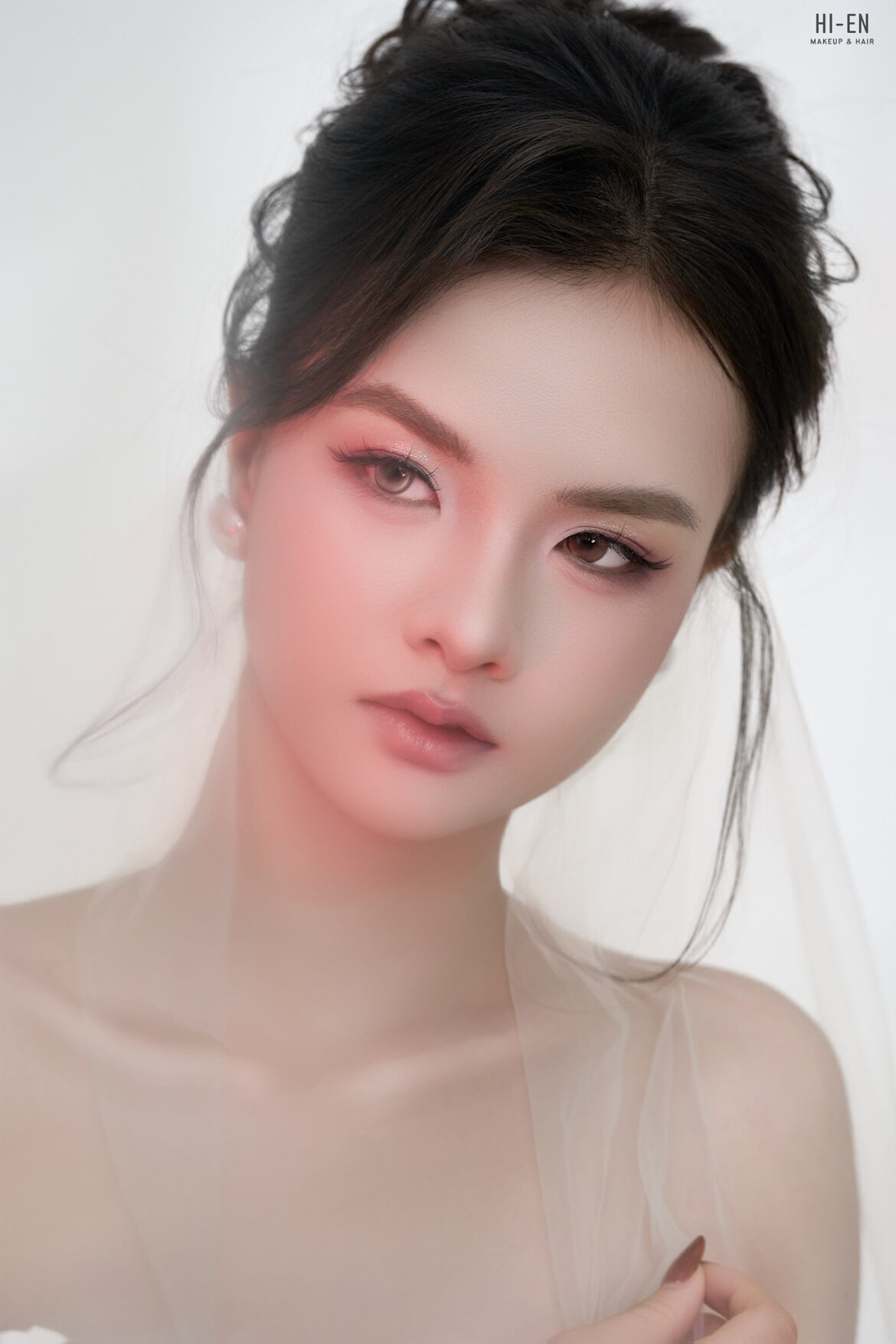
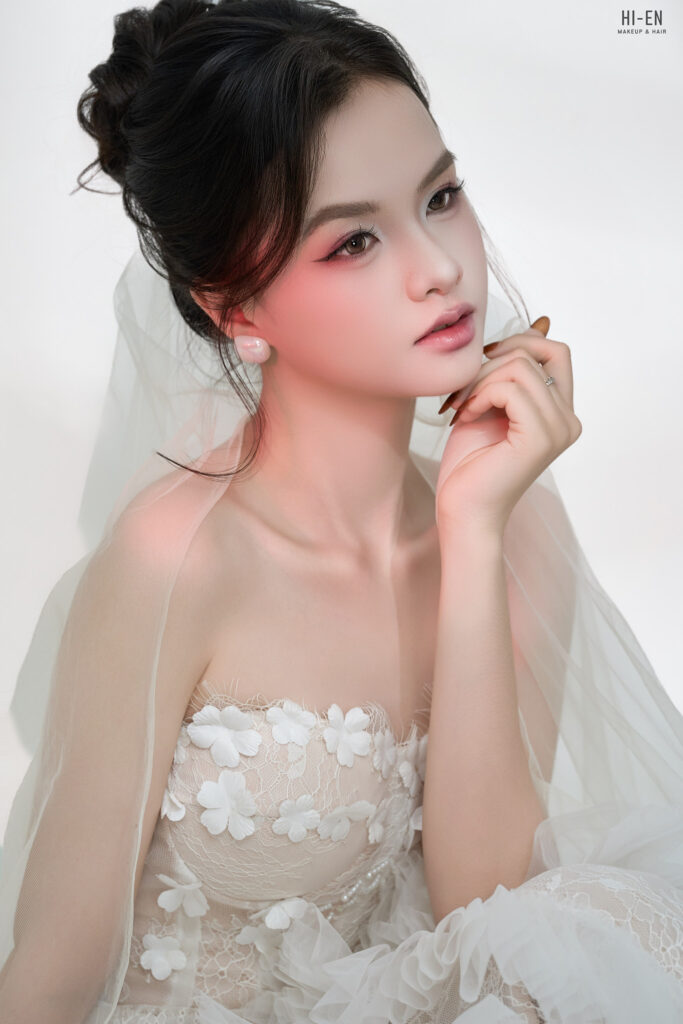
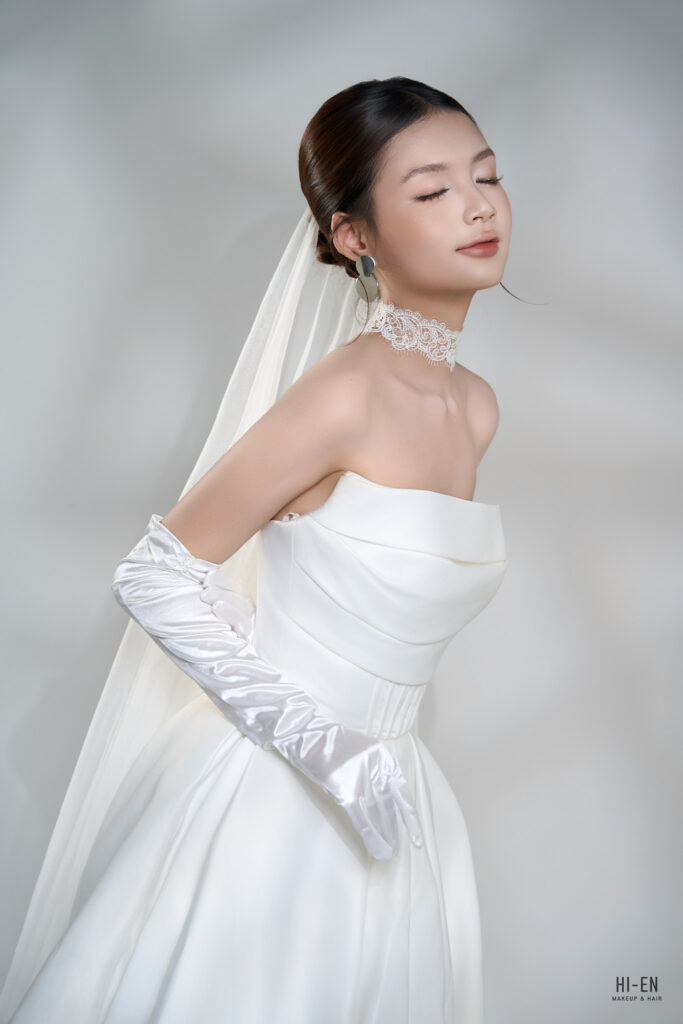
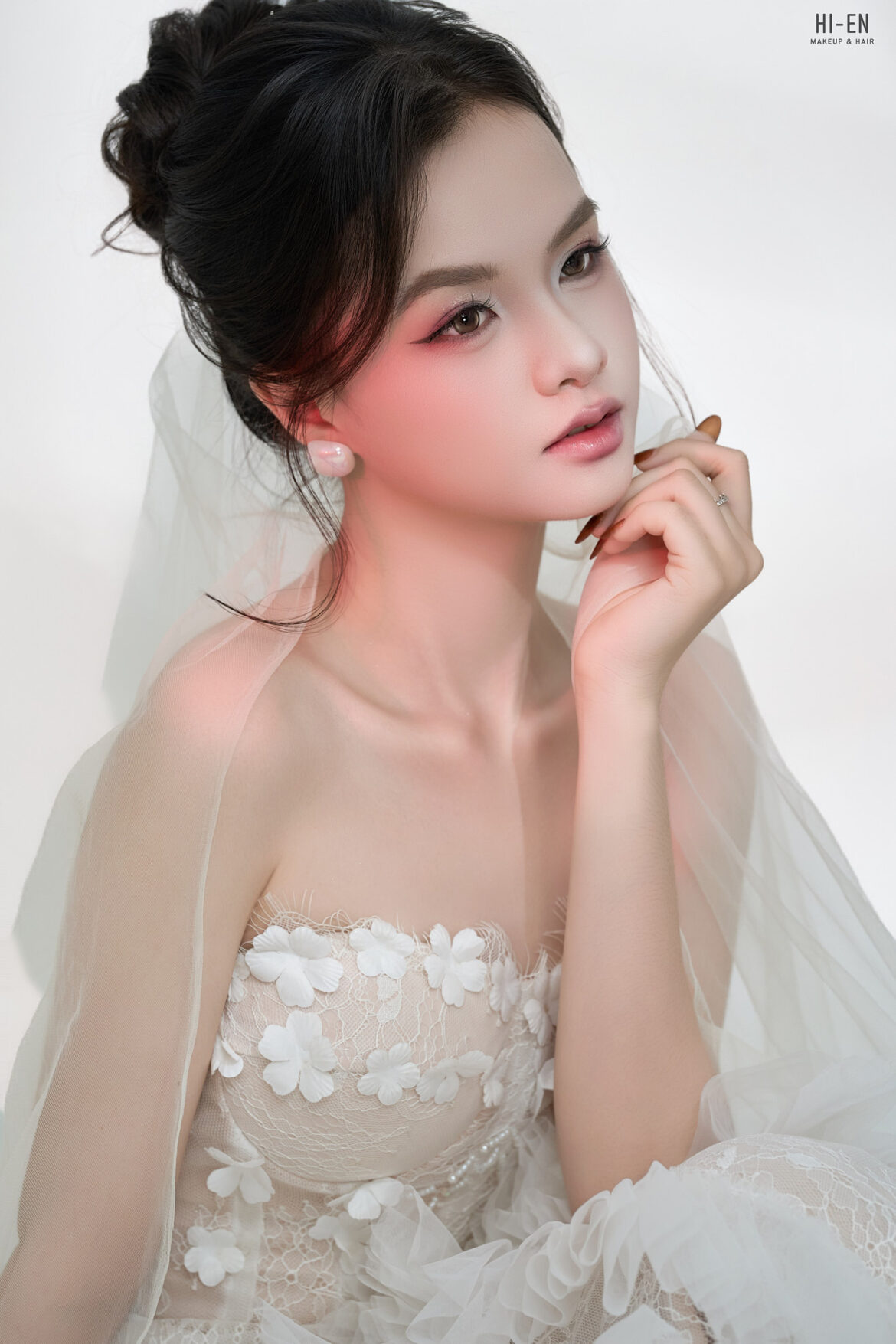
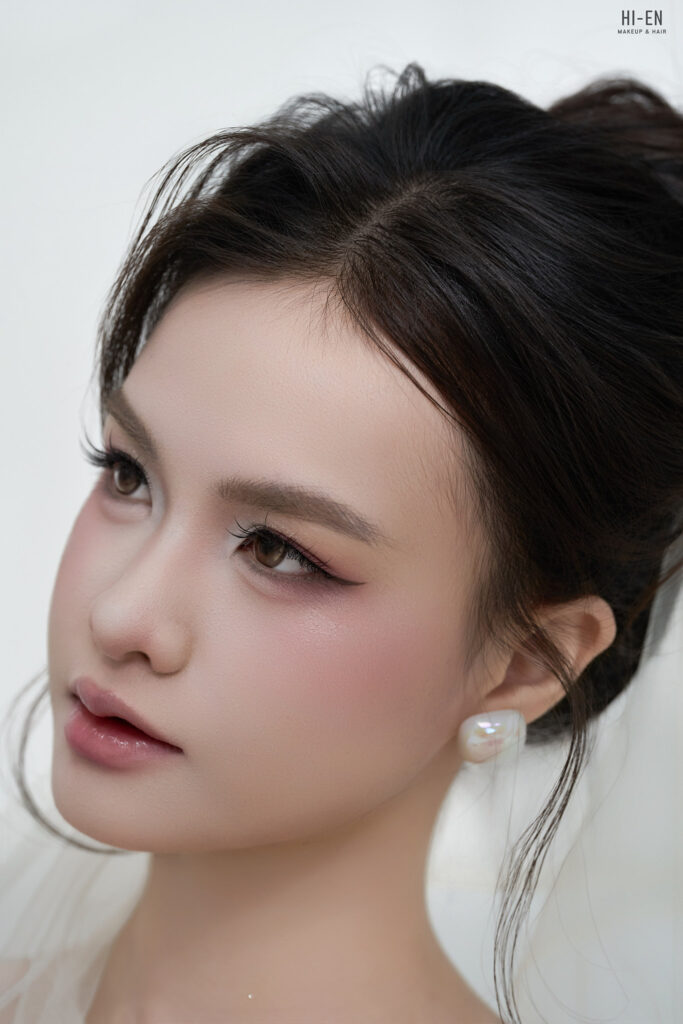
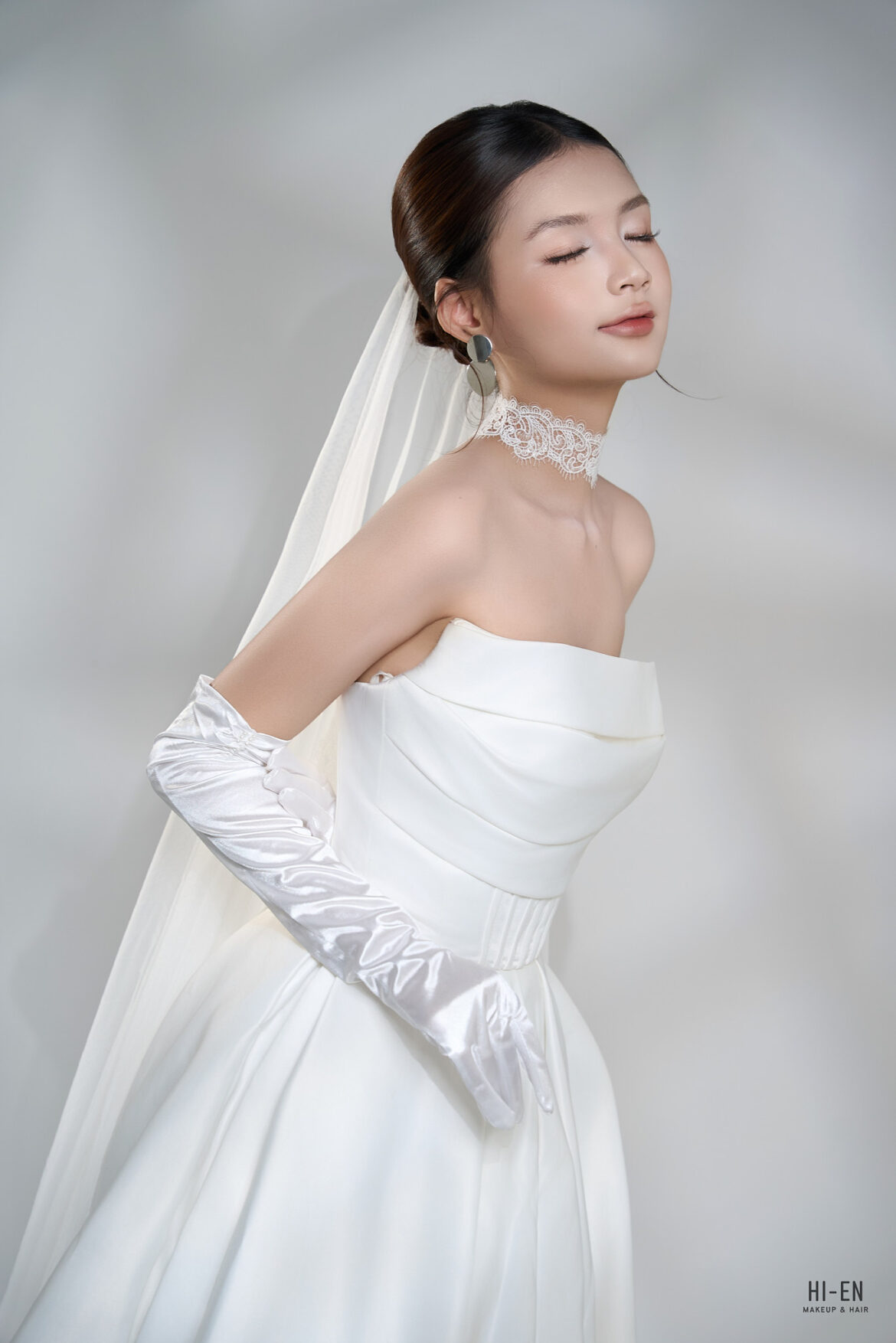
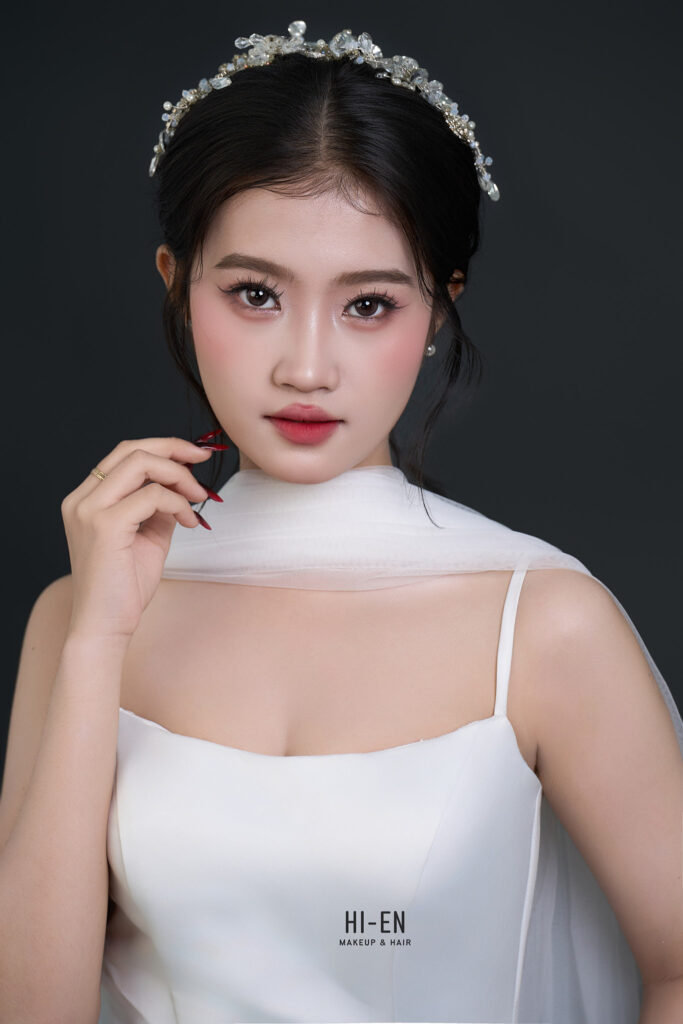
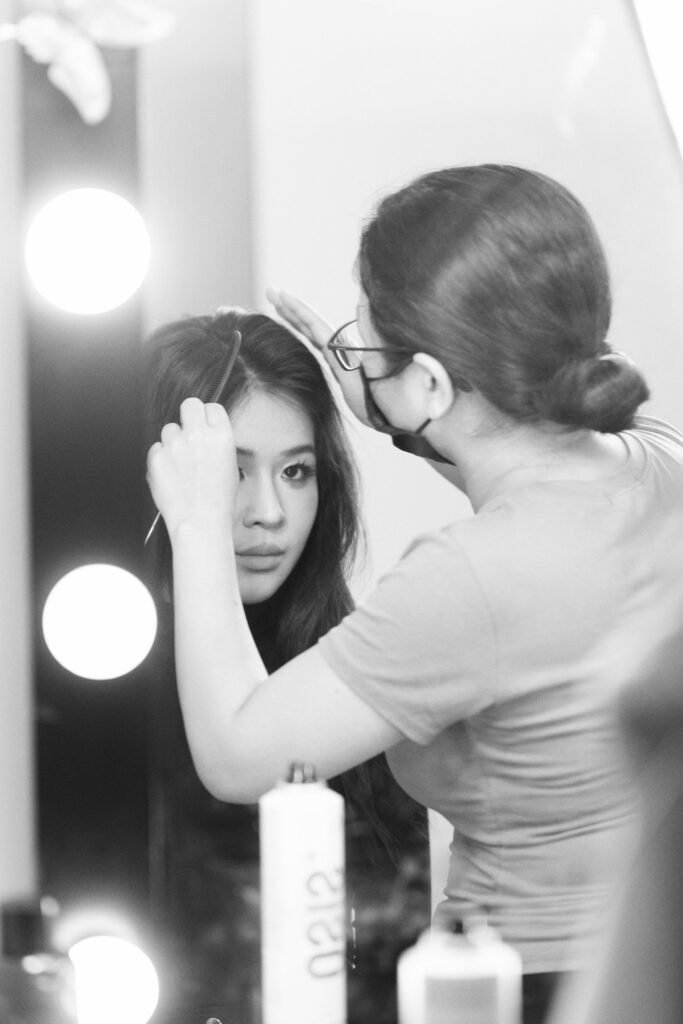
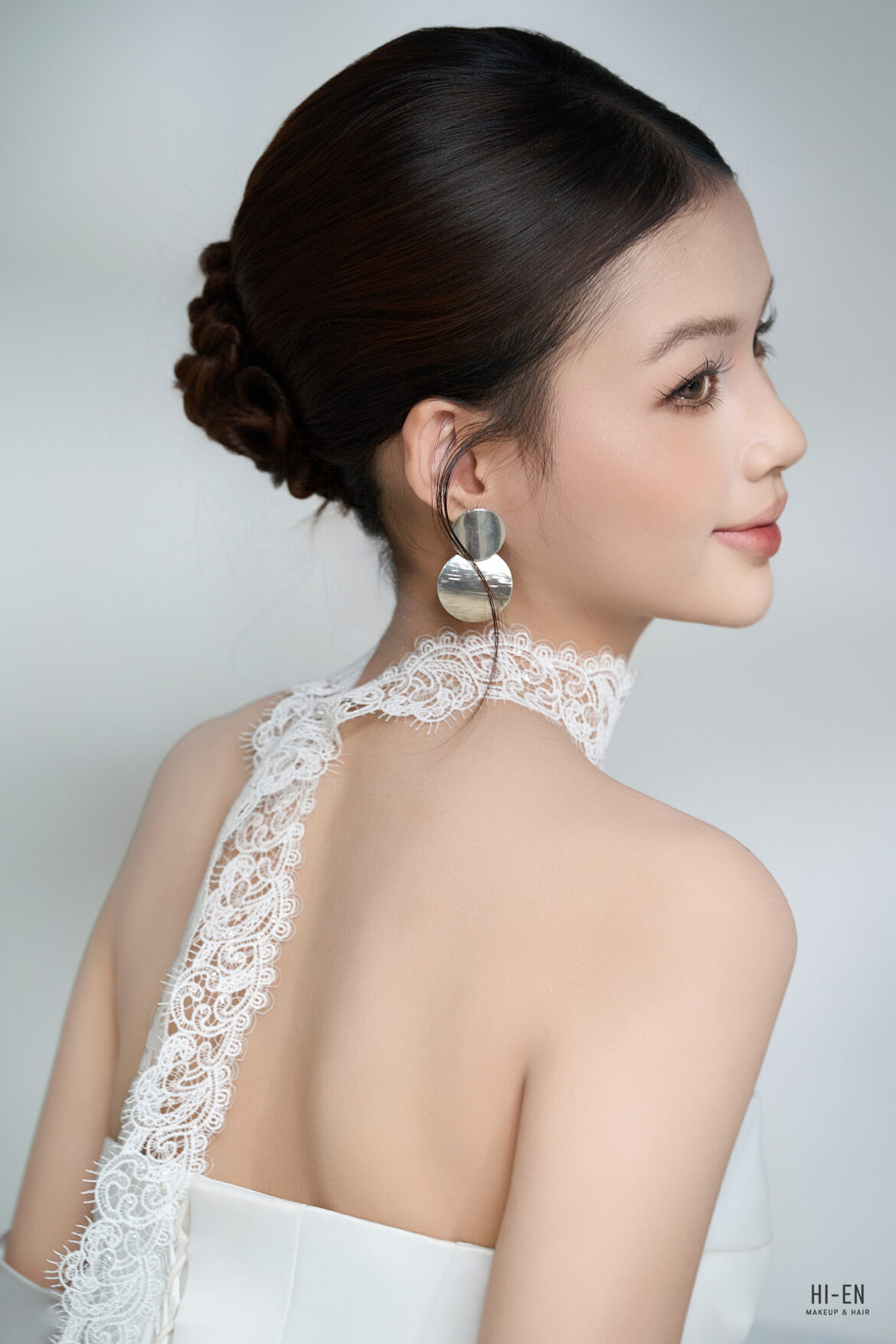
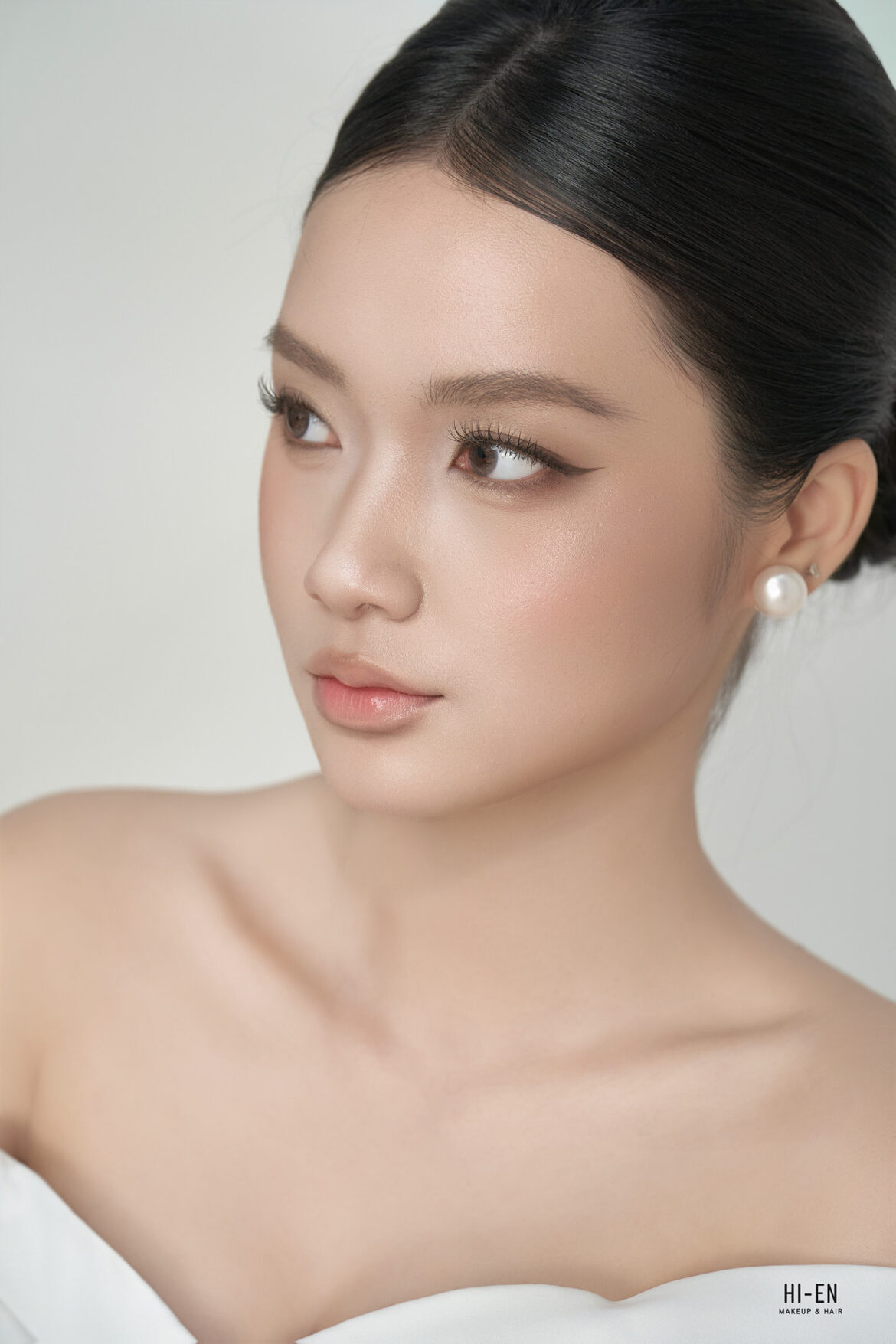
Ngày cưới là khoảnh khắc thiêng liêng nhất trong cuộc đời mỗi người con gái. Bên cạnh chiếc váy cưới lộng lẫy, một lớp trang điểm hoàn hảo chính là “vũ khí” giúp nàng tự tin tỏa sáng. Nếu bạn đang tìm kiếm một địa chỉ makeup cô dâu uy tín tại Cam Ranh với phong cách trong trẻo, tự nhiên, HI-EN Makeup & Hair chính là sự lựa chọn dành cho bạn.

1. Xu hướng Makeup cô dâu “Nàng Thơ” – Lên ngôi năm 2026

Thay vì những lớp phấn dày cộp làm mất đi nét tự nhiên, xu hướng trang điểm năm nay tập trung vào sự thanh thoát và sang trọng. Layout tại HI-EN luôn chú trọng:

  • Lớp nền mỏng mịn như sương: Sử dụng kỹ thuật xử lý nền chuyên sâu giúp giữ được kết cấu da thật, căng bóng nhưng vẫn bền màu suốt cả ngày tiệc.
  • Đôi mắt biết nói: Tập trung nhấn vào hàng mi cong vút và tông màu mắt trung tính, tạo nên ánh nhìn cuốn hút
  • Tôn vinh cấu trúc khuôn mặt: Chúng mình phân tích kỹ đặc điểm gương mặt để che khuyết điểm và tôn lên những đường nét thanh tú nhất của bạn.

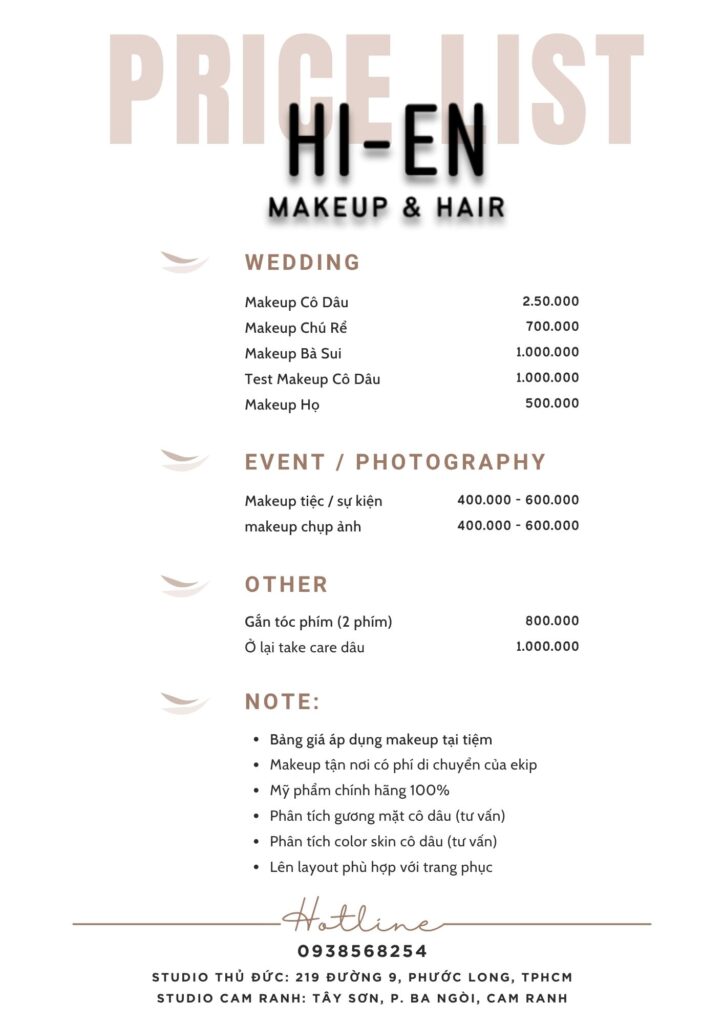
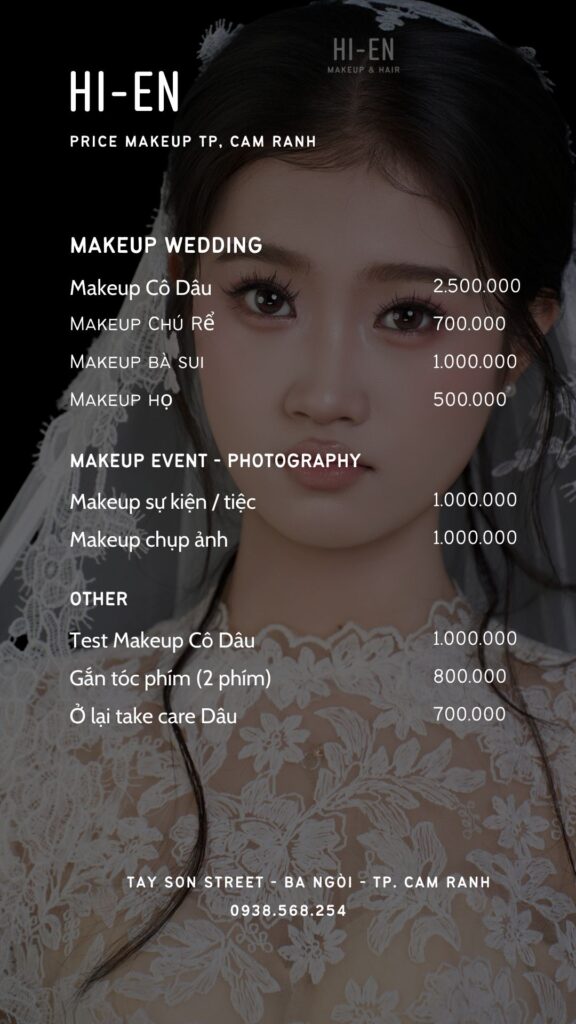
2. Chi tiết gói dịch vụ CÔ DÂU – 2.500.000 VNĐ

Với mức giá hợp lý nhưng chất lượng cao cấp, gói dịch vụ tại Cam Ranh của chúng mình mang đến sự an tâm tuyệt đối:

  • Trang điểm & Làm tóc: Thực hiện bởi nghệ sĩ makeup giàu kinh nghiệm, thay đổi kiểu tóc linh hoạt theo váy cưới.
  • Mỹ phẩm High-end: Cam kết 100% sản phẩm chính hãng (MAC, Dior, Chanel…), đảm bảo an toàn cho mọi loại da, kể cả da nhạy cảm.
  • Quà tặng kèm: Miễn phí Lens mắt và bộ phụ kiện tóc cao cấp phù hợp với từng concept

3. Tại sao nên chọn HI-EN Makeup & Hair tại Cam Ranh?

Giữa rất nhiều sự lựa chọn, chúng mình tự tin khẳng định vị thế nhờ sự tận tâm và chuyên nghiệp:

  1. Đúng giờ & Tận nơi: Chúng mình hiểu áp lực thời gian trong ngày cưới, đội ngũ luôn có mặt đúng giờ tại nhà riêng hoặc khách sạn ở Cam Ranh để phục vụ nàng.
  2. Tư vấn cá nhân hóa: Mỗi cô dâu là một bản thể duy nhất. HI-EN sẽ tư vấn layout dựa trên kiểu váy, không gian tiệc và sở thích cá nhân của bạn.
  3. Kinh nghiệm dày dặn: Với nền tảng từ những dự án hình ảnh chuyên nghiệp, chúng mình biết cách giúp bạn đẹp xuất sắc cả ngoài đời thực lẫn khi lên ảnh.

Nàng dâu tại Cam Ranh đã sẵn sàng để trở thành phiên bản hoàn hảo nhất chưa?

Đừng ngần ngại liên hệ với HI-EN Makeup & Hair để được tư vấn và giữ lịch sớm nhất cho ngày chung đôi!

  • Địa chỉ: TÂY SƠN, BA NGÒI – Khu vực Cam Ranh & lân cận.
  • Hotline/Zalo: 0932020411 [STUDIO]
  • Fanpage: HI-EN Makeup

01/05/2026 0 comments
0 FacebookTwitterPinterestEmail
Uncategorized

Frequency Separation 2021

by nhiepanhcamranh 27/04/2026
written by nhiepanhcamranh

A long (long) time ago I wrote an essay on Frequency Separation, even if the main subject was disguised in the more approachable title “Notes on Sharpening”. That was early 2009, way before Frequency Separation was cool, then popularized/mainstream, then possibly cool again. I’ve thought to revisit the original article to give the subject a new coat of 2021 paint, plus all sorts of new detours.

Spoiler alert: I’m interested in Frequency Separation as a tool for a broader set of manipulations not limited to, nor particularly focused on, beauty/skin retouch.

1. Frequencies

I assume that you already know what we’re talking about, TL;DR any signal, e.g. a sound wave no matter how complex can be built composing “pure” frequencies.

Low frequencies are at the bottom, high on top, black is the result. If you want to understand the concept better, this article goes in much more detail and will blow your mind too.

In the more familiar realm of images, you can think of high frequencies as describing thin detail (given a defined area, a lot of stuff happens there), while low frequencies are in charge of spatially slower changes:

2. Basic frequency separation

As opposed to the signal wave example, with images we usually deal with frequency ranges. When you filter with Gaussian Blur (Filter > Blur > Gaussian Blur, GB from now on) e.g. radius 10px, you’re getting rid of all the high frequencies (i.e. detail) that belong to the smaller-than-10px range. Whereas if you High-Pass (Filter > Others > High Pass, HP from now on) with the same radius you’re doing the opposite: you’re left with everything that belongs to the smaller-than-10px range (only the high frequencies are allowed to pass – hence the filter name).

I’ve picked this image for most of the examples – it’s a 1887 painting by Abbott Handerson Thayer, a portrait of his daughter from the Smithsonian Institute collection.

In the early days we used to combine the GB and HP layers (the latter in Linear Light blending mode, 50% opacity) but that’s not really precise enough for our purposes here. There are two ways to deal with a proper frequency decomposition, depending on whether the file is 16bit or 8bit.

  • Duplicate the original (O) twice, and call the two new layers L (low) and H (high).
  • Place H above L, hide H and select L.
  • Apply GB to L, with a radius large enough so that the detail that you want to migrate to the other layer disappears.
  • Select H, then Image > Apply Image with the following settings
  • Change the H blending mode to Linear Light (LL from now on)
  • Optionally, clip H to the L layer (Alt or Option click the line in between the L and H layers in the Layers palette)

You should end up with this simple setup:

That is to say: the original layer, and the same built with a Low + High frequency decomposition. They are 100% identical, but why? And also, why different Apply Image settings for 8/16bit? That’s not been discussed very much (if at all): to properly understand we need to get into blending modes maths.

3. Blending Modes maths

Blending modes are arbitrary ways to mix two layers – say a Base (B) below and an Active (A) above – according to a formula.

Some blends are easier to understand if applied on normalized values, i.e. in the range (0,1). As an example, Multiply is a well known darkening blending mode, but not if the multiplication is calculated with pixel values in the (0,255) range. Let’s pretend that we have the following values1.A=51B=153A∗B=51∗153=7.803

A brightened result, that must be normalized with a 255 factor to be meaningful and appear darkened:51∗153255=30.6

If you normalize them first it’s just the sameA=51255=0.2B=153255=0.6A∗B=0.2∗0.6=0.120.12∗255=30.6

When the result is out of scale it’s clipped to 0 or 255, unless further blends are to be calculated.

Various online sources state that Linear Light is a mix of Linear Dodge (Add) and Linear Burn. Is it really? (Spoiler alert: nope) Let’s test it. With Linear Dodge (Add), the formula for the blend is (A + B). Being a simple addition, you can use both the normalized (0,1) or the (0,255) range: it makes no difference. Using the same values for A, B from the previous example:A+B=0.2+0.6=0.80.8∗255=204A+B=51+153=204

The Linear Burn formula is A + B – 1: an addition follwed by an inversion (white is subtracted).A+B−1=0.2+0.6−1=−0.2A+B−1=51+153−255=−51

Negative values are clipped to zero. Let me stress that “inversion” here means “subtraction with white”, which is 1 in the normalized range, and should be 255 for 8bit documents (more on that later).

The Linear Light formula is instead 2A + B – 1, so twice the impact for the top layer. If you draw a gradient from Black to White on a new document, duplicate the layer and change its blend mode, these are the result for Linear Dodge/Burn/Light:

So I’m afraid no, LinearLight is not “a combination of Linear Dodge and Linear Burn” because the slope of the curve is different. It’s not a shift of either formulas (resulting in A + B – 0.5), which would have in fact pivoted the line around (0.5, 0.5). With Linear Light the slope is steeper – and in fact the formula is 2A + B -1.

Now that we’ve got this, let’s try to understand why Linear Light works with the kind of Apply Image that we’ve used. There’s nothing inherently “frequency separation-y” with Linear Light, it just happens to combine perfectly with the sort of Image Calculations we’ve performed. We’ll start with the 8bit version, and move to the 16bit next.

The Apply Image step was the Original minus the Blurred (hence the Subtract mode) with Scale 2 (meaning divided by 2) and Offset (i.e. plus) 128 that is normalized to 0.5. All this is equal to the grayish detail layer, which is then set to Linear Light blending mode: being on top, let’s call it A. The layer below (B) is the Original, and the blend formula for Linear Light is 2A + B – 1. Let’s substitute A with (Original – Blur)/2 + 0.5 in the formula and you see that everything simplifies to Original, QED.

In other words, we’ve demonstrated why this particular Subtraction (with Scale 2, Offset 128) perfectly combines with the Linear Light blending mode to return an identical copy of the original. Cool!

Let’s see how the theory works with 16 bit files and its different Apply Image.

Here we’re Adding to the Original the inverted Blurred (hence 1 minus Blurred, this is how you invert pixels), scaling 2 (i.e. divided by 2). This is again the detail layer then set to Linear Light mode: we call this A, and B is the Original. Applying the same blending formula 2A + B – 1 we can substitute A in it and everything simplifies to the Original. Great!

So it’s not that Linear Light is a magic blend mode, nor that it fits Frequency Separation. The Apply Image settings happen to work with Linear Light in returning the original values.

Then… why two different methods with 8bit/16bit documents? You’re ready for some bit depth Maths.

4. 8bit vs. 16bit Maths

For 8bit images, pixel values are in 2^8 = 256 range, i.e. (0,255). Black is zero, White is two-hundred-fifty-five. You might be tempted to assume that 16bit works the same, but it turns out that Adobe Photoshop’s 16bit is in fact 15bit + 1, meaning 2^15 + 1 = 32768 + 1 = 32769, expressed in the range (0,32768). Why? The accepted answer is that “this gives a midpoint to the range (very useful for blending), and allows for faster math because we can use bit shifts instead of divides” (source).

4.1 8bit special inversion

I’ve tried to reverse engineer the way Photoshop handles pixel calculations, and there is something interesting going on here. Let’s create a dummy test document, 8bit.

As you see I’ve created two layers, solid 102,102,102. When the topmost is in Linear Light I would expect the blend to be 2A + B – 1, where 1 is the highest value possible in the (0,255) 8bit range, that is to say White: 255. Hence the formula would give:LL=2A+B−1=2∗102+102−255=51

Alas, “computer says no”, and PS calculates 50. There are no divisions here, so I wouldn’t expect rounding errors of any sort, it’s quite straightforward. I’ve tested it with a bunch of different pixel values for the top and bottom layers, and the result is always off by 1.

Out of curiosity I’ve tested Affinity Photo and it works as I’d expect:

The only explanation is that Photoshop subtracts 256 instead of 255. This is in fact the case, and the reason is that otherwise there would be no neutral color in Linear Light with 8bit documents.LL=2A+B−1

A is the layer above, the one which middle gray is meant to be “neutral” (have no effect) in the blend. Let’s rewrite it as:LL=B+(2A−1)LL=B+ΔA

Where:ΔA=2A−1

There must be a value of A (the neutral, mid-gray) such that deltaA is equal to zero. But using 255 as the white, zero is nowhere to be found.A=128ΔA=2∗128−255=1A=127ΔA=2∗127−255=−1

Instead, if you subtract 256 the neutral value happens to be 128, which is in fact the proper mid-gray value in use:A=128ΔA=2∗128−256=0

This is true for 8bit documents only.

For 16bit documents, given their particular nature of 15bit + 1, there are 32769 values in the (0, 32768) range, hence no need to tweak the white subtraction. In fact, the used value is the proper 32768.

LL=2A+B−1=2∗13107+13107−32768=6553

4.2 Image Calculations: 8bit

I’ve created an edge and noted the pixel values for the Original layer that you can see either in the Info palette for the two color samplers and in the layer name as well. I’ve also added a Blurred (2px radius) layer – trust me the color sampler values are ones in the Layers palette.

Let’s crank some numbers and see if we’re able to calculate the Apply Image value.

Please note this is an 8bit file, so let’s start with the recommended calculation, a Subtraction with Scale 2 and Offset 128.O=153GB=112ApplyImage=O−GB2+128=153−1122+128=412+128

Let me pause for a moment: 41/2 here is equal to 20, for there’s no such a thing as 20.5 in the integers (0,255) range – more on rounding in a minute.ApplyImage=20+128=148

Which is exactly the correct value that Photoshop comes up with:

A quick check for the darker values too:O=51GB=92ApplyImage=51−922+128=−412+128=−20+128=108

Which is exactly what you can see in the Info palette above. We’ve confirmed the Apply Image result.

Now it’s kinda easy, we need to apply the Linear Light formula (2A + B – 1), where A is the value we’ve calculated, B is the Blurred, and 1 is the “special” white that Adobe uses for 8bit Linear Light, i.e. 256.

Lighter values on the left:LL=2∗148+112−256=152

Darker values on the right:LL=2∗108+92−256=52

Photoshop confirms:

So we’re off one point in both dark and light side. I’ve noted all the values along the 10 pixels the image is wide:

Why two different tables? Because Photoshop rounds values to the integer in an inconsistent way – or at least in a way for which I haven’t been able to find the rule. The table above shows the “theoretical values” (floats, which would lead to zero errors everywhere), while the bottom one is filled with the actual readings. I say PS rounds inconsistently because for reasons unknown to me the first five values in the Subtraction row are rounded down (130.5 → 130, the floor), while the last five values are rounded up (125.5 → 126, the ceiling). Go figure.

All in all, for 10 pixels we’ve got 4 off by 1 (in absolute value), so a total error of 4.

Let’s try with the same 8bit document, but with the 16bit Calculations instead (the Addition of the inverted, Scaled 2)

The results are much worse. On the one hand there are the same weird behaviour mixing ceiling and floor rounding. On the other hand, the theoretical error is more than twice the real error for the Subtraction calculation, and 4 times that in the actual document!

Even when rounding is not needed (e.g. for pixels 3, 4, 7, 8, 10) the theoretical value is always off by 1. My understanding is that the special white value (256 instead of 255) used in the LL blend is compensated with the 128 offset in the Subtraction method only. Why some values are even worse in the actual readings (same pixels 3, 4, 7, 8, 10) I have no explanation for. But the experimental result is that Addition in an 8bit file results in a greater error, 4 times the Subtraction’s.

4.3 Image Calculations: 16bit

I’ve set up a similar document, but 16bit (with the sampler set to read 16bit values):

Let me show you the spreadsheets for the recommended 16bit calculation, Addition of the inverse, Scaled 2

Here the theoretical error is always zero, whereas the actual document shows minimal deviation. Different story if you try the recommended Apply Image settings for 8bit, the Subtraction with Scale 2 and 128 Offset:

Here the error is much greater: I’d say due to the fact that 128 translates (in 16bit) to 16448. Try adding a 128 solid color layer and measure it in Photoshop with the color sampler set to 16bit, this is the value you’re going to get. My interpretation of the experimental results is that the difference is due to the mismatch between the theoretical middle-gray offset for 16bit documents (16384) and the one used in Apply Image (16448) – where you have to enter an 8bit number even if the document is 16bit.

Mind you: 1280 seems to be a much bigger error than the 16 points of the 8bit Addition case, but it’s actually lower: it’s a 4% error, compared to 6% of the 8bit.

Fun fact: in 16bit documents, it seems that rounding is always floor in the Addition, ceiling in the Subtraction.

There still are some points for which I haven’t a proper explanation:

  1. Why there are differences between theoretical and actual readings even with non rounded values.
  2. How can PS rounds using both floor or ceiling values for x.5 numbers.

All in all, the above experiment proves that no method hits the bull’s eye but the measured errors are smaller when using Subtraction with Scale 2 and 128 Offset on 8bit documents and Addition of the inverse with Scale 2 on 16bit documents.

4.4 High Pass

Before going any further, let me point out that the High Pass filter doesn’t output the same Detail layer as the decomposition we’ve performed.

On the left you see the Detail layer, center the High Pass with same radius as the Gaussian Blur (much stronger effect). Right, putting the HP layer half opacity on top of a mid-gray layer (Edit > Fill > 50% Gray). Apparently it’s now identical: if you put the HP on top of the Detail, Difference blending mode, the result is full black and both Mean and Std Deviation (from the Histogram palette) are equal to zero. This for a 16bit file, while an 8bit file shows 0.50. In both cases, an extreme contrasting curve shows noise, which in the 16bit case might be just rounding errors (not so sure about the 8bit one).

All in all, I will keep using the Apply Image method, especially when decomposing the image for retouching purposes.

5. Single Kernels

In my experience, Photoshop people tend to think about Frequency Separation mainly as a retouching tool. Sure the image decomposition helps targeting the retouching process in ways and with such precision/ease that would be otherwise impossible, but I am personally also interested in contrast enhancements.

5.1 Gaussian kernel

As soon as you’re able to separate frequency ranges into their own layers, they can be successfully used to enhance or dampen those features in the original image. Gaussian Sharpening is a classic example: without entering the details of the three parameters of the UnSharpMask filter here, conceptually it’s just a matter of creating a Gaussian separation and adding the frequencies back to the original – basically discarding the Blurred layer and using the Detail one only. Exaggerated radius (40px) demonstration as follows.

Several things to point out ASAP.

  • First, a “Gaussian separation” means a Frequency Separation that uses the Gaussian Blur filter. As we’ll see in a short while, we’re not limited to that at all.
  • Second, “adding back” is a loose term that means putting the Detail layer (the one that’s the result of the Apply Image step) into Linear Light blending mode directly on top of the Original, discarding the Base (blurred) layer.
  • Third, as soon as we enter the realm of contrast enhancement we can leave the rigorous math we needed for the decomposition behind. In the image above I’ve used Linear Light at full opacity. You can experiment lowering the opacity or using different contrast blending modes2.
  • Fourth, due to the fact that Apply Image and the Linear Light blend work on a per channel basis, as a result the color is expected to be saturated and the hue sometimes shifted. The effect may be welcome or may be not. Without the need to bother with a Merge Layer on top switched then to Luminosity blending mode, you can force the Luminosity only by clipping the Detail layer to whatever blank/zeroed Adjustment Layer you want, provided that the latter (only) is set in Luminosity, while the Detail layer is whatever contrast blending mode you like.

This is a little known technique that lets you mix blending modes in a very fast and cheap (in terms of filesize) way.

Alternatively, you can slightly tweak the procedure. If after the Gaussian Blur you Edit > Fade Gaussian Blur… and set it to “Luminosity” you end up with a weird looking blurred thing.

When using that one for the Image Apply step, then the resulting Detail layer is completely desaturated, hence the result when applying it back to the original has the same effect as retaining only the Luminosity part.

It’s quite important that you understand how the above works. We’ve subtracted a Blurred version from the Original, in order to get the gray-blob that I’ve called the Detail layer.D=O−GB

Where D is Detail, O is Original, and GB stands for Gaussian Blur (the blurred layer). If the GB is blurred in the Luminosity only, then:Dlum=O−GBlum

Finally, nothing prevents you to use the regular decomposition and retain the color only, in order to emphasize a more impressionistic effect – some sort of Michel Eugène Chevreul influenced simultaneous contrast boosted look.

Feel free to mix different amounts of Color and Luminosity for greater control. Also note that if you invert the Detail layer you get the opposite effect: dampening that frequency range rather than enhancing them. It’s of little use with a Gaussian kernel (a decomposition which is based on a Gaussian Blur filter) because it would just return a blurred version:

But with other kernels (especially mixed ones) and varying the opacity it can lead to very interesting results.

5.2 Non-Gaussian kernels

There’s nothing special in the Gaussian Blur filter when it comes to image decomposition as we’ve seen it so far. Provided that you subtract3 the Original with the “processed” version and you put the result on top of the filtered in Linear Light, you’re going to get the Original back. You can try silly filters if you want:

You can even throw in something totally unrelated and it’ll work all the same.

Think about the Apply Image step like noise cancelling headphones: you’re somehow factoring out the “interference” (the altered image) and find a signal that, combined with it, returns the frequencies you want to hear. All those weird filters have no use, but to help you get the point.

At this point you should have built the intuition that what the kind of detail that the kernel destroys, is the kind of stuff that migrates in the Detail layer and you’ll be able to enhance/retouch in the original image. One well-known kernel used in such decompositions is the Bilateral Filter, a.k.a. the Surface Blur. Killing (in theory) everything but edges, you can expect that it’s going to enhance Textures and leave Edges more or less alone.

The result is not meant to be pretty here: it illustrates the point, and it’s yet another item in your toolbox to grab when the right image comes along. Please remember that these two-layers decompositions can be used for retouching purposes with a Base (blurred) + Detail layer, so it can be interesting, depending on the image, to be able to target fine textures and leave edges alone.

Another quite common kernel is the Median, mostly because it suits retouchers when they need to address the Detail layer:

But even weird kernels can lead to surprisingly interesting results. For instance Maximum (dilation filter) that expands the maximum values of a round (or square) region of pixels; resulting in a visually lighter image, we know that the result of the Detail layer application is the opposite: darkened. As follows a 2px radius, with the Detail in Linear Light 50% opacity.

Similarly, the Minimum (erosion) darkens the intermediate hence it’ll lighten the composite:

Speaking of Sharpening, you can get fancy with all sort of Blur kernels (e.g. the ones in the Filters’ Blur Gallery). In the following example I’ve created a new Channel with a gradient that it’s used to apply a Lens Blur filter nicely faded in around the eyes region only. The resulting Detail layer is able to apply a sharpening effect that fades in a way so natural that no layer mask would ever be able to replicate.

6. Multiple Kernels

6.1 Polyfiltered Detail layers

Nothing prevents you from using more than one filter (applied on top of the previous one) to build the layer that will be used to extract the Detail. In the following example I’ve used the Oil Paint filter plus a Smart Blur round.

That still makes a perfectly valid candidate for a two-layers frequency separation that can be used for both retouching or contrast enhancement. Possibilities are endless, provided that you’re able to invent ways to destroy the kind of detail that you want to migrate to a separate layer.

Leaving for the moment the field of perfect decomposition stacks of one base, filtered layer plus the Apply Image on top, there are ways to build interesting Detail layers for contrast enhancement purposes. Later on we’ll learn how to bring them back to decomposition stacks.

6.2 Difference of Gaussians

So far we’ve subtracted a Blurred version from the Original, in order to get the gray-blob that I’ve called the Detail layer. In the case of the Gaussian enhancement, we’ve added the Detail back to the Original (using your preferred blend mode/opacity).D=O−GBEnhanced=O+D

The enhancement targets the frequency range from whatever is the Gaussian Blur radius used (in my case 40px) down: so the (0,40)px range4. If you think about GB as a filter that wipes out the higher-than-the-radius frequencies:GB(40)=O(40→∞)

Then you can re-write the equation as:O(0→∞)−O(40→∞)=D(0→40)

That is to say, the Detail layer that contains the frequencies in the range (0,40)px is obtained subtracting an image with frequencies only in the (40→∞) pixels range from the original image that contains all the frequencies.

We’re not limited to use the Original for the subtraction. What if for instance we use two differently blurred images?GB(20)=O(20→∞)GB(40)=O(40→∞)O(20→∞)−O(40→∞)=D(20→40)

The result is as follows:

It’s a technique known as Difference of Gaussians, or DoG.

At the moment we’re not yet equipped to use this Detail layer for retouching purposes as well, but I’ll get to that in a short while. Meanwhile, feel free to experiment with different DoG values.

6.3 Edges layer

In the DoG example above we’ve combined two identical (Gaussian) kernels with different parameters. We may now try to combine two different kernels – it’s entirely within the realm of possibilities.

We’ve already met the candidates. Surface Blur (SB) is able to discern the image content, blurring “surfaces” and not “edges”; Gaussian Blur (GB), instead, wipes out everything that is within its frequency range. With a bold leap of faith you can consider the original image (O) to be made of “edges” (E) and “texture” (T): wildly unorthodox math ensues.O=OT+OESB=O−OTGB=O−(OT+OE)SB−GB=(O−OT)−(O−(OT+OE))=O−OT−O+OT+OE=OE

In other words: if GB subtracts both texture plus edges, and SF subtracts texture only, then if you subtract SB from GB you get a Detail layer that contains Edges only without texture. An image might help demonstrating the concept.

This Detail layer has been built with Surface Blur (Radius 12px, Threshold 15px) and Gaussian Blur (radius 10px). The intuition is always the same: how are the two operands different? That difference is what will be enhanced.

Here both textures are more or less blurred the same way: they aren’t different hence they’ll stay the same. Edges (the broad strokes that draw the main traits such as eyes, nose, mouth and hair) are instead dramatically different, hence they’ll get enhanced.

7. Image decomposition

So far we have either performed frequency separations to rebuild a clone of the original image split in two layers (a filtered one, e.g. blurred, plus a difference e.g. the detail in Linear Light blend mode) or we’ve create a variety of independent detail layers for contrast enhancing purposes. It’s time to join the two worlds.

7.1 Gaussian pyramid

Let’s start with the familiar Gaussian kernel. If you recall, with the DoG we’ve targeted very specific frequency ranges, eg. from 40px to 20px. It’s possible to build a pyramid (i.e. a multi-frequency decomposition) splitting the image into more than two layers, e.g. four. These four layers will describe and represent the original image as a sum of four frequency ranges: from “infinity” to 40px; from 40px to 15px; from 15px to 5px; from 5px to zero.

The math is quite straightforward. Let’s call O the Original picture as usual, GB(n) the GB filter applied with radius n. We need four layers:O,GB(5),GB(15),GB(40)

Let’s define differences Dn as follows:D1=O−GB(5)D2=GB(5)–GB(15)D3=GB(15)−GB(40)

So the image can be decomposed into:O=GB(40)+D1+D2+D3

In fact, substituting all the elements we get:O=GB(40)+O−GB(5)+GB(5)−GB(15)+GB(15)−GB(40)=O

Everything simplifies and we’re left with the same original image. Let’s switch to Photoshop and try to build this pyramid: first thing, we need the original plus three progressively more blurred layers.

Second, we need the GB(40) and D1,D2,D3. These are just Difference of Gaussians, the same DoG we’ve already encountered.

When you have all the ingredients, you can add them together via Linear Light blending.

The result is a pixel perfect copy of the original with all the three Detail ranges exposed: (40→15),(15→5),(5→0) pixels.

You can now either exploit this frequency separation for retouching purposes, or add each Detail layer back to the original (with various blending modes and/or opacities) for a frequency range targeted contrast boost.

Keep in mind that:

  • If instead of boost, you need to decrease the impact of a particular frequency range, do invert the Detail layer.
  • The order of the Detail layers in the stack doesn’t really matter, you can freely mix them.
  • There’s no limit to the amount of Detail layers you want to create.
  • You can always clip a Curves adjustment if you want to perform some peculiar edit to a Detail layer.

7.2 Mixed pyramids

To properly conclude, there’s still one technique that needs to be revisited and incorporated into multi-layer frequency decompositions. If you remember, not long ago we’ve mixed Gaussian and Surface Blur to obtain an “Edges” Detail layer. It may surprise you (or it may not, at this point) to know that you’re not at all forced to use the same kernel in a decomposition: you’re free to use any kernel that make sense. Let’s try to build a GB/SB pyramid!

We need three layers:O,SB(12,15),GB(10)

Let’s define differences Dn as follows:D1=O−SB(12,15)D2=SB(12,15)–GB(10)

So the image can be decomposed into:O=GB(10)+D1+D2

In fact, substituting all the elements we get:O=GB(10)+O−SB(12,15)+SB(12,15)–GB(10)=O

The image can be then recomposed as usual.

The Detail layers can be used for either retouching purposed or contrast enhancement.

The general equations for the decomposition are:U0=OU1=Filter1(O)U2=Filter2(O)⋯Un−1=Filtern−1(O)Un=Filtern(O)D1=U0–U1D2=U1–U2⋯Dn−1=Un−2–Un−1Dn=Un−1–UnO=Un+D1+D2+⋯+Dn−1+Dn

At this point it’s up to you to decide which kernels to mix, and for which goal. Always remember to look for filters and filter combinations/subtractions that affects the feature you’re interested into – imagination can fly high!

References

  • Abbott Handerson Thayer, a portrait of his daughter from the Smithsonian Institute collection, 1887.
  • The Ultimate Guide To The Frequency Separation Technique by Julia Kuzmenko McKim is a nice introductory guide to simple 2-layers decompositions.
  • Former Adobe’s Imaging Senior Engineer Chris Cox about the decision to use 15bit + 1.
  • As for why Linear Light Blend uses 256 as a white point, see here.
  • Blend modes info are found everywhere but with various degree of precision. I’ve used
    Wikipedia of course, PhotoBlogStop, but the most interesting have been Murphy Chen (Chinese language) and Pegtop.
  • If you’re curious, my 2009 original article can still be found here.
  • All illustrations are mine. Blend mode graphs are plotted with p5.js.

  1. I take in consideration one channel only for simplicity’s sake. ↩
  2. HardLight has the same formula than Overlay, but it uses the upper layer to determine which formula to apply (Overlay uses the layer below instead). ↩
  3. I keep using “subtract” as a verb, but you should use the more appropriate Apply Image to the document’s bit depth. ↩
  4. It’s a bit counter-intuitive at first, because “down” in this case means to higher frequencies. ↩
27/04/2026 0 comments
0 FacebookTwitterPinterestEmail
Uncategorized

Hướng dẫn cài đặt Delicious Retouch Panel 4.1.0 Full bản quyền

by nhiepanhcamranh 26/04/2026
written by nhiepanhcamranh

Delicious Retouch Panel là một plugin photoshop giúp bạn dễ dàng chỉnh sửa chân dung với rất nhiều tính năng mạnh mẽ giúp cho việc chỉnh sửa chân dung nhanh hơn, tốt hơn và tiết kiệm thời gian.

Hướng dẫn cài đặt Delicious Retouch Panel 4 Full

Delicious Retouch một plugin mạnh mẽ không thể thiếu nếu như bạn thường làm việc để chỉnh sửa ảnh chân dung, tuy nhiên có nhiều bạn không cài đặt và kích hoạt bản quyền được nên bài viết hôm nay mình sẽ hướng dẫn các bạn cài đặt Delicious Retouch Panel 4.1.0 Full bản quyền.

Download Delicious Retouch Panel 4.1.0

Trước tiên các bạn cần tải về bản cài đặt Delicious Retouch Panel 4.1.0 ở link bên dưới đây:

  • Fshare

Cài đặt Delicious Retouch Panel 4.1.0 như thế nào?

Cách này mình thực hiện trên Photoshop CC 2018 trên Mac OS, nếu các bạn dùng Windows thì cũng làm tương tự.

Bước 1: Giải nén file vừa tải về ở trên. Sau đó copy folder DeliciousRetouch4 theo đường dẫn:

  • Mac OS: /Library/ApplicationSupport/Adobe/CEP/extensions/
  • Windows x64: C:/Program Files(x86)/CommonFiles/Adobe/CEP/extensions/
  • Windows x32: C:/Program Files/CommonFiles/Adobe/CEP/extensions/
Cài đặt Delicious Retouch Panel

Bước 2: Chỉnh sửa file hosts theo đường dẫn:

Đối với Windows: C:\Windows\System32\Drivers\etc\hosts (các bạn chỉ cần copy file hosts ra ngoài Desktop sau đó thêm hai dòng bên dưới vào save lại và ghi đè lại vào đường dẫn lúc đầu là được.

Đối với Mac OS: Các bạn xem video hướng dẫn bên dưới:

Bước 3: Thêm 2 dòng này vào file hosts.

Hãy nhớ rằng việc chặn thông qua các máy chủ có các dòng dưới đây là rất quan trọng. Do đó các bạn bắt buộc phải thêm 2 dòng này vào file hosts thì mới kích hoạt được nhé.

127.0.0.1 www.checksite.us
127.0.0.1 photoshopchef.com

sua file hosts tren mac

Bước 3: Mở Photoshop lên và mở Delicious Retouch: Windows > Extensions > Delicious Retouch 4.

Chọn Buy/Enter license key:

Cai dat Delicious Retouch Panel 1

Sau đó nhập Product key sau: KG9999999999L8000000 và nhấn Submit.

Cai dat Delicious Retouch Panel 2

Bước 4: Vậy là đã kích hoạt bản quyền thành công. Thưởng thức thôi.

Cai dat Delicious Retouch Panel 3

Chúc các bạn thành công!

26/04/2026 0 comments
0 FacebookTwitterPinterestEmail
Dịch vụ makeup Cam Ranh

Bảng Giá Makeup Cô Dâu Tại Cam Ranh & Resort Cam Lâm 2026

by nhiepanhcamranh 13/04/2026
written by nhiepanhcamranh

Chào đón mùa cưới và mùa du lịch nghỉ dưỡng, Hi-en Makeup chính thức triển khai dịch vụ trang điểm chuyên nghiệp tận nơi tại các Resort khu vực Cam Ranh và Cam Lâm. Nếu bạn đang lên kế hoạch cho một đám cưới lãng mạn bên bờ biển hay một buổi chụp ảnh kỷ niệm tại các khu nghỉ dưỡng cao cấp, hãy để Hi-en giúp bạn tỏa sáng một cách tự nhiên nhất.

1. Chi tiết gói Makeup Cô dâu tại Cam Ranh (2.500.000 VNĐ)

Mức giá áp dụng cho dịch vụ thực hiện tận nơi tại các Resort/Khách sạn khu vực Cam Lâm & Cam Ranh:

  • Trang điểm & Làm tóc: Layout được thiết kế riêng để phù hợp với gió biển và ánh sáng ngoài trời, đảm bảo bạn vẫn rạng rỡ mà không bị “dày phấn”.
  • Kỹ thuật nền chống trôi (Long-lasting): Đặc biệt chú trọng kỹ thuật khóa nền chuyên sâu, giúp lớp trang điểm bền bỉ trước độ ẩm và gió biển Cam Ranh.
  • Mỹ phẩm High-end: Sử dụng 100% các dòng mỹ phẩm chính hãng giúp lớp nền mỏng nhẹ, tự nhiên như làn da thật.
  • Phụ kiện đi kèm: Hỗ trợ dán mi từng chùm tạo độ tự nhiên và các phụ kiện cài tóc cơ bản.

2. Tại sao nên chọn Hi-en Makeup cho ngày vui tại Resort?

  • Di chuyển tận nơi: Hi-en trực tiếp đến tận phòng resort của bạn tại Cam Ranh/Cam Lâm, giúp bạn tiết kiệm thời gian và giữ tâm trạng thoải mái nhất trước buổi lễ.
  • Phong cách Natural Glow: Rất phù hợp với không gian tiệc cưới ngoài trời hoặc concept chụp ảnh nghỉ dưỡng (Beach/Resort Style).
  • Sự kết hợp hoàn hảo: Layout makeup được tính toán kỹ lưỡng để lên hình đẹp nhất dưới cái nắng đặc trưng của vùng biển Khánh Hòa.

13/04/2026 0 comments
0 FacebookTwitterPinterestEmail
Dịch Vụ Nhiếp Ảnh Cam Ranh

Studio Chụp Ảnh Concept Chân Dung Đẹp Nhất Cam Ranh: Ghé Ngay Tiệm Ảnh Chú Hồng

by nhiepanhcamranh 22/03/2026
written by nhiepanhcamranh

Bạn đang tìm kiếm một nơi để lưu giữ vẻ đẹp cá nhân, một bộ ảnh chân dung “thần thái” hay đơn giản là muốn thay đổi diện mạo trên mạng xã hội? Giữa lòng thành phố biển, Tiệm ảnh chú Hồng tự hào là studio chụp ảnh concept chân dung hàng đầu tại Cam Ranh, nơi biến mỗi khung hình thành một tác phẩm nghệ thuật.

Tại sao nên chọn chụp ảnh chân dung concept tại Cam Ranh?

Chụp ảnh chân dung (Portrait) không chỉ là việc đứng trước ống kính và mỉm cười. Đó là sự kết hợp giữa ánh sáng, góc mặt và linh hồn của bộ ảnh thông qua các concept (chủ đề) riêng biệt. Tại Cam Ranh, việc tìm kiếm một studio có tâm và có tầm là điều cực kỳ quan trọng để bạn có được bộ ảnh “để đời”.


Tiệm ảnh chú Hồng – Nơi “phù phép” mọi khung hình chân dung

Nếu bạn hỏi người dân địa phương về một địa chỉ chụp ảnh có gu, câu trả lời chắc chắn sẽ là Tiệm ảnh chú Hồng. Không chạy theo lối mòn của các studio truyền thống, Chú Hồng mang đến hơi thở mới lạ trong từng concept.

1. Đa dạng Concept – Từ nàng thơ đến cá tính

Tại Tiệm ảnh chú Hồng, chúng mình không giới hạn sự sáng tạo. Bạn có thể chọn:

  • Concept Nàng Thơ: Nhẹ nhàng, trong trẻo với ánh nắng tự nhiên.
  • Concept Vintage/Retro: Mang màu sắc hoài cổ, sâu lắng và nghệ thuật.
  • Concept Doanh Nhân/Profile: Chuyên nghiệp, hiện đại và đẳng cấp.
  • Concept High Fashion: Độc lạ, phá cách với cách đánh đèn chuyên sâu.

2. Đội ngũ tận tâm, “chỉnh dáng” cực chuẩn

Nhiều khách hàng thường ngại ngùng vì không biết tạo dáng. Đừng lo! Tại studio của Chú Hồng, bạn sẽ được hướng dẫn tận tình từ cách đặt tay, hướng mắt đến biểu cảm khuôn mặt. Chúng mình không chỉ chụp ảnh, chúng mình tạo ra sự tự tin cho bạn.

3. Trang thiết bị hiện đại & Hậu kỳ kỹ lưỡng

Chúng mình đầu tư hệ thống đèn Studio chuyên dụng và các dòng máy ảnh cao cấp nhất hiện nay. Đặc biệt, khâu hậu kỳ (retouch) tại Tiệm ảnh chú Hồng luôn giữ được độ chân thực của làn da nhưng vẫn đảm bảo sự lung linh, sắc nét.


Quy trình làm việc chuyên nghiệp tại Tiệm ảnh chú Hồng

Để đảm bảo mỗi khách hàng đều có trải nghiệm 5 sao, chúng mình áp dụng quy trình rõ ràng:

  1. Tư vấn ý tưởng: Lắng nghe mong muốn và tư vấn concept phù hợp với khuôn mặt và cá tính của bạn.
  2. Chuẩn bị trang phục & Makeup: Studio hỗ trợ tư vấn trang phục và liên kết với các makeup artist chuyên nghiệp nhất Cam Ranh.
  3. Tiến hành buổi chụp: Không gian thoải mái, âm nhạc nhẹ nhàng giúp bạn thả lỏng tối đa.
  4. Chọn ảnh & Retouch: Khách hàng tự tay chọn những tấm ảnh ưng ý nhất để studio chỉnh sửa.

Tiệm ảnh chú Hồng cam kết: Không trả ảnh đại trà, mỗi bộ ảnh là một màu sắc riêng biệt không hòa lẫn!


Thông tin liên hệ đặt lịch

Đừng để thanh xuân trôi qua mà thiếu đi những tấm hình đẹp. Hãy để Tiệm ảnh chú Hồng giúp bạn kể câu chuyện của chính mình qua ống kính.

  • Địa chỉ: Phan Chu Trinh – TP.Cam Ranh
  • Hotline/Zalo: 0354726773

22/03/2026 57 comments
0 FacebookTwitterPinterestEmail
Dịch vụ makeup Cam Ranh

Dịch Vụ Makeup Tận Nơi Tại Alma Resort Cho Gia Đình (Mẹ Và Bé)

by nhiepanhcamranh 18/03/2026
written by nhiepanhcamranh

Kỳ nghỉ gia đình tại Alma Resort Cam Ranh là khoảng thời gian quý giá để lưu giữ những khung hình hạnh phúc. Để có những bộ ảnh kỷ niệm lung linh nhất, một diện mạo tươi tắn, rạng rỡ cho cả mẹ và bé là điều không thể thiếu.

Thấu hiểu sự bận rộn của các mẹ khi đi du lịch cùng con nhỏ, Hi-En Makeup mang đến dịch vụ trang điểm tận nơi tại Alma Resort, giúp gia đình mình tỏa sáng mà không cần phải di chuyển xa hay chờ đợi lâu.

Tại Sao Các Mẹ Nên Chọn Dịch Vụ Makeup Tận Phòng Tại Alma?

  • Tiết kiệm thời gian tối đa: Thay vì phải đưa bé đến studio, đội ngũ Hi-En sẽ đến tận căn hộ hoặc villa của bạn. Mẹ có thể vừa chuẩn bị cho bé, vừa được làm đẹp trong không gian riêng tư.
  • Layout “Nàng thơ” trong trẻo: Chúng tôi chuyên phong cách makeup mỏng nhẹ, tự nhiên như không trang điểm. Giúp mẹ giữ được nét trẻ trung, tươi tắn chuẩn style nghỉ dưỡng biển.
  • An toàn cho làn da của bé: Đối với các bé gái muốn điệu đà cùng mẹ, chúng tôi sử dụng các dòng mỹ phẩm mỏng nhẹ, lành tính, đảm bảo an toàn tuyệt đối cho làn da nhạy cảm của trẻ.
  • Mỹ phẩm High-end 100%: Chúng tôi sử dụng các thương hiệu hàng đầu như Chanel, Dior, Estee Lauder… giúp lớp nền bền màu, mịn mướt suốt cả ngày vui chơi tại 12 hồ bơi của Alma.

Các Gói Makeup Dành Riêng Cho Gia Đình

1. Gói “Mẹ Xinh Bé Điệu”

  • Makeup & làm tóc nhẹ nhàng cho mẹ.
  • Điểm xuyết môi hồng và làm tóc thắt bím xinh xắn cho bé gái.
  • Thời gian: 60 – 90 phút cho cả hai mẹ con.

2. Gói Makeup Chụp Ảnh Gia Đình Ngoại Cảnh

  • Lớp nền siêu bền, chống mồ hôi cho các hoạt động ngoài trời tại bãi cỏ và bãi biển Alma.
  • Tạo kiểu tóc phù hợp với trang phục đi biển (váy maxi, đồ bơi…).

3. Combo Makeup & Chụp Ảnh (Kết hợp cùng Tiệm Ảnh Chú Hồng)

  • Giải pháp trọn gói: Vừa có thợ makeup tận phòng, vừa có nhiếp ảnh gia bắt trọn khoảnh khắc sum vầy của cả nhà.
  • Ưu đãi: Giảm chi phí khi đặt trọn gói dịch vụ cho gia đình.

Cam Kết Dịch Vụ Từ Hi-En Makeup

  • Đúng giờ 100%: Luôn có mặt đúng lịch hẹn tại villa/apartment của khách hàng tại Alma.
  • Tư vấn tận tình: Hỗ trợ mẹ chọn layout makeup và kiểu tóc phù hợp nhất với trang phục của cả gia đình.
  • Vệ sinh chuyên nghiệp: Dụng cụ cọ vẽ luôn được khử khuẩn sạch sẽ trước khi phục vụ khách hàng.

Thông Tin Đặt Lịch (Phục Vụ Tận Nơi Bãi Dài)

Đừng để những lo lắng về vẻ ngoài làm gián đoạn niềm vui của gia đình. Hãy để chúng tôi giúp mẹ và bé trở thành những “nàng thơ” xinh đẹp nhất tại Alma Resort:

  • Hi-En Makeup (Artist): Zalo 0938568254
  • Tiệm ảnh chú Hồng (Nhiếp ảnh): Zalo 0354726773
  • Website Review: nhiepanhcamranh.com

18/03/2026 3 comments
0 FacebookTwitterPinterestEmail
Chụp Ảnh Resort Cam Lâm

Chụp Ảnh Bikini Tại Resort Cam Ranh: Tỏa Sáng Với Body “Vạn Người Mê”

by nhiepanhcamranh 18/03/2026
written by nhiepanhcamranh

Bạn đang tận hưởng kỳ nghỉ tại các thiên đường nghỉ dưỡng như Alma, Fusion, Movenpick hay KN Cam Ranh? Bạn muốn sở hữu một bộ ảnh bikini “triệu like” để khoe trọn đường cong cơ thể rạng rỡ giữa không gian biển xanh cát trắng?

Tuy nhiên, bạn còn e ngại vì chưa biết cách tạo dáng để che khuyết điểm, hay lo lắng body chưa đủ hoàn hảo trước ống kính? Đừng lo, dịch vụ chụp ảnh bikini tại resort Cam Ranh của Tiệm ảnh chú Hồng sinh ra là để giúp bạn tỏa sáng.

Bí Quyết Có Bộ Ảnh Bikini Đẹp Như Hoa Hậu Của Tiệm Ảnh Chú Hồng

Chúng tôi hiểu rằng, để có một bức ảnh bikini hoàn hảo, không chỉ cần một chiếc bikini đẹp mà còn cần sự kết hợp của nhiều yếu tố:

1. Kỹ Thuật Chỉnh Dáng Chuyên Gia (Posing Expert)

Chú Hồng với kinh nghiệm nhiều năm trong ngành nhiếp ảnh chân dung sẽ trực tiếp hướng dẫn cách tạo dáng (posing) từ cách đặt tay, góc mặt, đến cách xoay người để khai thác tối đa những đường cong tự nhiên của cơ thể. Bạn không cần là người mẫu chuyên nghiệp, chúng tôi sẽ biến bạn thành “nàng thơ” nóng bỏng nhất.

2. Hậu Kỳ Chuyên Dụng – Body Hoàn Hảo Không Tỳ Vết

Đây là “vũ khí bí mật” của Tiệm ảnh chú Hồng. Chúng tôi sử dụng các phần mềm chỉnh sửa ảnh chuyên dụng nhất để xử lý hậu kỳ một cách tinh tế:

  • Làm mịn da, xử lý khuyết điểm: Mang lại làn da căng bóng, rạng rỡ dưới ánh nắng biển.
  • Tôn dáng, thon gọn: Chỉnh sửa body chuẩn tỉ lệ vàng, bóp eo, kéo chân một cách tự nhiên, giúp bạn sở hữu vóc dáng không thua kém các hoa hậu.

3. Am Hiểu Góc Chụp “Sống Ảo” Tại Resort

Chúng tôi biết rõ giờ nào ánh sáng đẹp nhất và góc nào tại các resort Cam Lâm, Bãi Dài là “ăn tiền” nhất để tôn lên vẻ đẹp của bạn.


Bảng Giá Các Gói Chụp Bikini Tại Resort Cam Ranh

Chúng tôi cung cấp các gói chụp linh hoạt, phù hợp với sở thích của từng khách hàng:

Gói Dịch VụThiết BịThời GianSản phẩm bàn giaoGiá Tham Khảo
Trendy BikiniiPhone 15/16 Pro Max60 phútFile gốc + 10 ảnh edit Meitu + 2 clip ngắn900.000đ
Radiant BikiniMáy ảnh Canon Professional90 phútToàn bộ file gốc + 15 ảnh retouch chuyên sâu (da + body)1.800.000đ
Cinematic BikiniMáy ảnh Fujifilm / Nikon (Màu film)90-120 phútToàn bộ file gốc màu film + 20 ảnh retouch nghệ thuật2.500.000đ

Quy Trình Đặt Lịch & Cam Kết Dịch Vụ

  • Tư vấn Concept & Trang phục: Sau khi liên hệ, chú Hồng sẽ tư vấn trang phục bikini phù hợp với vóc dáng và kiến trúc của resort.
  • Kết hợp Makeup: Để có diện mạo hoàn hảo nhất, bạn có thể kết hợp cùng dịch vụ Hi-En Makeup (Zalo: 0938568254).
  • Bảo mật hình ảnh: Cam kết bảo mật hình ảnh cá nhân, chỉ đăng bài khi được sự đồng ý của khách hàng.

Thông Tin Liên Hệ (Book Lịch Ngay)

Hãy để Tiệm ảnh chú Hồng giúp bạn lưu giữ những khoảnh khắc nóng bỏng và rạng rỡ nhất tại Cam Ranh:

  • Tiệm ảnh chú Hồng: Zalo 0354726773 (Tư vấn Chụp ảnh Bikini & Chân dung)
  • HB Studio: Zalo 0932020411 (Tư vấn Concept & Profile Doanh nhân)
  • Website Review: nhiepanhcamranh.com
18/03/2026 4 comments
0 FacebookTwitterPinterestEmail
Chụp Ảnh Resort Cam Lâm

Chụp Ảnh Chân Dung Tại Resort Cam Ranh: Lưu Giữ Thần Thái Giữa Thiên Đường Bãi Dài

by nhiepanhcamranh 18/03/2026
written by nhiepanhcamranh

Bạn đang tận hưởng kỳ nghỉ tại các resort đẳng cấp như Alma, Fusion, Movenpick hay KN Cam Ranh? Bạn muốn sở hữu một bộ ảnh chân dung nghệ thuật, khoe trọn vẻ đẹp rạng rỡ giữa không gian nghỉ dưỡng sang trọng?

Dịch vụ chụp ảnh chân dung tại resort Cam Ranh của Tiệm ảnh chú Hồng mang đến trải nghiệm nhiếp ảnh tận nơi chuyên nghiệp, giúp bạn có những khung hình “để đời” mà không cần phải rời khỏi khu nghỉ dưỡng.

Tại Sao Nên Thuê Thợ Chụp Ảnh Chân Dung Tận Nơi Tại Resort?

  1. Sự Riêng Tư & Tiện Lợi: Đội ngũ của chúng tôi sẽ di chuyển trực tiếp đến phòng hoặc villa của bạn. Bạn chỉ cần thư giãn, chúng tôi sẽ lo phần còn lại.
  2. Am Hiểu Từng Góc Chụp: Với kinh nghiệm thực hiện hàng trăm bộ ảnh tại Cam Lâm và Bãi Dài, chúng tôi nắm rõ giờ nào ánh sáng đẹp nhất và góc nào tại mỗi resort là “ăn tiền” nhất.
  3. Hỗ Trợ Tạo Dáng Tận Tâm: Bạn không cần là người mẫu chuyên nghiệp. Chú Hồng sẽ trực tiếp hướng dẫn cách đặt tay, góc mặt để bạn tự tin nhất trước ống kính.

Bảng Giá Các Gói Chụp Chân Dung Tại Resort Cam Ranh (Update 2026)

Chúng tôi thiết kế 3 gói chụp linh hoạt để phù hợp với mọi nhu cầu và “gu” thẩm mỹ của khách hàng:

1. Gói Trendy Lifestyle (Smartphone Photography)

Dành cho khách hàng thích sự trẻ trung, cần ảnh và clip đăng ngay lên TikTok, Reels.

  • Thiết bị: iPhone 15/16 Pro Max.
  • Đặc điểm: Bắt góc nhiếp ảnh chuyên gia, xử lý da mịn màng qua app Meitu ngay tại chỗ.
  • Sản phẩm: Nhận toàn bộ file gốc + 10 ảnh edit chuyên sâu + 2 clip ngắn đã dựng nhạc.
  • Giá trọn gói: 900.000đ

2. Gói Professional Radiant (Canon Digital)

Lựa chọn hàng đầu cho ảnh chân dung gia đình, ảnh Profile chuyên nghiệp với độ sắc nét cao.

  • Thiết bị: Máy ảnh Canon Fullframe chuyên dụng.
  • Đặc điểm: Tone màu trắng hồng rạng rỡ, trong trẻo, nịnh da chuẩn phong cách quảng cáo.
  • Sản phẩm: Toàn bộ file gốc + 15 ảnh Retouch kỹ lưỡng (xử lý ánh sáng, vật thể thừa).
  • Giá trọn gói: 1.800.000đ

3. Gói Cinematic Film (Fuji/Nikon Film Color)

Dành cho những tâm hồn nghệ thuật, yêu thích sự hoài cổ, sâu lắng như những thước phim điện ảnh.

  • Thiết bị: Máy ảnh Fujifilm / Nikon (Hệ màu Film Simulation).
  • Đặc điểm: Tone màu film độc bản, có chiều sâu và cảm xúc đặc biệt.
  • Sản phẩm: Toàn bộ file gốc màu film + 20 ảnh Retouch chuẩn Cinematic.
  • Giá trọn gói: 2.500.000đ

Quy Trình Đặt Lịch & Cam Kết Dịch Vụ

  • Tư vấn Concept: Sau khi liên hệ qua Zalo, bạn sẽ được tư vấn trang phục phù hợp với kiến trúc riêng của từng resort.
  • Kết hợp Makeup: Chúng tôi hỗ trợ kết nối với Hi-En Makeup (Zalo: 0938568254) để bạn có diện mạo “nàng thơ” hoàn hảo nhất trước khi chụp.
  • Cam kết Feedback: Khách hàng được quyền yêu cầu chỉnh sửa lại màu sắc/độ mịn da nếu chưa ưng ý.

Thông Tin Liên Hệ (Book Lịch Ngay)

Để sở hữu bộ ảnh chân dung đẳng cấp tại các resort Cam Ranh, hãy liên hệ với chúng tôi:

  • Tiệm ảnh chú Hồng: Zalo 0354726773 (Tư vấn Portrait & Family)
  • Website Review: nhiepanhcamranh.com

18/03/2026 6 comments
0 FacebookTwitterPinterestEmail
Dịch vụ makeup Cam Ranh

Top 5 Tiệm Makeup Tại Cam Ranh Chuyên Nghiệp Và Uy Tín Nhất 2026

by nhiepanhcamranh 17/03/2026
written by nhiepanhcamranh

Bạn đang tìm kiếm một địa chỉ trang điểm hoàn hảo cho ngày cưới, dự tiệc hay những buổi chụp ảnh kỷ niệm tại TP. Cam Ranh? Giữa rất nhiều sự lựa chọn, việc tìm được một nghệ sĩ makeup có tâm và tay nghề cao là điều không hề dễ dàng.

Dưới đây là danh sách 5 tiệm makeup tại Cam Ranh được khách hàng đánh giá cao nhất về phong cách và chất lượng dịch vụ.

Bảng Tổng Hợp Các Địa Chỉ Trang Điểm Hàng Đầu

Xếp hạngTên tiệm MakeupPhong cách đặc trưngKhu vực
#1Hi-En MakeupSang trọng, High-end, Nàng thơPhan Bội Châu (Cam ranh)
#2Tiệm ảnh chú HồngTận tâm, Tự nhiên, Chân thựcBa Ngòi (Cam ranh)
#3HB StudioĐa dạng, Hiện đại, ProfileĐL Hùng Vương (Cam ranh)
#4Ngọc Tú BridalCổ điển, Cô dâu truyền thốngTrung tâm TP (Cam ranh)
#5Freelance MakeupLinh hoạt, Trẻ trungToàn khu vực

1. Hi-En Makeup – Đỉnh Cao Trang Điểm Nghệ Thuật

Đứng đầu danh sách là Hi-En Makeup, một cái tên đã khẳng định được vị thế nhờ phong cách trang điểm sang trọng và cực kỳ tinh tế. Hi-En luôn sử dụng các dòng mỹ phẩm cao cấp nhất để đảm bảo lớp nền mỏng nhẹ nhưng vẫn bền màu suốt cả ngày dài.

  • Dịch vụ nổi bật: Makeup cô dâu cao cấp, trang điểm dự tiệc tại các resort Cam Lâm, Bãi Dài.
  • Lý do lựa chọn: Khả năng biến hóa đa dạng từ tone Tây sắc sảo đến tone Hàn Quốc trong trẻo.
  • Liên hệ: 0938568254 (Zalo).

2. Tiệm Ảnh Chú Hồng (Ba Ngòi) – Vẻ Đẹp Từ Sự Tận Tâm

Với kinh nghiệm nhiều năm trong ngành hình ảnh và làm đẹp tại khu vực Ba Ngòi, Tiệm ảnh chú Hồng là địa chỉ tin cậy của hàng nghìn khách hàng địa phương. Sự tỉ mỉ trong từng nét cọ giúp che đi khuyết điểm và tôn vinh những đường nét tự nhiên nhất trên khuôn mặt.

  • Thế mạnh: Trang điểm kỷ niệm gia đình, makeup dự tiệc nhẹ nhàng và chu đáo.
  • Địa điểm: Khu vực Ba Ngòi, TP. Cam Ranh.
  • Zalo: 0354726773

3. HB Studio – Sự Kết Hợp Hoàn Hảo Giữa Makeup & Hình Ảnh

HB Studio (1081 ĐL Hùng Vương) không chỉ là studio chụp ảnh Profile hàng đầu mà còn sở hữu dịch vụ makeup cực kỳ chuyên nghiệp. Tại đây, khách hàng sẽ được tư vấn layout trang điểm phù hợp nhất với trang phục và concept chụp ảnh.

  • Ưu điểm: Dịch vụ makeup tận nơi tại các resort như Alma, Fusion, KN Cam Ranh cực kỳ nhanh chóng.
  • Tham khảo mẫu: hongbuistudio.com
  • Hotline: 0932020411

4. Ngọc Tú Bridal Studio

Chuyên sâu về mảng cưới hỏi, Ngọc Tú Bridal mang đến vẻ đẹp rạng rỡ cho các cô dâu trong ngày trọng đại. Với đội ngũ trẻ trung, tiệm luôn cập nhật những xu hướng trang điểm mới nhất.

5. Các Chuyên Viên Makeup Freelance Tại Cam Ranh

Lực lượng thợ tự do tại Cam Ranh cũng rất hùng hậu, phù hợp cho những bạn trẻ cần sự linh hoạt về thời gian và giá cả cạnh tranh. Tuy nhiên, hãy đảm bảo bạn đã xem qua sản phẩm thực tế của họ trên các trang cộng đồng nghệ thuật như hopumag.com.


Mẹo nhỏ để có lớp makeup đẹp tại Cam Ranh:

  1. Đặt lịch sớm: Đặc biệt là vào mùa cưới hoặc dịp lễ hội, các tiệm như Hi-En hay HB Studio thường kín lịch rất nhanh.
  2. Trao đổi về loại da: Đừng ngần ngại chia sẻ về tình trạng da (dầu, khô, nhạy cảm) để thợ chọn loại kem nền phù hợp nhất.
  3. Yêu cầu làm tóc: Một mái tóc phù hợp sẽ giúp tổng thể gương mặt sau khi makeup trở nên hoàn hảo gấp bội.

17/03/2026 0 comments
0 FacebookTwitterPinterestEmail
Cẩm Nang & Kinh Nghiệm

Top 5 Dịch Vụ Makeup Tận Nơi Tại Các Resort Cam Lâm, Bãi Dài Chuyên Nghiệp Nhất

by nhiepanhcamranh 09/07/2017
written by nhiepanhcamranh

Bạn đang có chuyến nghỉ dưỡng tuyệt vời tại các resort đẳng cấp như Alma, Fusion, Riviera hay Duyên Hà? Bạn chuẩn bị cho một bữa tiệc tối lãng mạn, một buổi chụp ảnh kỷ niệm gia đình hay một lễ cưới trong mơ trên bãi biển?

Việc di chuyển từ resort vào trung tâm thành phố để trang điểm thường mất rất nhiều thời gian. Vì vậy, dịch vụ makeup tận nơi tại Cam Lâm và Bãi Dài là giải pháp hoàn hảo nhất. Dưới đây là 5 địa chỉ uy tín, chuyên phục vụ tận phòng cho khách du lịch mà bạn có thể tin tưởng.

1. HB Studio Cam Ranh – Chuyên Nghiệp & Đa Năng

Đứng đầu danh sách là HB Studio. Không chỉ nổi tiếng với dịch vụ nhiếp ảnh chuyên nghiệp tại hongbuistudio.com, đơn vị này còn sở hữu đội ngũ makeup artist tay nghề cao, chuyên xử lý các layout trang điểm ngoài trời.

  • Ưu điểm: Có combo “Makeup + Chụp ảnh concept” tận nơi tại resort. Đội ngũ sẵn sàng di chuyển sớm đến các khu vực Cam Lâm, Bãi Dài để kịp lịch trình của khách.

  • Hotline: 0932020411 (HB Studio).

  • Địa chỉ: 1081 ĐL Hùng Vương, Cam Phúc Bắc, TP. Cam Ranh.

2. Hi-En Makeup – Đẳng Cấp Tone “Nàng Thơ”

Nếu bạn yêu thích phong cách trang điểm tinh tế, sử dụng mỹ phẩm high-end (cao cấp) để bảo vệ làn da dưới nắng biển, Hi-En là lựa chọn tuyệt vời.

  • Phong cách: Chuyên các tone trang điểm trong trẻo, bền màu, giúp khách hàng tự tin tỏa sáng trong các buổi tiệc tại resort Bãi Dài.

  • Zalo: 0938568254.

  • Địa chỉ:  Đường Tây Sơn, Ba Ngòi, TP. Cam Ranh.

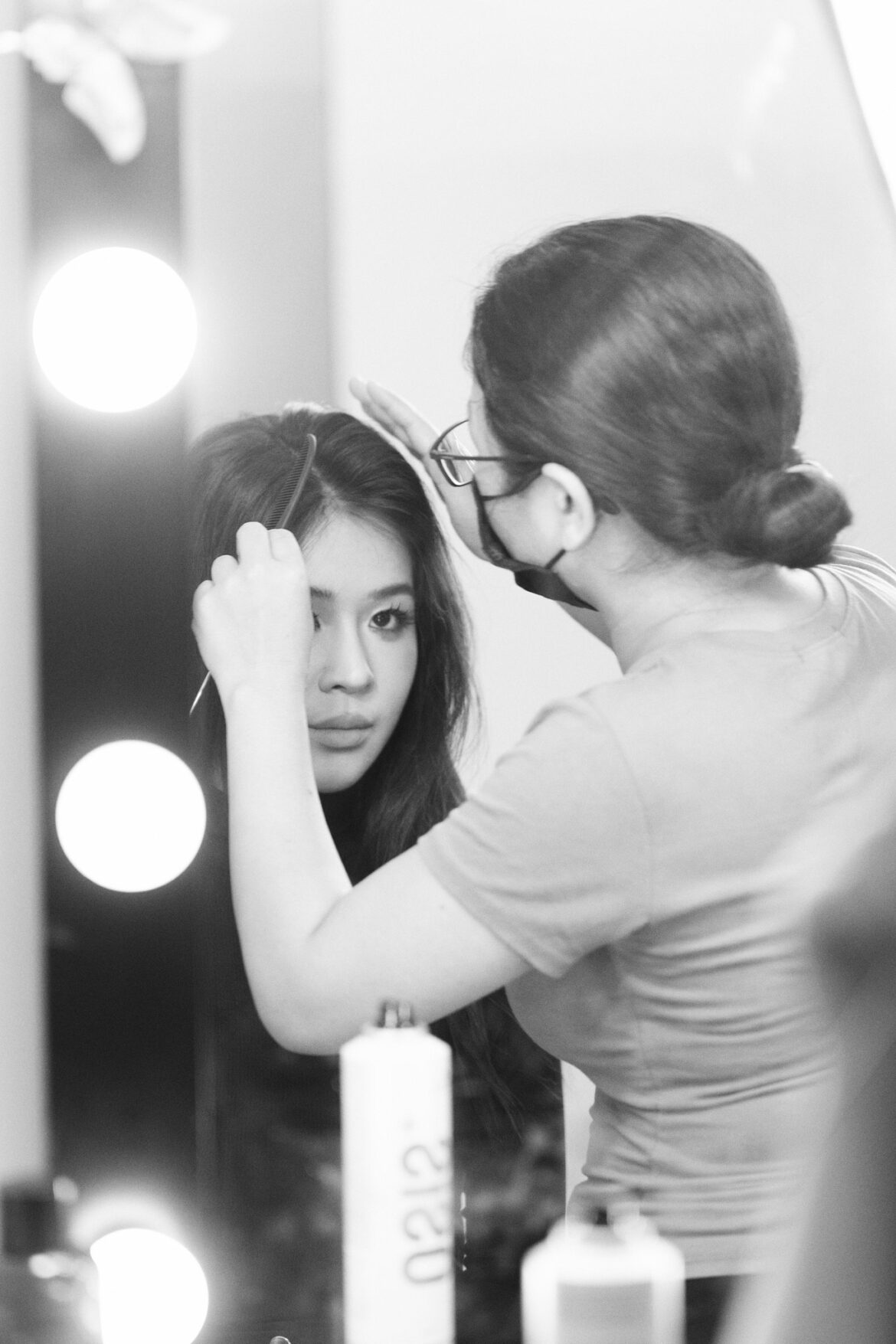
Đội ngũ Hi-En Makeup đang makeup cho khách tại resort Cam Lâm

3. Tiệm Ảnh Chú Hồng (Ba Ngòi) – Sự Lựa Chọn Tin Cậy

Với kinh nghiệm lâu năm, Tiệm ảnh chú Hồng luôn mang đến sự an tâm tuyệt đối cho khách hàng. Dịch vụ tận nơi của tiệm rất đúng giờ và thấu hiểu tâm lý khách hàng.

  • Thế mạnh: Trang điểm dự tiệc, trang điểm mẹ bầu hoặc gia đình với phong cách tự nhiên, chân thực.

  • Zalo: 0354726773 (Chú Hồng U40).
  • Địa chỉ: Phan Chu Trinh, Cam Lộc, TP. Cam Ranh (đang mở rộng chi nhánh Cam Lâm)
09/07/2017 7 comments
3 FacebookTwitterPinterestEmail
Newer Posts
Older Posts

Recent Posts

  • Dịch Vụ Makeup Cô Dâu Uy Tín Tại Cam Ranh – Rạng Rỡ Trong Ngày Trọng Đại
  • Frequency Separation 2021
  • Hướng dẫn cài đặt Delicious Retouch Panel 4.1.0 Full bản quyền
  • Bảng Giá Makeup Cô Dâu Tại Cam Ranh & Resort Cam Lâm 2026
  • Studio Chụp Ảnh Concept Chân Dung Đẹp Nhất Cam Ranh: Ghé Ngay Tiệm Ảnh Chú Hồng

VỀ CHÚNG TÔI

VỀ CHÚNG TÔI

Bắt đầu hành trình với nhiếp ảnh chuyên nghiệp từ năm 2022, tôi đã có cơ hội làm việc với hàng trăm khách hàng trong các mảng ảnh thẻ, profile, thôi nôi và đặc biệt là những bộ ảnh nghệ thuật tại các resort cao cấp. Với tư cách là người sáng lập hệ sinh thái nhiếp ảnh chuyên nghiệp (trong đó có Tiệm Ảnh Chú Hồng), tôi hiểu rằng mỗi bức ảnh không chỉ là kỹ thuật, mà là cảm xúc và câu chuyện của bạn.

Recent Posts

  • Dịch Vụ Makeup Cô Dâu Uy Tín Tại Cam Ranh – Rạng Rỡ Trong Ngày Trọng Đại

    01/05/2026
  • Frequency Separation 2021

    27/04/2026
  • Hướng dẫn cài đặt Delicious Retouch Panel 4.1.0 Full bản quyền

    26/04/2026

Categories

  • Cẩm Nang & Kinh Nghiệm (1)
  • Chụp Ảnh Resort Cam Lâm (3)
  • Dịch vụ makeup Cam Ranh (4)
  • Dịch Vụ Nhiếp Ảnh Cam Ranh (2)
  • Uncategorized (2)

About Me

About Me

Bắt đầu hành trình với nhiếp ảnh chuyên nghiệp từ năm 2022, tôi đã có cơ hội làm việc với hàng trăm khách hàng trong các mảng ảnh thẻ, profile, thôi nôi và đặc biệt là những bộ ảnh nghệ thuật tại các resort cao cấp. Với tư cách là người sáng lập hệ sinh thái nhiếp ảnh chuyên nghiệp (trong đó có Tiệm Ảnh Chú Hồng), tôi hiểu rằng mỗi bức ảnh không chỉ là kỹ thuật, mà là cảm xúc và câu chuyện của bạn.

Categories

  • Cẩm Nang & Kinh Nghiệm (1)
  • Chụp Ảnh Resort Cam Lâm (3)
  • Dịch vụ makeup Cam Ranh (4)
  • Dịch Vụ Nhiếp Ảnh Cam Ranh (2)
  • Uncategorized (2)

Popular Posts

  • 1

    Bảng Giá Gói Chụp Concept Phông Trơn Tại TP. Cam Ranh

    09/07/2017
  • 2

    BẢNG GIÁ DỊCH VỤ NHIẾP ẢNH TẠI RESORT (CAM RANH – CAM LÂM)

    09/07/2017
  • 3

    Top 5 Dịch Vụ Makeup Tận Nơi Tại Các Resort Cam Lâm, Bãi Dài Chuyên Nghiệp Nhất

    09/07/2017

KEEP CONNECTED

  • Facebook
  • Twitter
  • Instagram
  • Pinterest
  • Flickr
  • Behance
  • Youtube
  • Snapchat

@2019 - All Right Reserved. Designed and Developed by PenciDesign

NHIẾP ẢNH CAM RANH
  • Trang Chủ
  • Địa điểm chụp ảnh
  • Dịch vụ Cam Ranh
  • Review & Kinh Nghiệm
  • Bảng Giá
  • Liên Hệ